Published by Necta
Updated November 21, 2026
Transform your android devices into a wireless mouse, keyboard and trackpad
| Version | 3.0.5 |
| Size | 6.0 MB |
| What's New | 1. Support pressing volume +/- keys to make computer system volume up/down.2. Fix some bugs. |
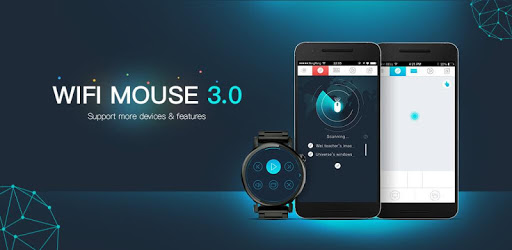
WiFi Mouse HD free is an Android app developed and published by Necta at Google Play Store on Oct 23, 2012 for Android users. WiFi Mouse HD free is so popular that it has gained 1000000 installs so far and growing.
Are you tired of constantly replacing your computer mouse? Do you wish there was a more convenient way to control your laptop or PC? Look no further than WiFi Mouse HD free, the revolutionary app that transforms your smartphone into a wireless mouse and keyboard!
Connecting your smartphone to your computer has never been easier. With WiFi Mouse HD free, you can seamlessly pair your device with any Windows, Mac, or Linux computer. Say goodbye to tedious setup processes and hello to instant connectivity.
However, some users have encountered difficulties when trying to connect the app with their Kali Linux OS computer. If you're facing a similar issue, fear not! We have a comprehensive guide on our website that provides step-by-step instructions on how to connect WiFi Mouse HD free with your Kali Linux OS computer.
WiFi Mouse HD free offers a range of features designed to enhance your user experience. One common request from users is the option to remove mouse buttons for a more spacious trackpad. We've heard you, and we're excited to announce that we've implemented this feature in our latest update. Now, you can enjoy a clutter-free trackpad, allowing for smoother navigation.
Moreover, we understand the importance of seamless scrolling when browsing through pages. While WiFi Mouse HD free already provides excellent functionality, we are continuously working to improve the scrolling experience. Our team is dedicated to ensuring that you have the best possible experience while using our app.
Are you a gamer who prefers using a mouse for precision control? WiFi Mouse HD free is here to save the day! With our app, you can transform your smartphone into a gaming mouse, eliminating the need for a physical mouse. Whether you're playing intense FPS games or exploring vast open-world adventures, WiFi Mouse HD free has got you covered.
One user expressed their gratitude, stating, "Thank you so much because this application helps me with my laptop to play games because I don't have a mouse to game." We're thrilled to be able to provide a solution for gamers who may not have access to a traditional mouse.
WiFi Mouse HD free offers more than just mouse functionality. It also serves as a wireless keyboard, allowing you to type effortlessly from the comfort of your smartphone. Whether you're responding to emails, writing documents, or chatting with friends, our app provides a seamless typing experience.
Another user shared their experience, saying, "I just walk around my house and choose music on YouTube with my phone... no need to touch the mouse." WiFi Mouse HD free truly simplifies your daily tasks, making it the ultimate tool for productivity and convenience.
Don't just take our word for it - hear it from our satisfied users. One reviewer from Uganda expressed their gratitude, stating, "I rarely review apps. But wow... this one saved me after a frustrating day of trying out so many apps. With thanks from Uganda." We're humbled by the positive feedback we receive from users worldwide.
With WiFi Mouse HD free, you can say goodbye to the hassle of constantly replacing computer mice. Our app is designed to provide a reliable and convenient alternative, ensuring that you can control your computer effortlessly. Join the WiFi Mouse HD free community today and experience the future of computer control!
Yes, you can use WiFi Mouse HD free with your Kali Linux OS computer. We have a comprehensive guide on our website that provides step-by-step instructions on how to connect the app with your Kali Linux OS computer.
Yes, you can remove mouse buttons in WiFi Mouse HD free. Our latest update includes this feature, allowing for a clutter-free trackpad and smoother navigation.
Yes, WiFi Mouse HD free supports gaming. You can transform your smartphone into a gaming mouse, eliminating the need for a physical mouse.
Yes, WiFi Mouse HD free also functions as a wireless keyboard. You can type effortlessly from your smartphone, making it a versatile tool for productivity.
Yes, you can run WiFi Mouse HD free on PC, but first, you will need emulator software installed on your Windows or MAC, which you can download for free. In the below video, you will find WiFi Mouse HD free in action. Before you install the emulator, check out the minimum and recommended system requirements to run it seamlessly. They may change depending on which version of the emulator you choose. Therefore, we recommend you download the latest version of the emulator. Below you will find three free Android emulators that we have shortlisted based on their popularity:
Up to date graphics drivers from Microsoft or the chipset vendor.
Storage: 1 GB available under installation path, 1.5GB available hard drive space
Internet: Broadband Internet connection
Regardless of which Android emulator you install, the steps to install, configure, and running the WiFi Mouse HD free app on PC are the same.