Wings of Steel for PC

Wings of Steel for PC

Published by Illusion Magic Studio

Updated August 2, 2025

Immersive and fun WWII air combat game for your phone and tablet!

What's New

Version0.3.9
Size104.9 MB
What's NewVersion 0.3.9 - Update SDKs.

Wings of Steel Screenshots

Wings of Steel PC screenshot

About Wings of Steel For PC

Wings of Steel is an Android app developed and published by Illusion Magic Studio at Google Play Store on Sep 28, 2018 for Android users. Wings of Steel is so popular that it has gained 100000 installs so far and growing.

Wings of Steel: A Flying Adventure

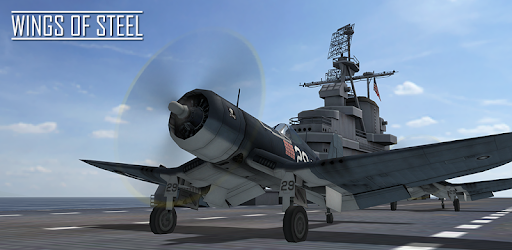
Prepare for takeoff with Wings of Steel, an immersive aircraft combat game that combines realistic graphics, intuitive controls, and exhilarating dogfights set in the backdrop of World War II. From the very first flight, you'll find yourself captivated by an experience that feels incredibly authentic and educational, teaching you the basics of flight and aerial combat.

Breathtaking Graphics and Realistic Physics

One of the standout features of Wings of Steel is its stunning graphics. Each aircraft model is intricately detailed, capturing the essence of World War II planes. Not just eye candy, the game applies pure physics to enhance realism. Whether soaring through clear skies or navigating through turbulent weather conditions, the realistic physics and aerodynamic handling make every flight truly engaging. This is complemented by the game's sound design, which immerses you with the roaring of engines and the crackling sound of gunfire.

Gameplay and Missions

Wings of Steel offers a variety of gameplay modes, including different missions and survival modes. The missions span multiple countries, allowing you to engage in aerial battles for Great Britain, Germany, the Soviets, and the Americans. The missions are diverse, blending dogfights, bombing runs, and other objectives that require strategic thinking. For example, in some missions, you may need to hit aircraft carriers or battleships using torpedoes or bombs, adding layers of tactical depth.

Replay Mode

The replay mode is a real gem for players who enjoy analyzing their performance. After completing a mission, you can watch your gameplay, reliving the thrill of each maneuver and dogfight. This feature makes the game not only fun but also educational, allowing you to identify areas for improvement and celebrate your aerial triumphs.

Control Options

While the controls can take some getting used to, they offer a range of options to suit different playstyles. You can choose between tilt controls or a virtual joystick. Some players might find the virtual joystick too sensitive, but a sensitivity slider can improve this experience. Mastering the controls is key to becoming proficient in the game, but once you get the hang of it, you're in for a rewarding experience.

Aircraft and Customization

The diversity of aircraft available in Wings of Steel is another highlight. Players can choose from a variety of planes, each with its own unique attributes. However, many players have expressed a desire for even more planes, especially iconic models like the B-17 and B-29. Customizing aircraft for different missions, choosing between bombs, torpedoes, and rockets, adds another layer of strategy and excitement.

Future Updates and Community Wishes

The game's community is passionate and engaged, often suggesting new features and improvements. There are calls for more missions, additional planes, and even specific features like a parking brake actuator for the B-17. These community-driven suggestions highlight the game's potential for growth and the developers' openness to player feedback.

A Tribute to Historical Aviation

Wings of Steel does more than provide entertainment; it offers a glimpse into the challenges faced by pilots during World War II. Through its missions and realistic settings, players gain a deeper appreciation for the bravery and skill of historical pilots. Whether flying solo missions or as part of a squadron, the game offers an authentic and historically rich experience.

Ready for your next mission? Wings of Steel awaits you, offering endless skies to explore, countless enemies to defeat, and a rich historical context to immerse yourself in. So, buckle up, take to the skies, and make aviation history!

Can I run Wings of Steel on PC?

Yes, you can run Wings of Steel on PC, but first, you will need emulator software installed on your Windows or MAC, which you can download for free. In the below video, you will find Wings of Steel in action. Before you install the emulator, check out the minimum and recommended system requirements to run it seamlessly. They may change depending on which version of the emulator you choose. Therefore, we recommend you download the latest version of the emulator. Below you will find three free Android emulators that we have shortlisted based on their popularity:

How to Install Wings of Steel on Windows PC

BlueStacks

Minimum
  • OS: Microsoft Windows 7 and above.
  • Processor: Intel or AMD Processor.
  • RAM: Your PC must have at least 4GB of RAM. (Note that having 4GB or more disk space is not a substitute for RAM)
  • Storage: 5GB Free Disk Space.
  • You must be an Administrator on your PC.
Recommended:
  • OS: Microsoft Windows 10
  • Processor: Intel or AMD Multi-Core Processor with Single Thread benchmark score > 1000.
  • Graphics: Intel/Nvidia/ATI, Onboard or Discrete controller with benchmark score >= 750.
  • Please ensure Virtualization is enabled on your PC/Laptop.
  • RAM: 8GB or higher
  • Storage: SSD (or Fusion/Hybrid Drives)
  • Internet: Broadband connection to access games, accounts and related content.

Up to date graphics drivers from Microsoft or the chipset vendor.

  • To start with, download Bluestacks from its official website. The latest version of BluesStacks is v 5, and it is around 400 MB.
  • Once the download is done, click on the Bluestacks set up file to install it on your Windows PC. Follow the on-screen instructions and install it accordingly.
  • The next step is to launch the emulator using the desktop shortcut and sign in using your Google account.
  • Now, head over to Bluestacks home screen and click on the Google Play Store icon.
  • Hit the search bar in Google Play and search for Wings of Steel.
  • Install Wings of Steel from the Play Store by clicking the Install option, which completes downloading of Wings of Steel on PC.

NoxPlayer

Minimum
  • Operating System: Windows XP SP3, Windows Vista, Windows 7, Windows 8, Windows 10, and DirectX 9.0c
  • Processor: At least dual-core processor, both Intel, and AMD are OK
  • Video: Supports Open GL 2.0 or above
  • Memory: 1.5 GB RAM
Recommended
  • Operating System: Windows 7, Windows 8, Windows 10
  • Processor: Multiple core processors which support VT-x or AMB-V Virtualization Technology, better performance with this function enabled
  • Video: The higher performance, the better
  • Memory: 4 GB RAM

Storage: 1 GB available under installation path, 1.5GB available hard drive space

Internet: Broadband Internet connection

  • Download NoxPlayer from the official website. The latest version of NoxPlayer is v 3, and it is around 600 MB.
  • Now install the emulator using the downloaded setup file. Just go through the on-screen instructions and install NoxPlayer on your computer or laptop.
  • After the installation process, launch the Nox Android emulator and log in using your Google account when it asks you.
  • Click on the Google Play Store icon and head over to the search bar to search Wings of Steel. Once found, click on the Install button to install Wings of Steel for PC.
  • If you do not find Wings of Steel on Google Play Store or if you want to skip logging in to Google, you can sideload APK (download the .APK file from this page and open it with NoxPlayer).
  • Launch Wings of Steel from home-screen and start playing it on PC right away!

MEmu

Minimum
  • 2 cores x86/x86_64 Processor (Intel or AMD CPU)
  • WinXP SP3 / Win7 / Win8 / Win10 (Not recommended to run on Server/Enterprise)
  • Latest Windows DirectX 11 / Graphics driver with OpenGL 2.0
  • Hardware Virtualization Technology (Intel VT-x/AMD-V) shall be enabled in BIOS
  • 2GB of RAM (4GB for x64 system)
  • 5GB of hard disk free space
Recommended
  • OS: Microsoft Windows 10 with VT Enabled
  • CPU: Single Thread PassMark score > 1500 (Intel/AMD Multi-Core).
  • Graphics: Intel/Nvidia/ATI, Onboard or Discrete controller with PassMark score > 750.
  • Latest Windows DirectX 11 / Graphics driver with OpenGL 4.5 or higher
  • RAM: 8GB or higher
  • HDD: SSD, 10GB of hard disk free space
  • Internet: Broadband connection with low latency for FPS games
  • Download MEmu Play from the official website. The latest version of NoxPlayer is v 7.5.
  • When the download is completed, install the MEmu emulator on your PC. Follow the on-screen instructions and keep on clicking the Next button until the final step.
  • Now, using the desktop shortcut, look for the MEmu Play emulator and launch it. Once done, it will ask you to log in using your Google account, proceed with the same.
  • MEmu Play will ask you to log in using your Google account. When you log in, it will sync your Google account to MEmu Play. Launch the Google Play Store by clicking on the icon and search for Wings of Steel.
  • Click on the Install button once you find Wings of Steel from the search results. You can also sideload APK (download the .APK file from this page and open it with MEmu) if you want to skip above step.
  • After the installation of Wings of Steel, you're all set to use the app on PC!

Regardless of which Android emulator you install, the steps to install, configure, and running the Wings of Steel app on PC are the same.
Download Wings of Steel For PC