Published by Rovio Entertainment Corporation
Updated September 18, 2026
Sink your opponents in a 5v5 multiplayer battle arena on the waves!
| Version | 5.3.4 |
| Size | 391.0 MB |
| What's New | Ahoy Ho Ho!_New festive skin_Minor bug fixes |
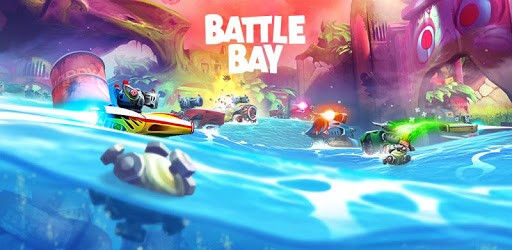
Battle Bay is an Android app developed and published by Rovio Entertainment Corporation at Google Play Store on May 3, 2017 for Android users. Battle Bay is so popular that it has gained 15908710 installs so far and growing.
Battle Bay is an incredible game that unfortunately went unnoticed by many gamers around the world. With its unique gameplay and captivating features, it has become one of the greatest games in the market. In this article, we will explore the highlights of Battle Bay and discuss some areas that could be improved to enhance the overall gaming experience.
One of the major concerns raised by players is the unfair matchmaking system in Battle Bay. Currently, ships are matched based on their infamy, which often leads to imbalanced battles. Many players have expressed their disappointment, especially in ranked games where infamy is lost in a glimpse. To improve the gaming experience, it is crucial for the developers to address this issue and ensure that ships are matched based on similar levels and gear scores.
Another aspect that players have highlighted is the complexity and cost of upgrades. To make the game more inclusive and enjoyable for all players, it is essential to simplify the upgrade system and make it more affordable. By doing so, every player can participate in battles without restrictions on their capabilities, ultimately creating a more balanced and engaging gameplay environment.
Despite these concerns, Battle Bay continues to provide endless fun and excitement for its players. The gameplay is fantastic, and the events offer great opportunities for leveling up and obtaining perks to enhance your arsenal. With a wide variety of guns and ships to choose from, players can customize their loadouts to suit their preferred playstyle. The game truly offers an amazing experience that keeps players coming back for more.
While Battle Bay offers an array of ships to choose from, some players have found it challenging to acquire certain ships. Although these ships provide a new and unique experience, their rarity can make it difficult for players to obtain them. It would be beneficial for the developers to consider adjusting the acquisition process to make these ships more accessible to dedicated players.
Despite concerns about the lack of updates, Battle Bay's developers have shown their dedication to the game. Regular updates and improvements demonstrate their commitment to providing an exceptional gaming experience. It is noteworthy that the developers have managed to create a game that is free-to-play friendly, allowing players to progress and obtain good gear without spending real money.
While the developers have done an excellent job in many aspects, the matchmaking system still requires some fine-tuning. Players have expressed the need for shorter waiting times and more balanced matches. By addressing these concerns, the developers can further enhance the overall gameplay experience and keep players engaged for even longer periods.
Battle Bay is undoubtedly a remarkable game that offers a unique and engaging experience. With its captivating gameplay, wide range of customization options, and exciting events, it has managed to capture the hearts of many players. While there are areas that could be improved, such as the matchmaking system and accessibility of certain ships, it is clear that Battle Bay has the potential to become an even greater game with the right adjustments. The dedication of the developers and their commitment to regular updates are commendable, and it is exciting to see how the game will continue to evolve in the future.
Yes, Battle Bay is a free-to-play game that offers in-app purchases for additional perks and bonuses.
Battle Bay is relatively ad-free, with minimal advertisements unless players choose to watch them for bonuses or extra turns.
Currently, Battle Bay requires an internet connection to play. However, players have suggested the addition of an offline mode, allowing them to use AI for players and pause the game. This suggestion may be considered by the developers in the future.
Currently, Battle Bay only allows teams of two players. While expanding the team size may pose challenges in matchmaking, players have expressed their desire for larger teams. It remains to be seen if the developers will find a way to balance matchmaking and accommodate larger teams.
Battle Bay is a game that can be enjoyed by players of all ages. It offers a fun and interactive experience, allowing players to make friends within the game.
Yes, you can run Battle Bay on PC, but first, you will need emulator software installed on your Windows or MAC, which you can download for free. In the below video, you will find Battle Bay in action. Before you install the emulator, check out the minimum and recommended system requirements to run it seamlessly. They may change depending on which version of the emulator you choose. Therefore, we recommend you download the latest version of the emulator. Below you will find three free Android emulators that we have shortlisted based on their popularity:
Up to date graphics drivers from Microsoft or the chipset vendor.
Storage: 1 GB available under installation path, 1.5GB available hard drive space
Internet: Broadband Internet connection
Regardless of which Android emulator you install, the steps to install, configure, and running the Battle Bay app on PC are the same.