War Council for PC

War Council for PC

Published by CMON

Updated November 26, 2026

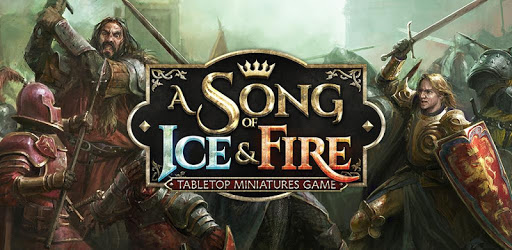
The official Song of Ice & Fire: Tabletop Miniatures Game companion app

What's New

Version1.41.2
Size86.3 MB
What's NewBug fixes

War Council Screenshots

War Council PC screenshot

About War Council For PC

War Council is an Android app developed and published by CMON at Google Play Store on Oct 15, 2018 for Android users. War Council is so popular that it has gained 59887 installs so far and growing.

War Council: The Ultimate Companion App for A Song Of Ice And Fire Miniatures Game

War Council is the perfect companion app for A Song Of Ice And Fire Miniatures Game. With its impressive features and user-friendly interface, it has quickly become a favorite among players. This article will delve into the various aspects of the app, highlighting its benefits and why it is a must-have for any fan of the game.

Effortless List Sharing and Printing

One of the standout features of War Council is its seamless import and export functionality. Players can easily share their army lists with others, making it a breeze to collaborate and strategize. Additionally, the ability to print lists directly from the app is a game-changer. Gone are the days of manually writing down your army composition - now you can have a neatly printed list at your fingertips.

Comprehensive Rule and Card Database

War Council comes equipped with all the updated rules, stat cards, and tactic cards for your army. This comprehensive database ensures that you have access to the most up-to-date information, eliminating the need to constantly refer to rulebooks or search for card details. The developers have truly gone above and beyond in providing players with a complete and convenient resource.

Free and Full-Featured

One of the most impressive aspects of War Council is that it is completely free. Despite being free, the app offers everything a player needs to fully enjoy the game. This is a refreshing change compared to other games that require constant purchases of new versions and rulebooks. War Council sets a new standard by providing all the necessary tools without any additional cost.

Intuitive and User-Friendly

War Council is incredibly easy to use, even for beginners. The app's intuitive interface allows for effortless navigation and quick access to all the features. Whether you're building armies, referring to unit cards, or exploring the rule database, everything is just a few taps away. The developers have truly prioritized user experience, resulting in a smooth and enjoyable app.

Frequently Asked Questions

1. Is War Council available for other tabletop games?

No, War Council is exclusively designed for A Song Of Ice And Fire Miniatures Game. It is tailored to meet the specific needs of this game and provides a comprehensive companion experience.

2. Can I expect regular updates and support for War Council?

Absolutely! The developers of War Council are dedicated to providing ongoing support and updates. They ensure that the app remains up-to-date with the latest errata, FAQs, and unit releases. You can rely on War Council to keep you informed and equipped with the most current information.

3. Does War Council include a feature to test armies using proxies?

Currently, War Council does not have a feature to display upcoming units for testing armies with proxies. However, the app's developers are constantly working to enhance the user experience and may consider adding this feature in future updates.

4. Can I access War Council offline?

War Council requires an internet connection to access its extensive database and receive updates. However, once you have accessed the app and downloaded the necessary resources, you can use it offline to reference rules, cards, and your army lists.

5. Is War Council available on both iOS and Android?

Yes, War Council is available for both iOS and Android devices. You can enjoy its features and benefits regardless of your preferred mobile operating system.

In conclusion, War Council is a game-changing companion app for A Song Of Ice And Fire Miniatures Game. With its effortless list sharing, comprehensive rule and card database, free and full-featured nature, and intuitive user interface, it has become an essential tool for players. Say goodbye to the hassle of carrying rulebooks and searching for information - War Council has it all in one place. Download the app today and take your gaming experience to new heights!

Can I run War Council on PC?

Yes, you can run War Council on PC, but first, you will need emulator software installed on your Windows or MAC, which you can download for free. In the below video, you will find War Council in action. Before you install the emulator, check out the minimum and recommended system requirements to run it seamlessly. They may change depending on which version of the emulator you choose. Therefore, we recommend you download the latest version of the emulator. Below you will find three free Android emulators that we have shortlisted based on their popularity:

How to Install War Council on Windows PC

BlueStacks

Minimum
  • OS: Microsoft Windows 7 and above.
  • Processor: Intel or AMD Processor.
  • RAM: Your PC must have at least 4GB of RAM. (Note that having 4GB or more disk space is not a substitute for RAM)
  • Storage: 5GB Free Disk Space.
  • You must be an Administrator on your PC.
Recommended:
  • OS: Microsoft Windows 10
  • Processor: Intel or AMD Multi-Core Processor with Single Thread benchmark score > 1000.
  • Graphics: Intel/Nvidia/ATI, Onboard or Discrete controller with benchmark score >= 750.
  • Please ensure Virtualization is enabled on your PC/Laptop.
  • RAM: 8GB or higher
  • Storage: SSD (or Fusion/Hybrid Drives)
  • Internet: Broadband connection to access games, accounts and related content.

Up to date graphics drivers from Microsoft or the chipset vendor.

  • To start with, download Bluestacks from its official website. The latest version of BluesStacks is v 5, and it is around 400 MB.
  • Once the download is done, click on the Bluestacks set up file to install it on your Windows PC. Follow the on-screen instructions and install it accordingly.
  • The next step is to launch the emulator using the desktop shortcut and sign in using your Google account.
  • Now, head over to Bluestacks home screen and click on the Google Play Store icon.
  • Hit the search bar in Google Play and search for War Council.
  • Install War Council from the Play Store by clicking the Install option, which completes downloading of War Council on PC.

NoxPlayer

Minimum
  • Operating System: Windows XP SP3, Windows Vista, Windows 7, Windows 8, Windows 10, and DirectX 9.0c
  • Processor: At least dual-core processor, both Intel, and AMD are OK
  • Video: Supports Open GL 2.0 or above
  • Memory: 1.5 GB RAM
Recommended
  • Operating System: Windows 7, Windows 8, Windows 10
  • Processor: Multiple core processors which support VT-x or AMB-V Virtualization Technology, better performance with this function enabled
  • Video: The higher performance, the better
  • Memory: 4 GB RAM

Storage: 1 GB available under installation path, 1.5GB available hard drive space

Internet: Broadband Internet connection

  • Download NoxPlayer from the official website. The latest version of NoxPlayer is v 3, and it is around 600 MB.
  • Now install the emulator using the downloaded setup file. Just go through the on-screen instructions and install NoxPlayer on your computer or laptop.
  • After the installation process, launch the Nox Android emulator and log in using your Google account when it asks you.
  • Click on the Google Play Store icon and head over to the search bar to search War Council. Once found, click on the Install button to install War Council for PC.
  • If you do not find War Council on Google Play Store or if you want to skip logging in to Google, you can sideload APK (download the .APK file from this page and open it with NoxPlayer).
  • Launch War Council from home-screen and start playing it on PC right away!

MEmu

Minimum
  • 2 cores x86/x86_64 Processor (Intel or AMD CPU)
  • WinXP SP3 / Win7 / Win8 / Win10 (Not recommended to run on Server/Enterprise)
  • Latest Windows DirectX 11 / Graphics driver with OpenGL 2.0
  • Hardware Virtualization Technology (Intel VT-x/AMD-V) shall be enabled in BIOS
  • 2GB of RAM (4GB for x64 system)
  • 5GB of hard disk free space
Recommended
  • OS: Microsoft Windows 10 with VT Enabled
  • CPU: Single Thread PassMark score > 1500 (Intel/AMD Multi-Core).
  • Graphics: Intel/Nvidia/ATI, Onboard or Discrete controller with PassMark score > 750.
  • Latest Windows DirectX 11 / Graphics driver with OpenGL 4.5 or higher
  • RAM: 8GB or higher
  • HDD: SSD, 10GB of hard disk free space
  • Internet: Broadband connection with low latency for FPS games
  • Download MEmu Play from the official website. The latest version of NoxPlayer is v 7.5.
  • When the download is completed, install the MEmu emulator on your PC. Follow the on-screen instructions and keep on clicking the Next button until the final step.
  • Now, using the desktop shortcut, look for the MEmu Play emulator and launch it. Once done, it will ask you to log in using your Google account, proceed with the same.
  • MEmu Play will ask you to log in using your Google account. When you log in, it will sync your Google account to MEmu Play. Launch the Google Play Store by clicking on the icon and search for War Council.
  • Click on the Install button once you find War Council from the search results. You can also sideload APK (download the .APK file from this page and open it with MEmu) if you want to skip above step.
  • After the installation of War Council, you're all set to use the app on PC!

Regardless of which Android emulator you install, the steps to install, configure, and running the War Council app on PC are the same.