Octopus -  Play games with gamepad,mouse,keyboard for PC

Octopus - Play games with gamepad,mouse,keyboard for PC

Published by Phoenix Studio(Chaozhuo Tech)

Updated September 9, 2025

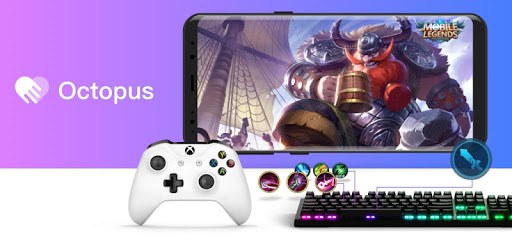
Play games with Gamepad(Xbox, PS, IPEGA, GameSir, etc.), mouse, keyboard!

What's New

Version7.2.8
Size14.9 MB
What's NewCrash Fix & Google login Fix;

Octopus - Play games with gamepad,mouse,keyboard Screenshots

Octopus -  Play games with gamepad,mouse,keyboard PC screenshot

About Octopus - Play games with gamepad,mouse,keyboard For PC

Octopus - Play games with gamepad,mouse,keyboard is an Android app developed and published by Phoenix Studio(Chaozhuo Tech) at Google Play Store on Jan 21, 2018 for Android users. Octopus - Play games with gamepad,mouse,keyboard is so popular that it has gained 5000000 installs so far and growing.

Play Games Effortlessly with Octopus - Gamepad, Mouse, Keyboard Compatibility

Are you looking for a way to enhance your gaming experience on mobile? Octopus, the app that enables you to play games using a gamepad, mouse, or keyboard, is a remarkable solution. Imagine playing your favorite mobile games with the precision and comfort of a joystick or keyboard—sounds exciting, right?

Seamless Gaming with Gamepad Support

Playing games with a gamepad on Octopus can elevate your gameplay to a new level. Whether you're slaying monsters or racing cars, the app offers a smooth and seamless experience. It’s designed to integrate effortlessly with various gamepads, ensuring you have superior control and accuracy in your favorite games. However, some limitations might exist with certain titles, needing a few tweaks here and there for optimal performance.

Enhanced Control with Mouse and Keyboard

Octopus doesn't stop at gamepads; it also supports mouse and keyboard. This feature is especially enticing for gamers who prefer the comfort and familiarity of a keyboard and mouse over touch controls. Whether you're navigating through thrilling adventures or building intricate worlds, this app enables you to play with the tools you're most comfortable with. It’s perfect for titles that require precise movements, like FPS games or strategy games.

Setting Up Octopus

Getting started with Octopus is straightforward. After downloading the app, you can easily link it to the games you want to play using your gamepad, mouse, or keyboard. Connecting your devices is usually a smooth process, ensuring you’re ready to jump into action without much hassle. If you encounter any challenges, online resources and guides can be a big help.

Performance and Sensitivity

Many users have praised Octopus for its performance. The app is known for its responsiveness and minimal lag, offering an enjoyable gaming experience. Sometimes, you might find the sensitivity a tad high, but this can often be adjusted within the settings to fit your preference. Fine-tuning these settings ensures you get the best performance tailored to your gaming style.

Compatibility and Issues

While Octopus supports a vast array of games, there might be some hiccups with specific titles. For instance, some popular games may not work as expected, requiring additional configuration or may face some compatibility issues. However, the consistent updates and community support often provide solutions to these challenges. If you’re having trouble, a quick search or a guide on YouTube might just offer the fix you need.

Unlocking Full Potential

Octopus has features available for free, making it accessible to everyone. However, unlocking its full potential may require an in-app purchase. These features can provide a more enriched gaming experience, making it a worthy investment for avid gamers. Plus, developers regularly roll out updates, ensuring the app evolves and improves continuously.

Use on PC

Interestingly, Octopus isn't just confined to mobile devices. It also works well on PCs. By connecting through your PC, you can experience your favorite mobile games with the added power and performance of a computer. This versatility makes the app ideal for gamers who enjoy playing across different platforms.

A Community-Backed Experience

Engaging with other gamers in the community is another fantastic aspect of Octopus. Through forums and guides, you can find solutions to common issues and tips to enhance your gaming experience. If you're new to the app, these resources can be especially beneficial.

Octopus is a versatile and user-friendly tool that brings together gamepads, mice, and keyboards into the mobile gaming world. Whether you're a casual gamer looking to up your game or a hardcore gamer seeking better control and responsiveness, this app offers a seamless and enjoyable experience.

Can I run Octopus - Play games with gamepad,mouse,keyboard on PC?

Yes, you can run Octopus - Play games with gamepad,mouse,keyboard on PC, but first, you will need emulator software installed on your Windows or MAC, which you can download for free. In the below video, you will find Octopus - Play games with gamepad,mouse,keyboard in action. Before you install the emulator, check out the minimum and recommended system requirements to run it seamlessly. They may change depending on which version of the emulator you choose. Therefore, we recommend you download the latest version of the emulator. Below you will find three free Android emulators that we have shortlisted based on their popularity:

How to Install Octopus - Play games with gamepad,mouse,keyboard on Windows PC

BlueStacks

Minimum
  • OS: Microsoft Windows 7 and above.
  • Processor: Intel or AMD Processor.
  • RAM: Your PC must have at least 4GB of RAM. (Note that having 4GB or more disk space is not a substitute for RAM)
  • Storage: 5GB Free Disk Space.
  • You must be an Administrator on your PC.
Recommended:
  • OS: Microsoft Windows 10
  • Processor: Intel or AMD Multi-Core Processor with Single Thread benchmark score > 1000.
  • Graphics: Intel/Nvidia/ATI, Onboard or Discrete controller with benchmark score >= 750.
  • Please ensure Virtualization is enabled on your PC/Laptop.
  • RAM: 8GB or higher
  • Storage: SSD (or Fusion/Hybrid Drives)
  • Internet: Broadband connection to access games, accounts and related content.

Up to date graphics drivers from Microsoft or the chipset vendor.

  • To start with, download Bluestacks from its official website. The latest version of BluesStacks is v 5, and it is around 400 MB.
  • Once the download is done, click on the Bluestacks set up file to install it on your Windows PC. Follow the on-screen instructions and install it accordingly.
  • The next step is to launch the emulator using the desktop shortcut and sign in using your Google account.
  • Now, head over to Bluestacks home screen and click on the Google Play Store icon.
  • Hit the search bar in Google Play and search for Octopus - Play games with gamepad,mouse,keyboard.
  • Install Octopus - Play games with gamepad,mouse,keyboard from the Play Store by clicking the Install option, which completes downloading of Octopus - Play games with gamepad,mouse,keyboard on PC.

NoxPlayer

Minimum
  • Operating System: Windows XP SP3, Windows Vista, Windows 7, Windows 8, Windows 10, and DirectX 9.0c
  • Processor: At least dual-core processor, both Intel, and AMD are OK
  • Video: Supports Open GL 2.0 or above
  • Memory: 1.5 GB RAM
Recommended
  • Operating System: Windows 7, Windows 8, Windows 10
  • Processor: Multiple core processors which support VT-x or AMB-V Virtualization Technology, better performance with this function enabled
  • Video: The higher performance, the better
  • Memory: 4 GB RAM

Storage: 1 GB available under installation path, 1.5GB available hard drive space

Internet: Broadband Internet connection

  • Download NoxPlayer from the official website. The latest version of NoxPlayer is v 3, and it is around 600 MB.
  • Now install the emulator using the downloaded setup file. Just go through the on-screen instructions and install NoxPlayer on your computer or laptop.
  • After the installation process, launch the Nox Android emulator and log in using your Google account when it asks you.
  • Click on the Google Play Store icon and head over to the search bar to search Octopus - Play games with gamepad,mouse,keyboard. Once found, click on the Install button to install Octopus - Play games with gamepad,mouse,keyboard for PC.
  • If you do not find Octopus - Play games with gamepad,mouse,keyboard on Google Play Store or if you want to skip logging in to Google, you can sideload APK (download the .APK file from this page and open it with NoxPlayer).
  • Launch Octopus - Play games with gamepad,mouse,keyboard from home-screen and start playing it on PC right away!

MEmu

Minimum
  • 2 cores x86/x86_64 Processor (Intel or AMD CPU)
  • WinXP SP3 / Win7 / Win8 / Win10 (Not recommended to run on Server/Enterprise)
  • Latest Windows DirectX 11 / Graphics driver with OpenGL 2.0
  • Hardware Virtualization Technology (Intel VT-x/AMD-V) shall be enabled in BIOS
  • 2GB of RAM (4GB for x64 system)
  • 5GB of hard disk free space
Recommended
  • OS: Microsoft Windows 10 with VT Enabled
  • CPU: Single Thread PassMark score > 1500 (Intel/AMD Multi-Core).
  • Graphics: Intel/Nvidia/ATI, Onboard or Discrete controller with PassMark score > 750.
  • Latest Windows DirectX 11 / Graphics driver with OpenGL 4.5 or higher
  • RAM: 8GB or higher
  • HDD: SSD, 10GB of hard disk free space
  • Internet: Broadband connection with low latency for FPS games
  • Download MEmu Play from the official website. The latest version of NoxPlayer is v 7.5.
  • When the download is completed, install the MEmu emulator on your PC. Follow the on-screen instructions and keep on clicking the Next button until the final step.
  • Now, using the desktop shortcut, look for the MEmu Play emulator and launch it. Once done, it will ask you to log in using your Google account, proceed with the same.
  • MEmu Play will ask you to log in using your Google account. When you log in, it will sync your Google account to MEmu Play. Launch the Google Play Store by clicking on the icon and search for Octopus - Play games with gamepad,mouse,keyboard.
  • Click on the Install button once you find Octopus - Play games with gamepad,mouse,keyboard from the search results. You can also sideload APK (download the .APK file from this page and open it with MEmu) if you want to skip above step.
  • After the installation of Octopus - Play games with gamepad,mouse,keyboard, you're all set to use the app on PC!

Regardless of which Android emulator you install, the steps to install, configure, and running the Octopus - Play games with gamepad,mouse,keyboard app on PC are the same.

Download Octopus - Play games with gamepad,mouse,keyboard For PC