ONVIF IP Camera Monitor (Onvifer) for PC

ONVIF IP Camera Monitor (Onvifer) for PC

Published by Biyee SciTech, Inc.

Updated July 29, 2025

Modern IP Camera Video Management System Support 10,000+ models, Hi-Performance

What's New

Version21.25
Size13.5 MB
What's New2026-01-20 21.25, 21.23(PR), 21.21 (PR)Revamped the home screen UI.Improved multi-view closing.This is the first version requiring Android 6 (Marshmallow) or later.2026-01-12 21.19, 21.17(PR)New (Pro): option to use Dropbox to export/import camera configurations. Unlike the Google Drive option, the Dropbox option does not require any other app or service running in the background. It should benefit TV devices.

ONVIF IP Camera Monitor (Onvifer) Screenshots

ONVIF IP Camera Monitor (Onvifer) PC screenshot

About ONVIF IP Camera Monitor (Onvifer) For PC

ONVIF IP Camera Monitor (Onvifer) is an Android app developed and published by Biyee SciTech, Inc. at Google Play Store on Mar 7, 2012 for Android users. ONVIF IP Camera Monitor (Onvifer) is so popular that it has gained 500000 installs so far and growing.

ONVIF IP Camera Monitor (Onvifer): An All-in-One Surveillance Solution

Are you tired of struggling to get your IP cameras to work seamlessly with your devices? Look no further than ONVIF IP Camera Monitor (Onvifer). This incredible app lets you connect and monitor multiple cameras with ease, all from one interface, making it the perfect companion for anyone needing a reliable surveillance solution.

Effortless Multiview Configuration

One of the standout features of ONVIF IP Camera Monitor (Onvifer) is its ability to configure multiple camera views quickly. Imagine having a grid of your security cameras pop up on your TV within seconds. It's no longer a dream—Onvifer makes it a reality. With this app, setting up a multiview display of your chosen cameras is as easy as pie.

Compatible with Numerous Camera Brands

Worried about compatibility? Don't be. ONVIF IP Camera Monitor (Onvifer) works seamlessly with a wide range of camera brands. Whether you're using popular models like Lorex, Floureon, Reolink, or even generic Chinese cameras, this app has got you covered. The app’s ability to automatically detect and configure these cameras saves you the hassle of manual settings.

Quick and Easy Setup

Setting up your IP cameras can be tricky, but ONVIF IP Camera Monitor (Onvifer) simplifies the process to the point where even newcomers can do it effortlessly. You won’t have to dig through complex menus or look for hidden features—everything is intuitive and straightforward. Just let the app scan your network, and it will find and configure the cameras for you.

Advanced Features for Professional Use

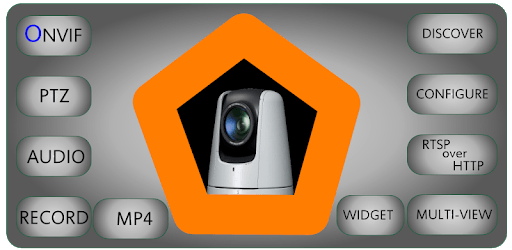
For those who need more than basic surveillance, ONVIF IP Camera Monitor (Onvifer) offers advanced options like PTZ (pan-tilt-zoom) controls and audio monitoring. These features ensure you have full control over your cameras, allowing you to zoom in on suspicious activity or listen to what's happening on the other side of the lens. Whether for home or professional use, this app offers a comprehensive set of tools.

Cross-Platform Availability

Whether you’re using an Android device, Windows computer, or even an Android TV, ONVIF IP Camera Monitor (Onvifer) has versions that work perfectly across different platforms. This cross-platform compatibility means you can monitor your cameras from virtually any device, making it incredibly versatile for various surveillance needs.

Reliable and Consistent Performance

When it comes to security, reliability is crucial. ONVIF IP Camera Monitor (Onvifer) delivers consistent performance, ensuring that you can always rely on it for your surveillance needs. Even when using older camera models or dealing with finicky devices, this app excels in maintaining stable and reliable feeds.

Cost-Effective Surveillance Solution

Budget-conscious users will appreciate the cost-effectiveness of ONVIF IP Camera Monitor (Onvifer). While the basic version offers a lot, upgrading to the Pro version unlocks additional features that are well worth the investment. For roughly $10, you gain access to a professional-grade surveillance solution that would otherwise cost much more with other systems.

No Prerequisites Needed

One of the app's significant advantages is that it doesn't require any external services or subscriptions. You can set up and manage your cameras without needing an online service, eliminating the risk and hassle of depending on third-party platforms.

In summary, ONVIF IP Camera Monitor (Onvifer) is a powerful, easy-to-use app that simplifies the management of multiple IP cameras. Its user-friendly interface, wide range of compatible devices, and advanced features make it an unbeatable choice for both novices and professionals alike.

Can I run ONVIF IP Camera Monitor (Onvifer) on PC?

Yes, you can run ONVIF IP Camera Monitor (Onvifer) on PC, but first, you will need emulator software installed on your Windows or MAC, which you can download for free. In the below video, you will find ONVIF IP Camera Monitor (Onvifer) in action. Before you install the emulator, check out the minimum and recommended system requirements to run it seamlessly. They may change depending on which version of the emulator you choose. Therefore, we recommend you download the latest version of the emulator. Below you will find three free Android emulators that we have shortlisted based on their popularity:

How to Install ONVIF IP Camera Monitor (Onvifer) on Windows PC

BlueStacks

Minimum
  • OS: Microsoft Windows 7 and above.
  • Processor: Intel or AMD Processor.
  • RAM: Your PC must have at least 4GB of RAM. (Note that having 4GB or more disk space is not a substitute for RAM)
  • Storage: 5GB Free Disk Space.
  • You must be an Administrator on your PC.
Recommended:
  • OS: Microsoft Windows 10
  • Processor: Intel or AMD Multi-Core Processor with Single Thread benchmark score > 1000.
  • Graphics: Intel/Nvidia/ATI, Onboard or Discrete controller with benchmark score >= 750.
  • Please ensure Virtualization is enabled on your PC/Laptop.
  • RAM: 8GB or higher
  • Storage: SSD (or Fusion/Hybrid Drives)
  • Internet: Broadband connection to access games, accounts and related content.

Up to date graphics drivers from Microsoft or the chipset vendor.

  • To start with, download Bluestacks from its official website. The latest version of BluesStacks is v 5, and it is around 400 MB.
  • Once the download is done, click on the Bluestacks set up file to install it on your Windows PC. Follow the on-screen instructions and install it accordingly.
  • The next step is to launch the emulator using the desktop shortcut and sign in using your Google account.
  • Now, head over to Bluestacks home screen and click on the Google Play Store icon.
  • Hit the search bar in Google Play and search for ONVIF IP Camera Monitor (Onvifer).
  • Install ONVIF IP Camera Monitor (Onvifer) from the Play Store by clicking the Install option, which completes downloading of ONVIF IP Camera Monitor (Onvifer) on PC.

NoxPlayer

Minimum
  • Operating System: Windows XP SP3, Windows Vista, Windows 7, Windows 8, Windows 10, and DirectX 9.0c
  • Processor: At least dual-core processor, both Intel, and AMD are OK
  • Video: Supports Open GL 2.0 or above
  • Memory: 1.5 GB RAM
Recommended
  • Operating System: Windows 7, Windows 8, Windows 10
  • Processor: Multiple core processors which support VT-x or AMB-V Virtualization Technology, better performance with this function enabled
  • Video: The higher performance, the better
  • Memory: 4 GB RAM

Storage: 1 GB available under installation path, 1.5GB available hard drive space

Internet: Broadband Internet connection

  • Download NoxPlayer from the official website. The latest version of NoxPlayer is v 3, and it is around 600 MB.
  • Now install the emulator using the downloaded setup file. Just go through the on-screen instructions and install NoxPlayer on your computer or laptop.
  • After the installation process, launch the Nox Android emulator and log in using your Google account when it asks you.
  • Click on the Google Play Store icon and head over to the search bar to search ONVIF IP Camera Monitor (Onvifer). Once found, click on the Install button to install ONVIF IP Camera Monitor (Onvifer) for PC.
  • If you do not find ONVIF IP Camera Monitor (Onvifer) on Google Play Store or if you want to skip logging in to Google, you can sideload APK (download the .APK file from this page and open it with NoxPlayer).
  • Launch ONVIF IP Camera Monitor (Onvifer) from home-screen and start playing it on PC right away!

MEmu

Minimum
  • 2 cores x86/x86_64 Processor (Intel or AMD CPU)
  • WinXP SP3 / Win7 / Win8 / Win10 (Not recommended to run on Server/Enterprise)
  • Latest Windows DirectX 11 / Graphics driver with OpenGL 2.0
  • Hardware Virtualization Technology (Intel VT-x/AMD-V) shall be enabled in BIOS
  • 2GB of RAM (4GB for x64 system)
  • 5GB of hard disk free space
Recommended
  • OS: Microsoft Windows 10 with VT Enabled
  • CPU: Single Thread PassMark score > 1500 (Intel/AMD Multi-Core).
  • Graphics: Intel/Nvidia/ATI, Onboard or Discrete controller with PassMark score > 750.
  • Latest Windows DirectX 11 / Graphics driver with OpenGL 4.5 or higher
  • RAM: 8GB or higher
  • HDD: SSD, 10GB of hard disk free space
  • Internet: Broadband connection with low latency for FPS games
  • Download MEmu Play from the official website. The latest version of NoxPlayer is v 7.5.
  • When the download is completed, install the MEmu emulator on your PC. Follow the on-screen instructions and keep on clicking the Next button until the final step.
  • Now, using the desktop shortcut, look for the MEmu Play emulator and launch it. Once done, it will ask you to log in using your Google account, proceed with the same.
  • MEmu Play will ask you to log in using your Google account. When you log in, it will sync your Google account to MEmu Play. Launch the Google Play Store by clicking on the icon and search for ONVIF IP Camera Monitor (Onvifer).
  • Click on the Install button once you find ONVIF IP Camera Monitor (Onvifer) from the search results. You can also sideload APK (download the .APK file from this page and open it with MEmu) if you want to skip above step.
  • After the installation of ONVIF IP Camera Monitor (Onvifer), you're all set to use the app on PC!

Regardless of which Android emulator you install, the steps to install, configure, and running the ONVIF IP Camera Monitor (Onvifer) app on PC are the same.

Download ONVIF IP Camera Monitor (Onvifer) For PC