Published by CP Plus GmBh
Updated July 29, 2025
gCMOB allows users to view and control video stream from IP Cameras, DVRs, NVRs
| Version | 3.4.1 |
| Size | 205.3 MB |
| What's New | Introduced WhatsApp chatbot integration Implemented a strong password policy for device password modification Optimized device loading performance in Live View |
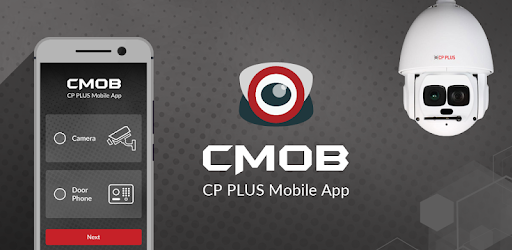
gCMOB is an Android app developed and published by CP Plus GmBh at Google Play Store on Aug 7, 2012 for Android users. gCMOB is so popular that it has gained 28745810 installs so far and growing.
If you are on the hunt for a simple and effective way to monitor your security systems, gCMOB might just be the solution. This mobile application is engineered to help users keep a close eye on their security cameras with ease and convenience. From playback features to live streaming, gCMOB has it all covered, making it an essential tool for homeowners and business owners alike.
One of the key features of gCMOB is its ability to offer playback footage. This allows you to review recorded videos from your security cameras right from your mobile device. If playback footage is not displaying as expected, check your settings to ensure everything is configured correctly. Sometimes, the monitor shows footage that doesn't appear in the app, and adjusting the settings might resolve this issue.
gCMOB prides itself on user customizability. If you need quick access to the audio on/off toggle, there's a simple way to make it more accessible. Having the control at your fingertips without scrolling enhances the app's usability, making it more practical for on-the-go monitoring.
Achieving the best video clarity is essential for any surveillance application. gCMOB allows you to fine-tune the video quality for a clearer view. Look out for the 🎥 symbol in the app interface. Clicking this and then selecting another similar symbol can significantly improve the video sharpness, ensuring you don't miss any details.
gCMOB's live video feature lets users watch what is currently happening in real-time. While the app performs well overall, some users have noted interruptions after a minute or two. Continuous monitoring is crucial, so be sure to check for updates from the developers, as they actively work on resolving such issues.
The latest updates have substantially improved the connectivity of gCMOB, ensuring fewer disconnects and crashes. The graphical user interface has also seen significant upgrades, making it more user-friendly and intuitive. Monitoring your home or office has never been this seamless.
For those on the latest Android devices, accessing HD quality is straightforward. Navigate to "device manager" and adjust the settings under "live preview and playback" to "main." This allows for high-definition streaming as the default, providing you with crystal-clear surveillance footage.
gCMOB offers a variety of screen settings to match your viewing preferences. Whether you prefer HD or SD quality, the app provides options to switch between these modes, even in landscape mode. This flexibility makes it easy to tailor the viewing experience according to your needs.
One of the standout features of gCMOB is its ability to let users monitor their security cameras from anywhere. Whether you're at home or away, checking in on your shop or business is hassle-free. The app’s performance has been praised for allowing users to view real-time footage with impressive clarity.
Accessing 24-hour recordings has been streamlined in gCMOB. With a single click, you can quickly view all the recorded footage for the entire day. This convenient feature saves time and ensures you can easily review important moments without navigating through complex menus.
While gCMOB is a robust application for mobile devices, compatibility with Android TVs is a highly-requested feature. Keep an eye out for future updates that may include this functionality, further broadening the app's usability and convenience.
gCMOB is a reliable and powerful mobile application designed to meet your security monitoring needs. With its user-friendly interface, impressive connectivity, and range of customizable features, it stands out as a top choice for anyone looking to keep their property safe. Whether it's checking live video, reviewing playback footage, or ensuring high-quality video clarity, gCMOB does it all efficiently and effectively.
Yes, you can run gCMOB on PC, but first, you will need emulator software installed on your Windows or MAC, which you can download for free. In the below video, you will find gCMOB in action. Before you install the emulator, check out the minimum and recommended system requirements to run it seamlessly. They may change depending on which version of the emulator you choose. Therefore, we recommend you download the latest version of the emulator. Below you will find three free Android emulators that we have shortlisted based on their popularity:
Up to date graphics drivers from Microsoft or the chipset vendor.
Storage: 1 GB available under installation path, 1.5GB available hard drive space
Internet: Broadband Internet connection
Regardless of which Android emulator you install, the steps to install, configure, and running the gCMOB app on PC are the same.