Memorigi: Todo List, Task Planner, and Reminder for PC

Memorigi: Todo List, Task Planner, and Reminder for PC

Published by Randy Saborio

Updated August 5, 2026

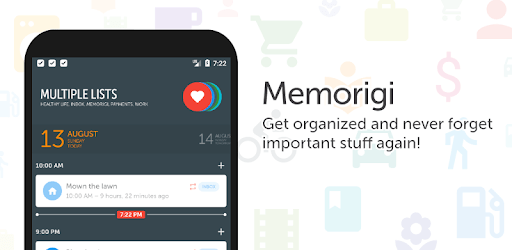
Simple, intuitive, beautiful todo list, task planner, and reminder app

What's New

Version7.6.0
Size17.0 MB
What's NewIn this release:* Support for adaptive monochrome icon (Android 13)* Fixed issue on Android 16 causing logout when killing the app* Performance improvementsMeet the new Memorigi!* A brand-new design* A redesigned Inbox experience* New redesigned pickers* New redesigned iconography* New reminder options* New repeat options* New email to tasks integration* and much more!

Memorigi: Todo List, Task Planner, and Reminder Screenshots

Memorigi: Todo List, Task Planner, and Reminder PC screenshot

About Memorigi: Todo List, Task Planner, and Reminder For PC

Memorigi: Todo List, Task Planner, and Reminder is an Android app developed and published by Randy Saborio at Google Play Store on Sep 22, 2016 for Android users. Memorigi: Todo List, Task Planner, and Reminder is so popular that it has gained 911569 installs so far and growing.

Memorigi: The Ultimate Todo List, Task Planner, and Reminder App

Are you tired of feeling overwhelmed by your never-ending to-do list? Do you struggle to stay organized and productive? Look no further than Memorigi, the best feature-rich todo app that will revolutionize the way you manage your tasks and boost your productivity.

Stay on Top of Your Tasks with Memorigi

Memorigi is not just your average todo list app. It is a powerful task planner and reminder that will help you stay organized and focused on what truly matters. With its user-friendly interface and extensive features, Memorigi has become the go-to app for individuals seeking to optimize their daily routines.

One of the standout features of Memorigi is the "Nag me" feature. This innovative tool ensures that you never miss a deadline or forget an important task. It gently reminds you of pending tasks, keeping you accountable and motivated to get things done. Say goodbye to procrastination and hello to increased productivity!

A Feature-Rich App Tailored to Your Needs

Memorigi offers a wide range of features that cater to your specific needs. From pinned tasks to a better sorting system, this app has it all. The ability to customize themes by adding your own photo adds a personal touch to your task management experience.

What sets Memorigi apart from other apps is its simplicity. The interface is clean, intuitive, and visually appealing. Even with its basic design, Memorigi manages to be beautiful and functional, making it a joy to use on a daily basis.

Unleash Your Productivity Potential

Memorigi is not just a task manager; it is a productivity tool that empowers you to take control of your life. With its seamless integration across multiple devices, including smartphones and PCs, you can access your tasks and schedule from anywhere, at any time. This flexibility allows you to stay organized and focused, no matter where you are.

Furthermore, the developer of Memorigi is committed to transparency and customer satisfaction. They are readily available on Discord to address any concerns or questions you may have. Their dedication to providing a top-notch user experience is evident in the constant updates and improvements to the app.

Save Time and Simplify Your Life

One small suggestion to the developers of Memorigi would be to implement a feature that sets the latest color used for a task as the default. This minor change would save users valuable time, especially when scheduling tasks in bulk. Memorigi is already a great app, and this small enhancement would make it even more efficient.

Whether you have a busy schedule, multiple responsibilities, or simply want to stay organized, Memorigi is the ultimate app for managing your tasks. Its clear overview, color-coded tasks, and customizable features make it the best choice for individuals seeking to optimize their daily routines.

Frequently Asked Questions

1. Is Memorigi available for both Android and iOS devices?

Yes, Memorigi is available for both Android and iOS devices, allowing you to seamlessly manage your tasks across multiple platforms.

2. Does Memorigi have a free plan?

Yes, Memorigi offers a free plan that includes a wide range of features. However, some advanced features may require a paid subscription.

3. Can I customize the themes in Memorigi?

Absolutely! Memorigi allows you to add your own photo as a custom theme, adding a personal touch to your task management experience.

4. How does the "Nag me" feature work?

The "Nag me" feature in Memorigi gently reminds you of pending tasks, ensuring that you never miss a deadline or forget an important task. It helps you stay accountable and motivated to complete your tasks on time.

5. Can I access Memorigi from multiple devices?

Yes, Memorigi seamlessly syncs across multiple devices, including smartphones and PCs, allowing you to access your tasks and schedule from anywhere, at any time.

Can I run Memorigi: Todo List, Task Planner, and Reminder on PC?

Yes, you can run Memorigi: Todo List, Task Planner, and Reminder on PC, but first, you will need emulator software installed on your Windows or MAC, which you can download for free. In the below video, you will find Memorigi: Todo List, Task Planner, and Reminder in action. Before you install the emulator, check out the minimum and recommended system requirements to run it seamlessly. They may change depending on which version of the emulator you choose. Therefore, we recommend you download the latest version of the emulator. Below you will find three free Android emulators that we have shortlisted based on their popularity:

How to Install Memorigi: Todo List, Task Planner, and Reminder on Windows PC

BlueStacks

Minimum
  • OS: Microsoft Windows 7 and above.
  • Processor: Intel or AMD Processor.
  • RAM: Your PC must have at least 4GB of RAM. (Note that having 4GB or more disk space is not a substitute for RAM)
  • Storage: 5GB Free Disk Space.
  • You must be an Administrator on your PC.
Recommended:
  • OS: Microsoft Windows 10
  • Processor: Intel or AMD Multi-Core Processor with Single Thread benchmark score > 1000.
  • Graphics: Intel/Nvidia/ATI, Onboard or Discrete controller with benchmark score >= 750.
  • Please ensure Virtualization is enabled on your PC/Laptop.
  • RAM: 8GB or higher
  • Storage: SSD (or Fusion/Hybrid Drives)
  • Internet: Broadband connection to access games, accounts and related content.

Up to date graphics drivers from Microsoft or the chipset vendor.

  • To start with, download Bluestacks from its official website. The latest version of BluesStacks is v 5, and it is around 400 MB.
  • Once the download is done, click on the Bluestacks set up file to install it on your Windows PC. Follow the on-screen instructions and install it accordingly.
  • The next step is to launch the emulator using the desktop shortcut and sign in using your Google account.
  • Now, head over to Bluestacks home screen and click on the Google Play Store icon.
  • Hit the search bar in Google Play and search for Memorigi: Todo List, Task Planner, and Reminder.
  • Install Memorigi: Todo List, Task Planner, and Reminder from the Play Store by clicking the Install option, which completes downloading of Memorigi: Todo List, Task Planner, and Reminder on PC.

NoxPlayer

Minimum
  • Operating System: Windows XP SP3, Windows Vista, Windows 7, Windows 8, Windows 10, and DirectX 9.0c
  • Processor: At least dual-core processor, both Intel, and AMD are OK
  • Video: Supports Open GL 2.0 or above
  • Memory: 1.5 GB RAM
Recommended
  • Operating System: Windows 7, Windows 8, Windows 10
  • Processor: Multiple core processors which support VT-x or AMB-V Virtualization Technology, better performance with this function enabled
  • Video: The higher performance, the better
  • Memory: 4 GB RAM

Storage: 1 GB available under installation path, 1.5GB available hard drive space

Internet: Broadband Internet connection

  • Download NoxPlayer from the official website. The latest version of NoxPlayer is v 3, and it is around 600 MB.
  • Now install the emulator using the downloaded setup file. Just go through the on-screen instructions and install NoxPlayer on your computer or laptop.
  • After the installation process, launch the Nox Android emulator and log in using your Google account when it asks you.
  • Click on the Google Play Store icon and head over to the search bar to search Memorigi: Todo List, Task Planner, and Reminder. Once found, click on the Install button to install Memorigi: Todo List, Task Planner, and Reminder for PC.
  • If you do not find Memorigi: Todo List, Task Planner, and Reminder on Google Play Store or if you want to skip logging in to Google, you can sideload APK (download the .APK file from this page and open it with NoxPlayer).
  • Launch Memorigi: Todo List, Task Planner, and Reminder from home-screen and start playing it on PC right away!

MEmu

Minimum
  • 2 cores x86/x86_64 Processor (Intel or AMD CPU)
  • WinXP SP3 / Win7 / Win8 / Win10 (Not recommended to run on Server/Enterprise)
  • Latest Windows DirectX 11 / Graphics driver with OpenGL 2.0
  • Hardware Virtualization Technology (Intel VT-x/AMD-V) shall be enabled in BIOS
  • 2GB of RAM (4GB for x64 system)
  • 5GB of hard disk free space
Recommended
  • OS: Microsoft Windows 10 with VT Enabled
  • CPU: Single Thread PassMark score > 1500 (Intel/AMD Multi-Core).
  • Graphics: Intel/Nvidia/ATI, Onboard or Discrete controller with PassMark score > 750.
  • Latest Windows DirectX 11 / Graphics driver with OpenGL 4.5 or higher
  • RAM: 8GB or higher
  • HDD: SSD, 10GB of hard disk free space
  • Internet: Broadband connection with low latency for FPS games
  • Download MEmu Play from the official website. The latest version of NoxPlayer is v 7.5.
  • When the download is completed, install the MEmu emulator on your PC. Follow the on-screen instructions and keep on clicking the Next button until the final step.
  • Now, using the desktop shortcut, look for the MEmu Play emulator and launch it. Once done, it will ask you to log in using your Google account, proceed with the same.
  • MEmu Play will ask you to log in using your Google account. When you log in, it will sync your Google account to MEmu Play. Launch the Google Play Store by clicking on the icon and search for Memorigi: Todo List, Task Planner, and Reminder.
  • Click on the Install button once you find Memorigi: Todo List, Task Planner, and Reminder from the search results. You can also sideload APK (download the .APK file from this page and open it with MEmu) if you want to skip above step.
  • After the installation of Memorigi: Todo List, Task Planner, and Reminder, you're all set to use the app on PC!

Regardless of which Android emulator you install, the steps to install, configure, and running the Memorigi: Todo List, Task Planner, and Reminder app on PC are the same.
Download Memorigi: Todo List, Task Planner, and Reminder For PC