Verizon Messages for PC

Verizon Messages for PC

Published by Verizon - VZ

Updated November 26, 2026

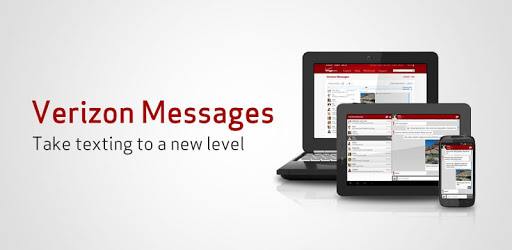
Stay connected using Verizon Messages on your Smartphone, tablet, and PC

What's New

Version9.5.9
Size89.8 MB
What's NewMinor bug fixes and improvements. Install or update to the newest version to check it out!

Verizon Messages Screenshots

Verizon Messages PC screenshot

About Verizon Messages For PC

Verizon Messages is an Android app developed and published by Verizon - VZ at Google Play Store on Apr 12, 2011 for Android users. Verizon Messages is so popular that it has gained 50000000 installs so far and growing.

Verizon Messages: A Versatile Texting App with Customization Options

Verizon Messages is a versatile texting app that offers a range of features to enhance your messaging experience. With the ability to customize fonts, backgrounds, and even send postcards, this app allows you to express yourself in unique ways. While it may have a few limitations, such as slow photo sending and compatibility issues with certain devices, Verizon Messages remains a reliable choice for communication.

Customization Options for Personalized Messaging

One of the standout features of Verizon Messages is its extensive customization options. You can tailor your messaging experience by choosing different fonts and backgrounds, adding a personal touch to your conversations. Additionally, the app offers postcards that you can send to your contacts, adding a fun and creative element to your messages.

Improved Functionality and Bug Fixes

Verizon Messages has undergone recent updates to address user concerns and improve functionality. One common issue was the inability to send photos, which has now been resolved. By following a few simple steps in the settings menu, users can now send photos seamlessly. This bug fix has greatly enhanced the overall user experience.

Reliable Support and Quick Resolutions

In the event of any issues or concerns, Verizon Messages provides reliable support through their App Support team. Users have reported prompt responses and efficient resolutions to their problems. Whether it's an error preventing the attachment of images or gifs, or compatibility issues with certain devices, the App Support team is dedicated to providing quick solutions.

A Trusted Choice for Texting

Verizon Messages has gained a loyal user base due to its reliability and user-friendly interface. Many users have expressed their satisfaction with the app, choosing it over the default phone app. With its range of features and consistent performance, Verizon Messages remains a trusted choice for texting.

Frequently Asked Questions

1. Can I send photos using Verizon Messages?

Yes, you can send photos using Verizon Messages. Simply follow these steps: click on the menu, select settings, then application, and scroll down to roaming. Check all the boxes to enable photo sending.

2. Does Verizon Messages support group texting with Android Auto?

Unfortunately, group texting does not work with Android Auto on Verizon Messages. This is a limitation of the app that the developers are working to address.

3. Are there plans to introduce a "like" or "love" option in Verizon Messages?

Currently, there are no plans to introduce a "like" or "love" option in Verizon Messages. The focus of the app is on reliable and efficient messaging, rather than additional social features.

4. Can I customize the fonts and backgrounds in Verizon Messages?

Yes, you can customize the fonts and backgrounds in Verizon Messages. This allows you to personalize your messaging experience and make it more visually appealing.

5. Is Verizon Messages compatible with all devices?

Verizon Messages is compatible with most devices. However, some users have reported compatibility issues with certain devices. It is recommended to check the app's compatibility with your specific device before downloading.

Can I run Verizon Messages on PC?

Yes, you can run Verizon Messages on PC, but first, you will need emulator software installed on your Windows or MAC, which you can download for free. In the below video, you will find Verizon Messages in action. Before you install the emulator, check out the minimum and recommended system requirements to run it seamlessly. They may change depending on which version of the emulator you choose. Therefore, we recommend you download the latest version of the emulator. Below you will find three free Android emulators that we have shortlisted based on their popularity:

How to Install Verizon Messages on Windows PC

BlueStacks

Minimum
  • OS: Microsoft Windows 7 and above.
  • Processor: Intel or AMD Processor.
  • RAM: Your PC must have at least 4GB of RAM. (Note that having 4GB or more disk space is not a substitute for RAM)
  • Storage: 5GB Free Disk Space.
  • You must be an Administrator on your PC.
Recommended:
  • OS: Microsoft Windows 10
  • Processor: Intel or AMD Multi-Core Processor with Single Thread benchmark score > 1000.
  • Graphics: Intel/Nvidia/ATI, Onboard or Discrete controller with benchmark score >= 750.
  • Please ensure Virtualization is enabled on your PC/Laptop.
  • RAM: 8GB or higher
  • Storage: SSD (or Fusion/Hybrid Drives)
  • Internet: Broadband connection to access games, accounts and related content.

Up to date graphics drivers from Microsoft or the chipset vendor.

  • To start with, download Bluestacks from its official website. The latest version of BluesStacks is v 5, and it is around 400 MB.
  • Once the download is done, click on the Bluestacks set up file to install it on your Windows PC. Follow the on-screen instructions and install it accordingly.
  • The next step is to launch the emulator using the desktop shortcut and sign in using your Google account.
  • Now, head over to Bluestacks home screen and click on the Google Play Store icon.
  • Hit the search bar in Google Play and search for Verizon Messages.
  • Install Verizon Messages from the Play Store by clicking the Install option, which completes downloading of Verizon Messages on PC.

NoxPlayer

Minimum
  • Operating System: Windows XP SP3, Windows Vista, Windows 7, Windows 8, Windows 10, and DirectX 9.0c
  • Processor: At least dual-core processor, both Intel, and AMD are OK
  • Video: Supports Open GL 2.0 or above
  • Memory: 1.5 GB RAM
Recommended
  • Operating System: Windows 7, Windows 8, Windows 10
  • Processor: Multiple core processors which support VT-x or AMB-V Virtualization Technology, better performance with this function enabled
  • Video: The higher performance, the better
  • Memory: 4 GB RAM

Storage: 1 GB available under installation path, 1.5GB available hard drive space

Internet: Broadband Internet connection

  • Download NoxPlayer from the official website. The latest version of NoxPlayer is v 3, and it is around 600 MB.
  • Now install the emulator using the downloaded setup file. Just go through the on-screen instructions and install NoxPlayer on your computer or laptop.
  • After the installation process, launch the Nox Android emulator and log in using your Google account when it asks you.
  • Click on the Google Play Store icon and head over to the search bar to search Verizon Messages. Once found, click on the Install button to install Verizon Messages for PC.
  • If you do not find Verizon Messages on Google Play Store or if you want to skip logging in to Google, you can sideload APK (download the .APK file from this page and open it with NoxPlayer).
  • Launch Verizon Messages from home-screen and start playing it on PC right away!

MEmu

Minimum
  • 2 cores x86/x86_64 Processor (Intel or AMD CPU)
  • WinXP SP3 / Win7 / Win8 / Win10 (Not recommended to run on Server/Enterprise)
  • Latest Windows DirectX 11 / Graphics driver with OpenGL 2.0
  • Hardware Virtualization Technology (Intel VT-x/AMD-V) shall be enabled in BIOS
  • 2GB of RAM (4GB for x64 system)
  • 5GB of hard disk free space
Recommended
  • OS: Microsoft Windows 10 with VT Enabled
  • CPU: Single Thread PassMark score > 1500 (Intel/AMD Multi-Core).
  • Graphics: Intel/Nvidia/ATI, Onboard or Discrete controller with PassMark score > 750.
  • Latest Windows DirectX 11 / Graphics driver with OpenGL 4.5 or higher
  • RAM: 8GB or higher
  • HDD: SSD, 10GB of hard disk free space
  • Internet: Broadband connection with low latency for FPS games
  • Download MEmu Play from the official website. The latest version of NoxPlayer is v 7.5.
  • When the download is completed, install the MEmu emulator on your PC. Follow the on-screen instructions and keep on clicking the Next button until the final step.
  • Now, using the desktop shortcut, look for the MEmu Play emulator and launch it. Once done, it will ask you to log in using your Google account, proceed with the same.
  • MEmu Play will ask you to log in using your Google account. When you log in, it will sync your Google account to MEmu Play. Launch the Google Play Store by clicking on the icon and search for Verizon Messages.
  • Click on the Install button once you find Verizon Messages from the search results. You can also sideload APK (download the .APK file from this page and open it with MEmu) if you want to skip above step.
  • After the installation of Verizon Messages, you're all set to use the app on PC!

Regardless of which Android emulator you install, the steps to install, configure, and running the Verizon Messages app on PC are the same.