Published by Kukouri Mobile Entertainment
Updated September 13, 2026
Join millions of other players to build, farm, trade and play!
| Version | 2.1.15 |
| Size | 151.8 MB |
| What's New | Returning Boosters * The Elven Booster is making its return on September 17th. * Chaos Booster returns on September 24th. New Account & Logout Options * Added a Log Out option, as requested by the community * Added support for Google Play Games for new accounts Fixes & Improvements * Nether minibosses no longer count towards the total mob count * Security improvements * General stability and performance improvements * Fixed an issue with Google Play Games login |
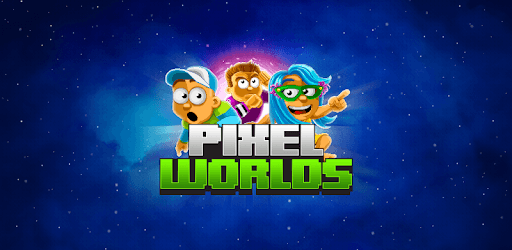
Pixel Worlds is an Android app developed and published by Kukouri Mobile Entertainment at Google Play Store on Jan 25, 2017 for Android users. Pixel Worlds is so popular that it has gained 6298233 installs so far and growing.
Pixel Worlds is an amazing game that offers endless fun for players of all ages. Whether you're a newcomer or a long-time fan, this game has something for everyone. With its captivating gameplay and constant updates, Pixel Worlds keeps players engaged and entertained. Let's dive into what makes this game so special.
From the moment you start playing Pixel Worlds, you'll be hooked. The game offers a unique and immersive experience that keeps boredom at bay. With its vibrant pixelated graphics and intuitive controls, navigating through the world of Pixel Worlds is a breeze.
One of the standout features of Pixel Worlds is its community-driven gameplay. You can interact with other players, make friends, and even create your own world. The sense of camaraderie and collaboration adds an extra layer of enjoyment to the game.
Pixel Worlds is constantly evolving, thanks to regular updates that introduce new features and content. The developers are dedicated to providing a fresh and exciting experience for players. They listen to feedback and implement changes that enhance the gameplay.
One of the most requested features by the community is the addition of new pets with unique abilities. Players have also expressed their desire for larger worlds to explore. The developers have taken note of these suggestions and are working on making them a reality.
While Pixel Worlds is free to play, many players find themselves willingly investing in the game. The addictive nature of the gameplay and the satisfaction of progress make it easy to understand why. Some players have even spent significant amounts of money on in-game purchases, and they have no regrets.
Pixel Worlds offers a rewarding experience that justifies the investment. The game provides hours of entertainment and a sense of accomplishment as you build your world and acquire rare items. It's a testament to the game's quality that players keep coming back for more.
Yes, Pixel Worlds is available on various platforms, including PC and mobile devices. You can seamlessly switch between devices and continue your progress.
Pixel Worlds has a dedicated team that works tirelessly to ensure a safe and fair gaming environment. While no game is completely immune to hackers and cheaters, the developers actively combat such behavior and take appropriate actions against offenders.
The developers of Pixel Worlds are committed to delivering regular updates to keep the game fresh and exciting. Updates are released monthly, introducing new features, items, and improvements based on player feedback.
Absolutely! Pixel Worlds allows players to create their own worlds, where they can let their creativity run wild. You can design and customize your world to reflect your unique style and invite other players to explore it.
Yes, Pixel Worlds is a game that can be enjoyed by players of all ages. Its simple yet engaging gameplay mechanics make it accessible to both young and old. However, parents should always monitor their children's online activities and set appropriate limits.
Pixel Worlds is more than just a game; it's a community of passionate players who share a love for pixelated adventures. With its addictive gameplay, regular updates, and dedicated developers, this game is sure to captivate players for years to come. So why wait? Dive into the world of Pixel Worlds and embark on an unforgettable journey!
Yes, you can run Pixel Worlds on PC, but first, you will need emulator software installed on your Windows or MAC, which you can download for free. In the below video, you will find Pixel Worlds in action. Before you install the emulator, check out the minimum and recommended system requirements to run it seamlessly. They may change depending on which version of the emulator you choose. Therefore, we recommend you download the latest version of the emulator. Below you will find three free Android emulators that we have shortlisted based on their popularity:
Up to date graphics drivers from Microsoft or the chipset vendor.
Storage: 1 GB available under installation path, 1.5GB available hard drive space
Internet: Broadband Internet connection
Regardless of which Android emulator you install, the steps to install, configure, and running the Pixel Worlds app on PC are the same.