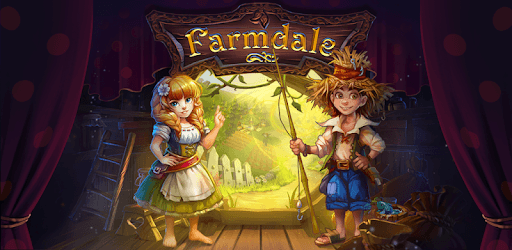
Farmdale for PC

Farmdale for PC

Published by Game Garden™

Updated November 17, 2026

Farmdale is a magic farm in a dream world of friendly farmers!

What's New

Version6.2.5
Size149.2 MB
What's NewChanges:Updated the visuals of several objectsQuest performance bug is fixed

Farmdale Screenshots

Farmdale PC screenshot

About Farmdale For PC

Farmdale is an Android app developed and published by Game Garden™ at Google Play Store on Mar 14, 2014 for Android users. Farmdale is so popular that it has gained 8234274 installs so far and growing.

Farmdale: A Magical Farming Adventure

Welcome to Farmdale, the enchanting world of farming and adventure! If you're looking for a game that brings back childhood memories and provides endless hours of entertainment, then Farmdale is the perfect choice for you. With its captivating gameplay and supportive team, this game has garnered a loyal fanbase since its release in 2014.

A Unique and Engaging Experience

Farmdale offers a unique and engaging experience that will keep you hooked from the moment you start playing. Unlike other farming games, Farmdale allows you to immerse yourself in a peaceful and magical world without the presence of monsters or time-consuming challenges. You can focus on building your farm, cultivating crops, and interacting with adorable animals.

The game's stunning graphics and vibrant colors create a visually appealing environment that will captivate your senses. The soothing music adds to the overall calming atmosphere, making Farmdale the perfect escape from the hustle and bustle of everyday life.

Supportive Farmdale Team

One of the standout features of Farmdale is its dedicated and supportive team. The developers behind the game have created a community that feels like a family. They are always ready to assist players and provide help whenever needed. Whether you require assistance with a mission or have a query about the game, the Farmdale team is just a message away.

Players have expressed their gratitude for the team's prompt and helpful responses. The Farmdale team's commitment to ensuring a smooth and enjoyable gaming experience sets this game apart from others in the genre.

Continuous Updates and Improvements

The developers of Farmdale are constantly working on updates and improvements to enhance the gameplay. These updates not only introduce new features but also address any issues or glitches that may arise. The team's dedication to delivering a seamless gaming experience is evident in the regular updates that keep the game fresh and exciting.

Additionally, Farmdale has been optimized to minimize game delays and glitches, ensuring a smooth and uninterrupted gameplay experience. Whether you're playing on an Android or iOS device, Farmdale runs flawlessly, allowing you to fully immerse yourself in the magical world of farming.

Frequently Asked Questions

1. How can I obtain watermelon for planting?

To obtain watermelon for planting, you can complete missions or explore the game's various features. Keep an eye out for opportunities to earn watermelon as rewards for your hard work on the farm.

2. How can I acquire a golden spike?

Obtaining a golden spike can be challenging, but not impossible. Keep exploring the game's different areas, such as the ship or tool box, as there is a chance to find a golden spike there. Stay persistent, and you'll eventually come across this valuable item.

3. Why is my game not connecting to the internet?

If you're experiencing connectivity issues in Farmdale, make sure to check your internet connection settings and ensure that you have a stable internet connection. If the problem persists, reach out to the Farmdale team for assistance in resolving the issue.

4. Will there be future updates with new features?

Yes! The developers of Farmdale are committed to providing a constantly evolving gaming experience. They regularly release updates that introduce new features, improve existing ones, and address any issues reported by the players. Keep an eye out for exciting updates in the future!

Embark on a magical farming adventure with Farmdale and experience the joy of building your dream farm. With its supportive team, stunning graphics, and continuous updates, Farmdale offers an unparalleled gaming experience that will keep you entertained for hours. Start playing today and let the magic unfold!

Can I run Farmdale on PC?

Yes, you can run Farmdale on PC, but first, you will need emulator software installed on your Windows or MAC, which you can download for free. In the below video, you will find Farmdale in action. Before you install the emulator, check out the minimum and recommended system requirements to run it seamlessly. They may change depending on which version of the emulator you choose. Therefore, we recommend you download the latest version of the emulator. Below you will find three free Android emulators that we have shortlisted based on their popularity:

How to Install Farmdale on Windows PC

BlueStacks

Minimum
  • OS: Microsoft Windows 7 and above.
  • Processor: Intel or AMD Processor.
  • RAM: Your PC must have at least 4GB of RAM. (Note that having 4GB or more disk space is not a substitute for RAM)
  • Storage: 5GB Free Disk Space.
  • You must be an Administrator on your PC.
Recommended:
  • OS: Microsoft Windows 10
  • Processor: Intel or AMD Multi-Core Processor with Single Thread benchmark score > 1000.
  • Graphics: Intel/Nvidia/ATI, Onboard or Discrete controller with benchmark score >= 750.
  • Please ensure Virtualization is enabled on your PC/Laptop.
  • RAM: 8GB or higher
  • Storage: SSD (or Fusion/Hybrid Drives)
  • Internet: Broadband connection to access games, accounts and related content.

Up to date graphics drivers from Microsoft or the chipset vendor.

  • To start with, download Bluestacks from its official website. The latest version of BluesStacks is v 5, and it is around 400 MB.
  • Once the download is done, click on the Bluestacks set up file to install it on your Windows PC. Follow the on-screen instructions and install it accordingly.
  • The next step is to launch the emulator using the desktop shortcut and sign in using your Google account.
  • Now, head over to Bluestacks home screen and click on the Google Play Store icon.
  • Hit the search bar in Google Play and search for Farmdale.
  • Install Farmdale from the Play Store by clicking the Install option, which completes downloading of Farmdale on PC.

NoxPlayer

Minimum
  • Operating System: Windows XP SP3, Windows Vista, Windows 7, Windows 8, Windows 10, and DirectX 9.0c
  • Processor: At least dual-core processor, both Intel, and AMD are OK
  • Video: Supports Open GL 2.0 or above
  • Memory: 1.5 GB RAM
Recommended
  • Operating System: Windows 7, Windows 8, Windows 10
  • Processor: Multiple core processors which support VT-x or AMB-V Virtualization Technology, better performance with this function enabled
  • Video: The higher performance, the better
  • Memory: 4 GB RAM

Storage: 1 GB available under installation path, 1.5GB available hard drive space

Internet: Broadband Internet connection

  • Download NoxPlayer from the official website. The latest version of NoxPlayer is v 3, and it is around 600 MB.
  • Now install the emulator using the downloaded setup file. Just go through the on-screen instructions and install NoxPlayer on your computer or laptop.
  • After the installation process, launch the Nox Android emulator and log in using your Google account when it asks you.
  • Click on the Google Play Store icon and head over to the search bar to search Farmdale. Once found, click on the Install button to install Farmdale for PC.
  • If you do not find Farmdale on Google Play Store or if you want to skip logging in to Google, you can sideload APK (download the .APK file from this page and open it with NoxPlayer).
  • Launch Farmdale from home-screen and start playing it on PC right away!

MEmu

Minimum
  • 2 cores x86/x86_64 Processor (Intel or AMD CPU)
  • WinXP SP3 / Win7 / Win8 / Win10 (Not recommended to run on Server/Enterprise)
  • Latest Windows DirectX 11 / Graphics driver with OpenGL 2.0
  • Hardware Virtualization Technology (Intel VT-x/AMD-V) shall be enabled in BIOS
  • 2GB of RAM (4GB for x64 system)
  • 5GB of hard disk free space
Recommended
  • OS: Microsoft Windows 10 with VT Enabled
  • CPU: Single Thread PassMark score > 1500 (Intel/AMD Multi-Core).
  • Graphics: Intel/Nvidia/ATI, Onboard or Discrete controller with PassMark score > 750.
  • Latest Windows DirectX 11 / Graphics driver with OpenGL 4.5 or higher
  • RAM: 8GB or higher
  • HDD: SSD, 10GB of hard disk free space
  • Internet: Broadband connection with low latency for FPS games
  • Download MEmu Play from the official website. The latest version of NoxPlayer is v 7.5.
  • When the download is completed, install the MEmu emulator on your PC. Follow the on-screen instructions and keep on clicking the Next button until the final step.
  • Now, using the desktop shortcut, look for the MEmu Play emulator and launch it. Once done, it will ask you to log in using your Google account, proceed with the same.
  • MEmu Play will ask you to log in using your Google account. When you log in, it will sync your Google account to MEmu Play. Launch the Google Play Store by clicking on the icon and search for Farmdale.
  • Click on the Install button once you find Farmdale from the search results. You can also sideload APK (download the .APK file from this page and open it with MEmu) if you want to skip above step.
  • After the installation of Farmdale, you're all set to use the app on PC!

Regardless of which Android emulator you install, the steps to install, configure, and running the Farmdale app on PC are the same.