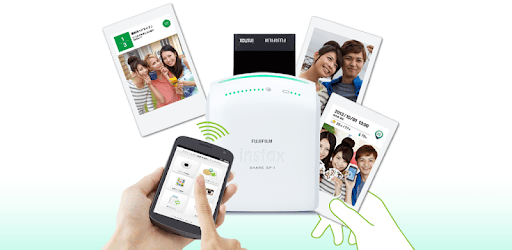
instax SHARE for PC

instax SHARE for PC

Published by FUJIFILM Corporation

Updated September 4, 2025

FUJIFILM official app that can be used to print images to instax SHARE.

What's New

Version3.4.10
Size32.1 MB
What's NewFixed minor bugs.

instax SHARE Screenshots

instax SHARE PC screenshot

About instax SHARE For PC

instax SHARE is an Android app developed and published by FUJIFILM Corporation at Google Play Store on Dec 25, 2013 for Android users. instax SHARE is so popular that it has gained 500000 installs so far and growing.

Instax SHARE: Bringing the Magic of Instant Photos to the Digital Age

Instax SHARE is a delightful way to blend the nostalgia of instant prints with the convenience of smartphone technology. Designed with simplicity and fun in mind, this printer and its companion app make it easy to capture moments with a click and transform them into tangible memories.

Getting Started with Instax SHARE

One of the most appealing aspects of Instax SHARE is its user-friendly setup. To get started, follow these key steps:

1. Download the Instax SHARE app.

2. Connect your smartphone to the printer's Wi-Fi.

3. Power on the printer.

4. Open the Instax SHARE app and navigate to settings to alter the default factory password to a new one of your choice.

5. Select a photo from your gallery, make any desired edits, and print!

The initial setup steps only need to be done once. From there, connecting and printing becomes a seamless experience, providing instant prints with ease.

Compatibility and Versatility

Instax SHARE works smoothly with various devices, including iPhones, Galaxy tablets, and Android phones like the Galaxy S7 and Nexus 7. Some users might face hiccups with compatibility when upgrading their operating system, but with proper settings adjustments, such issues are generally resolvable.

Image Quality and Creative Options

The prints from Instax SHARE are often better in quality and color than those taken with an Instax camera. This makes the printer a fantastic tool for those who want sharp, vivid prints. Moreover, it offers real-time options and fun templates to make your prints personalized and special.

For photography enthusiasts who use cameras like Nikon and Olympus, the Instax SHARE app allows easy transfer of JPEG files to your phone for a quick print. Although the app might lack robust editing features, other editing apps such as Snapseed or Polarr can be used to perfect photos before printing.

Ease of Use and Connectivity

Connecting your phone to the printer's Wi-Fi might sound complicated, but it's actually quite straightforward. Select the Wi-Fi signal from your phone and connect it through your Wi-Fi settings, then you're all set.

Instax SHARE is designed to be simple and intuitive. It’s perfect for those who may not consider themselves tech-savvy. If you follow the setup instructions and ensure your phone's permissions are set correctly, you should encounter no issues in connecting and printing.

Suggestions for Improvement

While Instax SHARE is already a fantastic product, there's always room for improvement. Some users hope for new features like more filters, additional templates, or options to adjust brightness and frame positioning directly within the app. These enhancements could further enhance user experience and satisfaction.

Imagine easily creating a personalized photo wall or scrapbooking with beautiful, professionally edited prints using the simplicity of your phone. These small tweaks could make the joy of instant printing even more delightful!

Instax SHARE stands out as an innovative and enjoyable way to merge the digital and physical worlds. Whether it's capturing a fun moment with friends or preserving a special memory, this printer and its companion app make it effortless and enjoyable to create and share printed memories.

Can I run instax SHARE on PC?

Yes, you can run instax SHARE on PC, but first, you will need emulator software installed on your Windows or MAC, which you can download for free. In the below video, you will find instax SHARE in action. Before you install the emulator, check out the minimum and recommended system requirements to run it seamlessly. They may change depending on which version of the emulator you choose. Therefore, we recommend you download the latest version of the emulator. Below you will find three free Android emulators that we have shortlisted based on their popularity:

How to Install instax SHARE on Windows PC

BlueStacks

Minimum
  • OS: Microsoft Windows 7 and above.
  • Processor: Intel or AMD Processor.
  • RAM: Your PC must have at least 4GB of RAM. (Note that having 4GB or more disk space is not a substitute for RAM)
  • Storage: 5GB Free Disk Space.
  • You must be an Administrator on your PC.
Recommended:
  • OS: Microsoft Windows 10
  • Processor: Intel or AMD Multi-Core Processor with Single Thread benchmark score > 1000.
  • Graphics: Intel/Nvidia/ATI, Onboard or Discrete controller with benchmark score >= 750.
  • Please ensure Virtualization is enabled on your PC/Laptop.
  • RAM: 8GB or higher
  • Storage: SSD (or Fusion/Hybrid Drives)
  • Internet: Broadband connection to access games, accounts and related content.

Up to date graphics drivers from Microsoft or the chipset vendor.

  • To start with, download Bluestacks from its official website. The latest version of BluesStacks is v 5, and it is around 400 MB.
  • Once the download is done, click on the Bluestacks set up file to install it on your Windows PC. Follow the on-screen instructions and install it accordingly.
  • The next step is to launch the emulator using the desktop shortcut and sign in using your Google account.
  • Now, head over to Bluestacks home screen and click on the Google Play Store icon.
  • Hit the search bar in Google Play and search for instax SHARE.
  • Install instax SHARE from the Play Store by clicking the Install option, which completes downloading of instax SHARE on PC.

NoxPlayer

Minimum
  • Operating System: Windows XP SP3, Windows Vista, Windows 7, Windows 8, Windows 10, and DirectX 9.0c
  • Processor: At least dual-core processor, both Intel, and AMD are OK
  • Video: Supports Open GL 2.0 or above
  • Memory: 1.5 GB RAM
Recommended
  • Operating System: Windows 7, Windows 8, Windows 10
  • Processor: Multiple core processors which support VT-x or AMB-V Virtualization Technology, better performance with this function enabled
  • Video: The higher performance, the better
  • Memory: 4 GB RAM

Storage: 1 GB available under installation path, 1.5GB available hard drive space

Internet: Broadband Internet connection

  • Download NoxPlayer from the official website. The latest version of NoxPlayer is v 3, and it is around 600 MB.
  • Now install the emulator using the downloaded setup file. Just go through the on-screen instructions and install NoxPlayer on your computer or laptop.
  • After the installation process, launch the Nox Android emulator and log in using your Google account when it asks you.
  • Click on the Google Play Store icon and head over to the search bar to search instax SHARE. Once found, click on the Install button to install instax SHARE for PC.
  • If you do not find instax SHARE on Google Play Store or if you want to skip logging in to Google, you can sideload APK (download the .APK file from this page and open it with NoxPlayer).
  • Launch instax SHARE from home-screen and start playing it on PC right away!

MEmu

Minimum
  • 2 cores x86/x86_64 Processor (Intel or AMD CPU)
  • WinXP SP3 / Win7 / Win8 / Win10 (Not recommended to run on Server/Enterprise)
  • Latest Windows DirectX 11 / Graphics driver with OpenGL 2.0
  • Hardware Virtualization Technology (Intel VT-x/AMD-V) shall be enabled in BIOS
  • 2GB of RAM (4GB for x64 system)
  • 5GB of hard disk free space
Recommended
  • OS: Microsoft Windows 10 with VT Enabled
  • CPU: Single Thread PassMark score > 1500 (Intel/AMD Multi-Core).
  • Graphics: Intel/Nvidia/ATI, Onboard or Discrete controller with PassMark score > 750.
  • Latest Windows DirectX 11 / Graphics driver with OpenGL 4.5 or higher
  • RAM: 8GB or higher
  • HDD: SSD, 10GB of hard disk free space
  • Internet: Broadband connection with low latency for FPS games
  • Download MEmu Play from the official website. The latest version of NoxPlayer is v 7.5.
  • When the download is completed, install the MEmu emulator on your PC. Follow the on-screen instructions and keep on clicking the Next button until the final step.
  • Now, using the desktop shortcut, look for the MEmu Play emulator and launch it. Once done, it will ask you to log in using your Google account, proceed with the same.
  • MEmu Play will ask you to log in using your Google account. When you log in, it will sync your Google account to MEmu Play. Launch the Google Play Store by clicking on the icon and search for instax SHARE.
  • Click on the Install button once you find instax SHARE from the search results. You can also sideload APK (download the .APK file from this page and open it with MEmu) if you want to skip above step.
  • After the installation of instax SHARE, you're all set to use the app on PC!

Regardless of which Android emulator you install, the steps to install, configure, and running the instax SHARE app on PC are the same.
Download instax SHARE For PC