Published by Fujifilm North America Corp
Updated June 18, 2026
Transfer photos from your mobile device to print and create products at Walmart
| Version | 4.2.0 |
| Size | 67.6 MB |
| What's New | Minor bug fixes and performance enhancements |
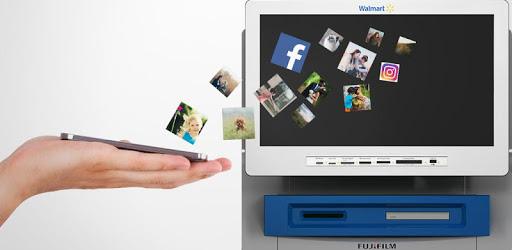
Fujifilm Kiosk Photo Transfer is an Android app developed and published by Fujifilm North America Corp at Google Play Store on Sep 12, 2013 for Android users. Fujifilm Kiosk Photo Transfer is so popular that it has gained 1000000 installs so far and growing.
Looking for a hassle-free way to print your photos? Look no further than the Fujifilm Kiosk Photo Transfer app. With its user-friendly interface and convenient features, this app has quickly become a favorite among users.
Whether you're a proud parent, a doting grandparent, or simply someone who loves capturing special moments, the Fujifilm Kiosk Photo Transfer app is here to help you turn those memories into tangible prints. Say goodbye to the days of scrolling endlessly through your phone's gallery or dealing with complicated printing processes. With this app, you can easily select the photos you want and have them printed in no time.
One user raves, "I have ALWAYS wanted a Grand Wall, with my Kids, Grandkids and GreatGrandkids. I found ones I wanted, blew them up at this site and have a beautiful Grand Wall now... Thanks." It's clear that this app has made a significant impact on preserving cherished memories.
The Fujifilm Kiosk Photo Transfer app is designed to be user-friendly and accessible to all. Whether you're tech-savvy or not, you'll find that navigating through the app is a breeze. "First time we used this app and hands down it's the BEST EVERRR!! We already have more family and friends connected. Thank you for making it so easy to use," shares another satisfied user.
Not only is the app easy to use, but it also offers convenience like no other. No more wasting time waiting at a photo center or dealing with broken cords. "Works perfectly with our local Walmart & easy to select only pics that you want rather downloading all 633 pics from phone & most of the time the cord attached to the photo machine is broken... This app, No Cords & easy links to photo booth," explains a delighted user.
When it comes to customer service, the Fujifilm Kiosk Photo Transfer app goes above and beyond. Users appreciate the helpful and courteous staff at their local Walmart photo department. "Ryan is very courteous and respectful every time I go to the Photo area to get some Family and Friends pictures. If I run into any issue trying to get them uploaded with the computer and he's in the area that I am in, he's right there to help me and get the issues resolved. I feel he's an asset to the Walmart Corporation," praises a grateful user.
Furthermore, the app allows you to order your prints from the comfort of your own home or anywhere you are. "Been trying for a while to get my phone to connect to the kiosk at Walmart. Finally got it to work but the pictures I wanted were not onscreen. So I downloaded this app and now can access what I wanted to print. Really easy to use as well. Recommended for anyone wanting to access all of your photos. And you can order from home or wherever you are," shares a satisfied user.
With the Fujifilm Kiosk Photo Transfer app, printing your favorite photos has never been easier. Whether you're a photography enthusiast or simply want to preserve your precious memories, this app is the perfect solution. "I Love Fujifilm Kiosk Photo - I use it all the time. I can use it in the comfort of my own home and get my pictures developed. I just go pick them up. Anyone can do it. I'm handicapped, and it is the best for me. I Love it," expresses a happy user.
Don't waste another moment scrolling through your phone's gallery or dealing with complicated printing processes. Download the Fujifilm Kiosk Photo Transfer app today and start turning your memories into beautiful prints with ease.
Yes, the app is available for both Android and iOS devices, making it accessible to a wide range of users.
With the Fujifilm Kiosk Photo Transfer app, you have the freedom to select only the photos you want to print. No need to print all of them if you don't want to.
Absolutely! The app allows you to order prints from the comfort of your own home or anywhere you are. Simply pick them up at your convenience.
Yes, the app is designed to be user-friendly and accessible to all. Even if you're not tech-savvy, you'll find it easy to navigate and use.
Customers have praised the exceptional customer service at their local Walmart photo department. The staff is helpful, courteous, and always ready to assist with any issues you may encounter.
Yes, you can run Fujifilm Kiosk Photo Transfer on PC, but first, you will need emulator software installed on your Windows or MAC, which you can download for free. In the below video, you will find Fujifilm Kiosk Photo Transfer in action. Before you install the emulator, check out the minimum and recommended system requirements to run it seamlessly. They may change depending on which version of the emulator you choose. Therefore, we recommend you download the latest version of the emulator. Below you will find three free Android emulators that we have shortlisted based on their popularity:
Up to date graphics drivers from Microsoft or the chipset vendor.
Storage: 1 GB available under installation path, 1.5GB available hard drive space
Internet: Broadband Internet connection
Regardless of which Android emulator you install, the steps to install, configure, and running the Fujifilm Kiosk Photo Transfer app on PC are the same.