Evertech Sandbox for PC

Evertech Sandbox for PC

Published by vitsum

Updated September 24, 2025

Build Cars, Elevators or any other Mechanisms in the new physics sandbox game!

What's New

Version8.1.2025-android
Size135.9 MB
What's NewMinor bug fixes and improvements. Install or update to the newest version to check it out!

Evertech Sandbox Screenshots

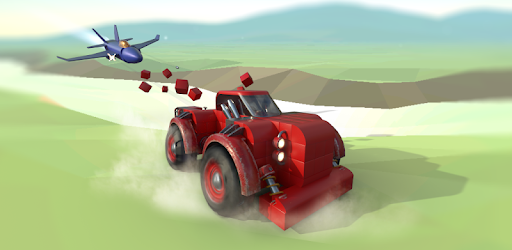
Evertech Sandbox PC screenshot

About Evertech Sandbox For PC

Evertech Sandbox is an Android app developed and published by vitsum at Google Play Store on May 18, 2018 for Android users. Evertech Sandbox is so popular that it has gained 1000000 installs so far and growing.

Evertech Sandbox: Unlimited Creativity and Fun

Evertech Sandbox is a game where imagination knows no bounds. With its stunning graphics and smooth performance, this game stands out in the sandbox genre. You can ride rockets, create futuristic bases, and even build your very own TITANS. The freedom to create and explore is what makes Evertech Sandbox a must-have for anyone who loves building and experimenting.

Engaging Gameplay and Tools

One of the best features of Evertech Sandbox is its broad range of tools and blocks. The game offers a welding tool mod, which can save you a lot of hassle by easily reattaching detached parts. This makes the building process much more enjoyable and less frustrating. Players can construct everything from goofy inventions to highly detailed futuristic houses.

Evertech Sandbox has a good physics system, making creations work realistically – as long as they are not excessively heavy. The game also supports mods and multiplayer, allowing you to expand your creative possibilities and share them with others.

Multiplayer and Mod Challenges

The multiplayer aspect of Evertech Sandbox adds a new level of excitement, though sometimes it can face challenges like entity synchronization. Building structures with friends is a lot of fun, but occasional glitches might cause blinking issues. Enhancements like adding functional aerodynamics to the maps could open up more avenues for creating aircraft and helicopters.

Despite some difficulties with downloading mods and maps, the game maintains its charm. These hiccups might be due to internet connection issues or the game itself. However, once you get the mods working, the game offers an endless variety of customizations and upgrades.

Future Updates and Suggestions

Many players have expressed hopes for specific future updates. Introducing customizable aerofoils and airplane parts can significantly enhance the building of flying vehicles. The game would also benefit from improved lighting and adjustable day-night cycles. These features can make the gameplay even more realistic and engaging.

The developer’s dedication to continuously improving the game is evident, though additional updates could further enrich the experience. Suggestions like adding more gears, functional atmosphere in maps, and working NPCs for offline play are among the ideas that can take Evertech Sandbox to new heights.

Why You Should Play Evertech Sandbox

Evertech Sandbox is a unique and enjoyable game that allows you to do and build whatever you want. Its simplicity and flexibility make it accessible to all players, whether you are looking to create intricate designs or just have fun with friends. Unlike many other games, its mobile version performs exceptionally well, making it one of the best sandbox games available for phones. Whether you're an avid builder or someone looking for creative fun, Evertech Sandbox has something to offer.

This game has been compared to Scrap Mechanic for its building and creativity aspects. Although it may not be as polished, especially considering it's a mobile game, it still delivers an exceptional experience. The potential for updates and new features continues to make it a game to watch and enjoy.

Can I run Evertech Sandbox on PC?

Yes, you can run Evertech Sandbox on PC, but first, you will need emulator software installed on your Windows or MAC, which you can download for free. In the below video, you will find Evertech Sandbox in action. Before you install the emulator, check out the minimum and recommended system requirements to run it seamlessly. They may change depending on which version of the emulator you choose. Therefore, we recommend you download the latest version of the emulator. Below you will find three free Android emulators that we have shortlisted based on their popularity:

How to Install Evertech Sandbox on Windows PC

BlueStacks

Minimum
  • OS: Microsoft Windows 7 and above.
  • Processor: Intel or AMD Processor.
  • RAM: Your PC must have at least 4GB of RAM. (Note that having 4GB or more disk space is not a substitute for RAM)
  • Storage: 5GB Free Disk Space.
  • You must be an Administrator on your PC.
Recommended:
  • OS: Microsoft Windows 10
  • Processor: Intel or AMD Multi-Core Processor with Single Thread benchmark score > 1000.
  • Graphics: Intel/Nvidia/ATI, Onboard or Discrete controller with benchmark score >= 750.
  • Please ensure Virtualization is enabled on your PC/Laptop.
  • RAM: 8GB or higher
  • Storage: SSD (or Fusion/Hybrid Drives)
  • Internet: Broadband connection to access games, accounts and related content.

Up to date graphics drivers from Microsoft or the chipset vendor.

  • To start with, download Bluestacks from its official website. The latest version of BluesStacks is v 5, and it is around 400 MB.
  • Once the download is done, click on the Bluestacks set up file to install it on your Windows PC. Follow the on-screen instructions and install it accordingly.
  • The next step is to launch the emulator using the desktop shortcut and sign in using your Google account.
  • Now, head over to Bluestacks home screen and click on the Google Play Store icon.
  • Hit the search bar in Google Play and search for Evertech Sandbox.
  • Install Evertech Sandbox from the Play Store by clicking the Install option, which completes downloading of Evertech Sandbox on PC.

NoxPlayer

Minimum
  • Operating System: Windows XP SP3, Windows Vista, Windows 7, Windows 8, Windows 10, and DirectX 9.0c
  • Processor: At least dual-core processor, both Intel, and AMD are OK
  • Video: Supports Open GL 2.0 or above
  • Memory: 1.5 GB RAM
Recommended
  • Operating System: Windows 7, Windows 8, Windows 10
  • Processor: Multiple core processors which support VT-x or AMB-V Virtualization Technology, better performance with this function enabled
  • Video: The higher performance, the better
  • Memory: 4 GB RAM

Storage: 1 GB available under installation path, 1.5GB available hard drive space

Internet: Broadband Internet connection

  • Download NoxPlayer from the official website. The latest version of NoxPlayer is v 3, and it is around 600 MB.
  • Now install the emulator using the downloaded setup file. Just go through the on-screen instructions and install NoxPlayer on your computer or laptop.
  • After the installation process, launch the Nox Android emulator and log in using your Google account when it asks you.
  • Click on the Google Play Store icon and head over to the search bar to search Evertech Sandbox. Once found, click on the Install button to install Evertech Sandbox for PC.
  • If you do not find Evertech Sandbox on Google Play Store or if you want to skip logging in to Google, you can sideload APK (download the .APK file from this page and open it with NoxPlayer).
  • Launch Evertech Sandbox from home-screen and start playing it on PC right away!

MEmu

Minimum
  • 2 cores x86/x86_64 Processor (Intel or AMD CPU)
  • WinXP SP3 / Win7 / Win8 / Win10 (Not recommended to run on Server/Enterprise)
  • Latest Windows DirectX 11 / Graphics driver with OpenGL 2.0
  • Hardware Virtualization Technology (Intel VT-x/AMD-V) shall be enabled in BIOS
  • 2GB of RAM (4GB for x64 system)
  • 5GB of hard disk free space
Recommended
  • OS: Microsoft Windows 10 with VT Enabled
  • CPU: Single Thread PassMark score > 1500 (Intel/AMD Multi-Core).
  • Graphics: Intel/Nvidia/ATI, Onboard or Discrete controller with PassMark score > 750.
  • Latest Windows DirectX 11 / Graphics driver with OpenGL 4.5 or higher
  • RAM: 8GB or higher
  • HDD: SSD, 10GB of hard disk free space
  • Internet: Broadband connection with low latency for FPS games
  • Download MEmu Play from the official website. The latest version of NoxPlayer is v 7.5.
  • When the download is completed, install the MEmu emulator on your PC. Follow the on-screen instructions and keep on clicking the Next button until the final step.
  • Now, using the desktop shortcut, look for the MEmu Play emulator and launch it. Once done, it will ask you to log in using your Google account, proceed with the same.
  • MEmu Play will ask you to log in using your Google account. When you log in, it will sync your Google account to MEmu Play. Launch the Google Play Store by clicking on the icon and search for Evertech Sandbox.
  • Click on the Install button once you find Evertech Sandbox from the search results. You can also sideload APK (download the .APK file from this page and open it with MEmu) if you want to skip above step.
  • After the installation of Evertech Sandbox, you're all set to use the app on PC!

Regardless of which Android emulator you install, the steps to install, configure, and running the Evertech Sandbox app on PC are the same.


Download Evertech Sandbox For PC