Published by Brother Industries, Ltd.
Updated April 13, 2026
You can print from Brother printers using the built-in menu of Android apps.
| Version | 1.16.1 |
| Size | 42.4 MB |
| What's New | Added a new feature that allows you to manually search for and add a printer using its IP address. |
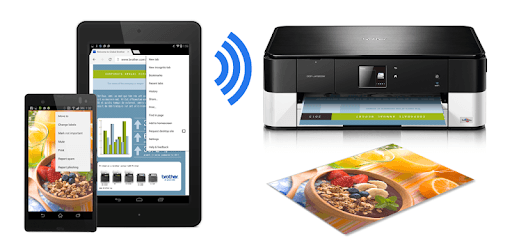
Brother Print Service Plugin is an Android app developed and published by Brother Industries, Ltd. at Google Play Store on Mar 31, 2015 for Android users. Brother Print Service Plugin is so popular that it has gained 25065957 installs so far and growing.
The Brother Print Service Plugin is an essential tool for anyone looking to print directly from their mobile device. This plugin simplifies the printing process, allowing you to print documents, images, and other files directly from your phone or tablet without needing to connect to a computer. Available for Android devices, the Brother Print Service Plugin works effectively with a range of Brother printers, ensuring that your printing tasks are handled smoothly and efficiently. Whether you're at home or on the go, this plugin makes printing a breeze.
One of the standout features of the Brother Print Service Plugin is its compatibility with various mobile devices. From the latest smartphones to older tablets, the plugin provides a reliable printing solution. This broad compatibility ensures that even if you're using an older device, you can still enjoy seamless printing. The simplicity of this plugin means that you don’t need to be a tech expert to get it up and running. With just a few clicks, your documents are sent to the printer, ready to be picked up.
Setting up the Brother Print Service Plugin is straightforward. Once downloaded, it takes less than a minute to install and configure. Thanks to its intuitive design, the plugin quickly identifies any Brother printers on your network. All you need is a stable Wi-Fi connection, and the plugin does the rest, finding your printers and connecting them effortlessly. This ease of setup ensures that you spend less time troubleshooting and more time getting your prints done.
The Brother Print Service Plugin delivers consistent performance, making it a dependable choice for both personal and professional use. With this plugin, users can print a variety of documents and images without needing to worry about compatibility issues. The application is designed to handle different file types, making it versatile for various printing needs. Whether you need to print a PDF from your email or a photo from your gallery, the plugin handles it all with ease.
For professionals who are always on the move, the Brother Print Service Plugin is a lifesaver. It enables you to print essential documents anytime, anywhere, ensuring that you never miss a crucial deadline. Whether you're in a meeting or traveling, you can rely on the plugin to deliver your prints promptly. Its ability to work seamlessly with mobile devices means you can manage your printing tasks without needing to find a computer, making it an invaluable tool for busy professionals.
The Brother Print Service Plugin boasts a user-friendly interface that makes printing straightforward. Even if you're not tech-savvy, you can easily navigate the plugin and get your documents printed. The straightforward design includes clear instructions, so you always know what to do. This user-centered approach ensures that you can focus on your work, rather than worrying about technical difficulties.
While the Brother Print Service Plugin generally provides a smooth experience, it may encounter occasional hiccups. For instance, some users might struggle with print scaling, especially if the resolution of an image is larger than the paper size. However, these issues are minor and can usually be resolved by adjusting printer settings or paper sizes. The overall reliability of the plugin outweighs these occasional challenges, ensuring a positive experience for most users.
In summary, the Brother Print Service Plugin proves to be an indispensable tool for anyone needing to print from their mobile devices. Its quick setup, reliable performance, and user-friendly design make it a top choice for personal and professional printing needs. Whether you are printing at home, in the office, or on the go, the Brother Print Service Plugin ensures that your documents are printed exactly when you need them.
Yes, you can run Brother Print Service Plugin on PC, but first, you will need emulator software installed on your Windows or MAC, which you can download for free. In the below video, you will find Brother Print Service Plugin in action. Before you install the emulator, check out the minimum and recommended system requirements to run it seamlessly. They may change depending on which version of the emulator you choose. Therefore, we recommend you download the latest version of the emulator. Below you will find three free Android emulators that we have shortlisted based on their popularity:
Up to date graphics drivers from Microsoft or the chipset vendor.
Storage: 1 GB available under installation path, 1.5GB available hard drive space
Internet: Broadband Internet connection
Regardless of which Android emulator you install, the steps to install, configure, and running the Brother Print Service Plugin app on PC are the same.