WPS Office - Word, Docs, PDF, Note, Slide & Sheet for PC

WPS Office - Word, Docs, PDF, Note, Slide & Sheet for PC

Published by Kingsoft Office Software Corporation Limited

Updated October 5, 2025

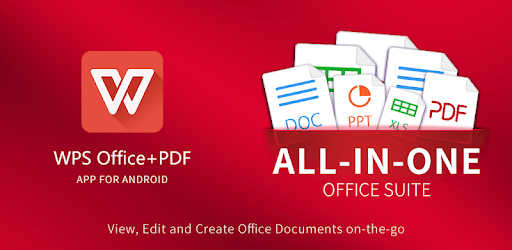
All-in-one Free Mobile Office Suite App: Word,PDF,Powerpoint,Excel,Docs and Note

What's New

Version18.24
Size264.8 MB
What's NewWPS AI offers AI-powered capabilities for text writing, editing, and translating, as well as image editing:1. AI Translate: Translates text accurately and maintains original formats. Supports 105 languages.2. Scanner: Generates clear scanned copies, supports handwriting extraction, and allows exporting scanned copies as editable files.3. Read Aloud: Generates lifelike, smooth, and emotional voice outputs.

WPS Office - Word, Docs, PDF, Note, Slide & Sheet Screenshots

WPS Office - Word, Docs, PDF, Note, Slide & Sheet PC screenshot

About WPS Office - Word, Docs, PDF, Note, Slide & Sheet For PC

WPS Office - Word, Docs, PDF, Note, Slide & Sheet is an Android app developed and published by Kingsoft Office Software Corporation Limited at Google Play Store on Jul 21, 2011 for Android users. WPS Office - Word, Docs, PDF, Note, Slide & Sheet is so popular that it has gained 100000000 installs so far and growing.

WPS Office - Word, Docs, PDF, Note, Slide & Sheet

WPS Office is a versatile tool that provides a comprehensive suite of applications to manage your documents. This software brings a variety of features to your fingertips, allowing you to work with Word, Docs, PDF, Note, Slide, and Sheet files easily. Whether you are a student, professional, or someone who loves to stay organized, WPS Office can cater to your needs.

Editing and Storing Documents

One of the standout features of WPS Office is its user-friendly interface, which makes document editing straightforward and efficient. The layout is intuitive, allowing you to quickly store, recall, and edit documents whenever necessary. This flexibility is particularly beneficial for individuals managing numerous Word and Docs files. Having everything accessible in one place saves time and reduces stress.

Versatility in File Formats

WPS Office shines in its ability to handle multiple file formats seamlessly. Whether you need to open PDF files, Word documents, or even Notes, WPS Office has got you covered. This is especially useful for students and working professionals juggling various types of files daily. The application’s ability to work with these diverse formats consolidates your tasks into one efficient platform.

Convenience for Mobile Users

One of the significant advantages of WPS Office is its mobility. You can carry your work anywhere and access it at any time. This flexibility means you no longer need to depend on a laptop for critical tasks. You can easily open and edit documents using your mobile phone, which makes working on-the-go a breeze.

Amazing Features and AI Assistance

WPS Office offers numerous styles and formatting options, making it easy to create professional-looking documents. The app also integrates AI features which further enhances the user experience by assisting in different tasks. This could range from simple grammar checks to providing format suggestions, boosting productivity and ensuring that your work stands out.

Great for Educational Purposes

For students, WPS Office proves to be an invaluable tool. With educators frequently sharing PDF files and other documents for study, having a reliable and functional application is crucial. WPS Office meets this need perfectly, offering students a straightforward way to access and work on their study materials.

Affordable Document Management

If you do not have access to a computer, WPS Office can be a lifesaver. Its ease of use and comprehensive set of features ensures that you can manage your documents without needing additional expensive hardware. Edit, store, and share your files directly from your mobile device, making it a cost-effective solution.

Advanced Capabilities and Premium Options

While WPS Office offers a lot of functionalities for free, it also provides premium features for those looking to gain more from the application. These advanced features include even more powerful tools for dealing with complex documents and reducing ads, which can be particularly beneficial for heavy users. Although these premium features come at a cost, they add significant value for those requiring additional capabilities.

Localized Language Issues

WPS Office supports various languages, although some users experience issues with Unicode fonts, particularly for non-Latin scripts like Hindi. While WPS Office continuously updates its features, addressing such language support issues can enhance the experience for a broader user base.

In conclusion, WPS Office excels as an all-in-one document management tool. Its ease of use, extensive functionality, and ability to handle multiple file formats make it an excellent choice for anyone needing robust document handling capabilities. Whether for professional tasks, schoolwork, or personal organization, WPS Office offers the tools necessary to get the job done efficiently and effectively.

Can I run WPS Office - Word, Docs, PDF, Note, Slide & Sheet on PC?

Yes, you can run WPS Office - Word, Docs, PDF, Note, Slide & Sheet on PC, but first, you will need emulator software installed on your Windows or MAC, which you can download for free. In the below video, you will find WPS Office - Word, Docs, PDF, Note, Slide & Sheet in action. Before you install the emulator, check out the minimum and recommended system requirements to run it seamlessly. They may change depending on which version of the emulator you choose. Therefore, we recommend you download the latest version of the emulator. Below you will find three free Android emulators that we have shortlisted based on their popularity:

How to Install WPS Office - Word, Docs, PDF, Note, Slide & Sheet on Windows PC

BlueStacks

Minimum
  • OS: Microsoft Windows 7 and above.
  • Processor: Intel or AMD Processor.
  • RAM: Your PC must have at least 4GB of RAM. (Note that having 4GB or more disk space is not a substitute for RAM)
  • Storage: 5GB Free Disk Space.
  • You must be an Administrator on your PC.
Recommended:
  • OS: Microsoft Windows 10
  • Processor: Intel or AMD Multi-Core Processor with Single Thread benchmark score > 1000.
  • Graphics: Intel/Nvidia/ATI, Onboard or Discrete controller with benchmark score >= 750.
  • Please ensure Virtualization is enabled on your PC/Laptop.
  • RAM: 8GB or higher
  • Storage: SSD (or Fusion/Hybrid Drives)
  • Internet: Broadband connection to access games, accounts and related content.

Up to date graphics drivers from Microsoft or the chipset vendor.

  • To start with, download Bluestacks from its official website. The latest version of BluesStacks is v 5, and it is around 400 MB.
  • Once the download is done, click on the Bluestacks set up file to install it on your Windows PC. Follow the on-screen instructions and install it accordingly.
  • The next step is to launch the emulator using the desktop shortcut and sign in using your Google account.
  • Now, head over to Bluestacks home screen and click on the Google Play Store icon.
  • Hit the search bar in Google Play and search for WPS Office - Word, Docs, PDF, Note, Slide & Sheet.
  • Install WPS Office - Word, Docs, PDF, Note, Slide & Sheet from the Play Store by clicking the Install option, which completes downloading of WPS Office - Word, Docs, PDF, Note, Slide & Sheet on PC.

NoxPlayer

Minimum
  • Operating System: Windows XP SP3, Windows Vista, Windows 7, Windows 8, Windows 10, and DirectX 9.0c
  • Processor: At least dual-core processor, both Intel, and AMD are OK
  • Video: Supports Open GL 2.0 or above
  • Memory: 1.5 GB RAM
Recommended
  • Operating System: Windows 7, Windows 8, Windows 10
  • Processor: Multiple core processors which support VT-x or AMB-V Virtualization Technology, better performance with this function enabled
  • Video: The higher performance, the better
  • Memory: 4 GB RAM

Storage: 1 GB available under installation path, 1.5GB available hard drive space

Internet: Broadband Internet connection

  • Download NoxPlayer from the official website. The latest version of NoxPlayer is v 3, and it is around 600 MB.
  • Now install the emulator using the downloaded setup file. Just go through the on-screen instructions and install NoxPlayer on your computer or laptop.
  • After the installation process, launch the Nox Android emulator and log in using your Google account when it asks you.
  • Click on the Google Play Store icon and head over to the search bar to search WPS Office - Word, Docs, PDF, Note, Slide & Sheet. Once found, click on the Install button to install WPS Office - Word, Docs, PDF, Note, Slide & Sheet for PC.
  • If you do not find WPS Office - Word, Docs, PDF, Note, Slide & Sheet on Google Play Store or if you want to skip logging in to Google, you can sideload APK (download the .APK file from this page and open it with NoxPlayer).
  • Launch WPS Office - Word, Docs, PDF, Note, Slide & Sheet from home-screen and start playing it on PC right away!

MEmu

Minimum
  • 2 cores x86/x86_64 Processor (Intel or AMD CPU)
  • WinXP SP3 / Win7 / Win8 / Win10 (Not recommended to run on Server/Enterprise)
  • Latest Windows DirectX 11 / Graphics driver with OpenGL 2.0
  • Hardware Virtualization Technology (Intel VT-x/AMD-V) shall be enabled in BIOS
  • 2GB of RAM (4GB for x64 system)
  • 5GB of hard disk free space
Recommended
  • OS: Microsoft Windows 10 with VT Enabled
  • CPU: Single Thread PassMark score > 1500 (Intel/AMD Multi-Core).
  • Graphics: Intel/Nvidia/ATI, Onboard or Discrete controller with PassMark score > 750.
  • Latest Windows DirectX 11 / Graphics driver with OpenGL 4.5 or higher
  • RAM: 8GB or higher
  • HDD: SSD, 10GB of hard disk free space
  • Internet: Broadband connection with low latency for FPS games
  • Download MEmu Play from the official website. The latest version of NoxPlayer is v 7.5.
  • When the download is completed, install the MEmu emulator on your PC. Follow the on-screen instructions and keep on clicking the Next button until the final step.
  • Now, using the desktop shortcut, look for the MEmu Play emulator and launch it. Once done, it will ask you to log in using your Google account, proceed with the same.
  • MEmu Play will ask you to log in using your Google account. When you log in, it will sync your Google account to MEmu Play. Launch the Google Play Store by clicking on the icon and search for WPS Office - Word, Docs, PDF, Note, Slide & Sheet.
  • Click on the Install button once you find WPS Office - Word, Docs, PDF, Note, Slide & Sheet from the search results. You can also sideload APK (download the .APK file from this page and open it with MEmu) if you want to skip above step.
  • After the installation of WPS Office - Word, Docs, PDF, Note, Slide & Sheet, you're all set to use the app on PC!

Regardless of which Android emulator you install, the steps to install, configure, and running the WPS Office - Word, Docs, PDF, Note, Slide & Sheet app on PC are the same.


Download WPS Office - Word, Docs, PDF, Note, Slide & Sheet For PC