Published by bruenor
MS-DOS in Ihrer Tasche. Spielen Sie alte DOS-Spiele wo immer Sie gerade sind!:-)
| Version | 1.0.101 |
| Size | 27.9 MB |
| What's New | Version 101:- android 14 introduced bug in mgc files import. Fixed |
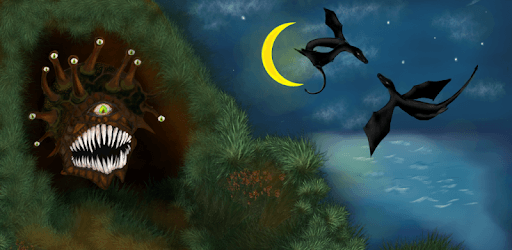
Magic Dosbox Free is an Android app developed and published by bruenor at Google Play Store on Oct 6, 2014 for Android users. Magic Dosbox Free is so popular that it has gained 536827 installs so far and growing.
Are you a fan of classic DOS games and applications? Do you want to relive the nostalgia of the good old days? Look no further than Magic Dosbox Free, the ultimate DOS emulator for Android. With its powerful features and user-friendly interface, this app allows you to play your favorite DOS games and run applications right on your smartphone or tablet.
Setting up Magic Dosbox Free is a breeze. Simply download the app from the Google Play Store, install it on your device, and you're ready to go. The intuitive interface makes it easy to navigate through your files and launch your favorite DOS programs with just a few taps.
Once you've launched a game or application, Magic Dosbox Free provides a seamless gameplay experience. The app's advanced features ensure that your games run smoothly, without any lag or performance issues. Whether you're playing a classic RPG like Master of Orion or diving into the post-apocalyptic world of Fallout, Magic Dosbox Free delivers an immersive and enjoyable gaming experience.
One of the standout features of Magic Dosbox Free is its customizable controls and gestures. The app allows you to emulate a mouse with two buttons using intuitive gestures, making it easy to navigate through menus and interact with in-game elements. While it may take some time to get used to the gesture system, once you've mastered it, you'll appreciate the precision and responsiveness it offers.
Additionally, Magic Dosbox Free provides keyboard support, allowing you to type or enter digits seamlessly. The developer has ensured that all your input needs are met, so you can enjoy a hassle-free experience while playing your favorite DOS games.
One of the key aspects that sets Magic Dosbox Free apart from other DOS emulators is the developer's commitment to providing excellent support. If you encounter any issues or have questions about the app, the developer is quick to respond and offer assistance. Whether it's clarifying a doubt or providing guidance on how to optimize your gameplay, you can rely on the developer to be there for you.
The developer's dedication to improving the app is evident in their prompt responses and willingness to address user concerns. They actively listen to feedback and make necessary updates to enhance the overall user experience. It's this level of support and engagement that makes Magic Dosbox Free a standout choice for DOS enthusiasts.
A: To close a DOS program from the root folder (C:/), you can use the BACK button. If you're unable to locate the BACK button on your Android device, try recalling the buttons at the bottom of the screen. This should help you exit the DOS program seamlessly.
A: If you're experiencing issues with the physical mouse, such as limited movement or the cursor stopping at the screen border, adjusting the sensitivity may not solve the problem. A possible solution is to make the pointer act as if locked inside the window. We understand the importance of a smooth gaming experience and are working to address this issue in future updates.
A: To run Fallout 1 on Magic Dosbox Free, you need to transfer the game files from your Bethesda account to your Galaxy S21. Once the files are transferred, launch Magic Dosbox Free and navigate to the game folder. From there, you should be able to play Fallout 1 seamlessly. If you encounter any issues, please reach out to our responsive developer support for immediate assistance.
A: Currently, Magic Dosbox Free supports DOS version 5.2. Running Windows 95 without mounting an image file may require a higher DOS version. We appreciate your feedback and will consider updating the DOS version in future releases to provide a more comprehensive experience.
A: While Magic Dosbox Free does not have a dedicated right mouse button click feature, you can easily configure it as a second tap while using one finger tap to hold. This provides a comfortable and efficient way to perform right-click actions within the app.
Experience the magic of DOS gaming on your Android device with Magic Dosbox Free. Download the app today and embark on a nostalgic journey filled with classic games and applications.
Yes, you can run Magic Dosbox Free on PC, but first, you will need emulator software installed on your Windows or MAC, which you can download for free. In the below video, you will find Magic Dosbox Free in action. Before you install the emulator, check out the minimum and recommended system requirements to run it seamlessly. They may change depending on which version of the emulator you choose. Therefore, we recommend you download the latest version of the emulator. Below you will find three free Android emulators that we have shortlisted based on their popularity:
Up to date graphics drivers from Microsoft or the chipset vendor.
Storage: 1 GB available under installation path, 1.5GB available hard drive space
Internet: Broadband Internet connection
Regardless of which Android emulator you install, the steps to install, configure, and running the Magic Dosbox Free app on PC are the same.




![[ROOT] Custom ROM Manager icon](https://cdn.desktoptwo.com/img/com.corphish.customrommanager.free-logo.png)