Published by Grey Shirts
Updated March 23, 2026
Firewall WITHOUT ROOT. Host name name filtering, fine-grained access control.
| Version | 4.0.2 |
| Size | 2.6 MB |
| What's New | - Android 10 support- Filter import/export |
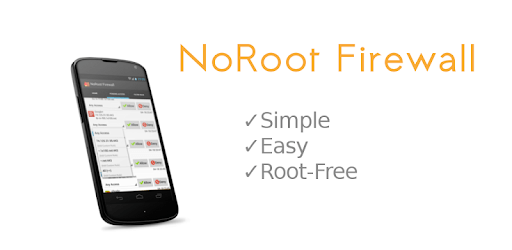
NoRoot Firewall is an Android app developed and published by Grey Shirts at Google Play Store on Feb 14, 2013 for Android users. NoRoot Firewall is so popular that it has gained 1000000 installs so far and growing.
With the increasing number of apps and games on our smartphones, it's crucial to have control over which apps can access the internet and what they can do with it. NoRoot Firewall is an awesome application that allows you to manage and control the network access of your apps, giving you the power to decide which apps can connect to the internet and which ones cannot.
One of the standout features of NoRoot Firewall is its ability to create exceptions and different profiles. This means that you can have separate sets of rules for when you're actively using your phone and when you're not. For example, you can import more lax rules when using your phone to allow certain apps to access the internet, and import strict rules when you're not using your phone to block unnecessary communications. This level of customization ensures that you have complete control over your network connections.
One of the most impressive aspects of NoRoot Firewall is its ability to block ads and unnecessary communications even when applications are not being used. It's astonishing to see how many apps try to connect to the internet without your knowledge. With NoRoot Firewall, you can put an end to this and protect your privacy.
Concerned about the impact on your battery life? While it's natural to worry that blocking apps from connecting to the internet might drain your battery faster, rest assured that NoRoot Firewall is designed to be efficient and optimized for performance. The app has been praised by users for its ability to protect connections without significantly impacting battery life.
NoRoot Firewall is not just about privacy and security; it's also about improving your overall mobile experience. By selectively choosing which applications can connect to the internet, you can enhance the performance of your phone. Only allowing the apps you use to access the internet can help reduce unnecessary background processes and improve the speed and responsiveness of your device.
Whether you're at home, at work, or in public places, NoRoot Firewall is your reliable companion for protecting your connections. It provides incredible insight into which apps are accessing your mobile device and gives you the power to control their access. With NoRoot Firewall, you can browse the internet with peace of mind, knowing that your connections are secure.
NoRoot Firewall has gained a loyal following over the years, with many users praising its security and performance. One user, who has been using the app for three years, describes it as the most secure solution available. It's worth noting that NoRoot Firewall is completely free and contains no ads, making it a standout choice among its competitors.
NoRoot Firewall is designed to be easy to use, even for those who are not tech-savvy. Its intuitive interface allows you to quickly navigate through the app and make the necessary adjustments to your network settings. Whether you're a beginner or an advanced user, NoRoot Firewall provides a seamless experience.
While some users have reported issues with the app not starting on boot, the overall consensus is that NoRoot Firewall is a reliable and effective solution for controlling your app's network access. Its granular firewall settings and simplicity make it a top choice for users who want to take control of their privacy and protect their connections.
Yes, NoRoot Firewall has the ability to block ads and prevent unnecessary communications from apps, even when they are not in use. This feature helps improve your browsing experience and protects your privacy.
NoRoot Firewall is designed to be efficient and optimized for performance. While blocking apps from connecting to the internet may have a slight impact on battery life, users have reported that the app does not significantly drain their batteries.
Absolutely! NoRoot Firewall allows you to create exceptions and different profiles, giving you the flexibility to customize the network access for each app. You can import lax rules when using your phone and strict rules when you're not, ensuring that you have complete control over your connections.
Yes, NoRoot Firewall is completely free to use. It contains no ads, making it a standout choice among its competitors.
NoRoot Firewall is compatible with most Android devices. However, some users have reported issues with the app not starting on boot. Despite this, the app is highly regarded for its security and performance.
NoRoot Firewall is the ultimate solution for taking control of your app's network access. With its powerful features, user-friendly interface, and commitment to privacy, it's no wonder that NoRoot Firewall has become a favorite among users. Download the app today and experience the peace of mind that comes with knowing your connections are secure.
Yes, you can run NoRoot Firewall on PC, but first, you will need emulator software installed on your Windows or MAC, which you can download for free. In the below video, you will find NoRoot Firewall in action. Before you install the emulator, check out the minimum and recommended system requirements to run it seamlessly. They may change depending on which version of the emulator you choose. Therefore, we recommend you download the latest version of the emulator. Below you will find three free Android emulators that we have shortlisted based on their popularity:
Up to date graphics drivers from Microsoft or the chipset vendor.
Storage: 1 GB available under installation path, 1.5GB available hard drive space
Internet: Broadband Internet connection
Regardless of which Android emulator you install, the steps to install, configure, and running the NoRoot Firewall app on PC are the same.