Mobile JKN for PC

Mobile JKN for PC

Published by BPJS Kesehatan

Updated October 24, 2025

Cara mudah akses informasi Jaminan Kesehatan Nasional, BPJS Kesehatan

What's New

Version4.15.0
Size138.3 MB
What's NewApa yang baru di versi 4.15.0Kini Aplikasi Mobile JKN makin proaktif! 🎉- Notifikasi pengingat screening riwayat kesehatan dan tindak lanjut hasil berisiko.- Notifikasi seputar Prolanis, PRB, dan Potensi Prolanis.- Informasi hasil pemeriksaan penunjang Prolanis 6 bulan terakhir.- Informasi obat PRB untuk peserta PRB.Update sekarang dan nikmati kemudahan akses informasi kesehatanmu! 💙

Mobile JKN Screenshots

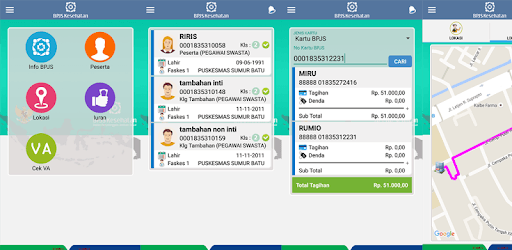
Mobile JKN PC screenshot

About Mobile JKN For PC

Mobile JKN is an Android app developed and published by BPJS Kesehatan at Google Play Store on Apr 17, 2016 for Android users. Mobile JKN is so popular that it has gained 17293587 installs so far and growing.

Explore The Convenience of Mobile JKN

Discover the ultimate ease of managing your healthcare needs with Mobile JKN. This innovative tool revolutionizes the way you handle medical appointments, personal data updates, and access to necessary documents. From the comfort of your home, you can navigate through complex processes with just a few clicks, making healthcare management simpler and more efficient.

Seamless Data Management

One of the standout features of Mobile JKN is its superb data management system. It provides clear instructions for updating crucial details like your National Identification Number (NIK), Family Card (KK), home address, and assigned health facilities (faskes). This intuitive guidance ensures you know exactly what steps to take, eliminating the hassle of traditional methods.

User-Friendly Interface

Designed with the user in mind, Mobile JKN offers a friendly interface that is easy to navigate. The straightforward design means that users of all ages can manage their healthcare without confusion. Whether you're tech-savvy or not, the app’s simplicity makes it accessible for everyone.

Effortless Medical Appointments

Scheduling and managing medical appointments have never been easier. With Mobile JKN, you can book appointments and update your details directly from your phone. This convenience saves you from extensive waiting times and the need to visit healthcare centers in person.

Challenges and Improvements

While Mobile JKN provides numerous benefits, there may be occasional challenges like system updates that could temporarily affect its performance. However, these updates are essential for enhancing the app’s overall functionality and user experience. Users can expect improved features and ease of use after such enhancements.

Accessing Important Documents

Navigating through the app to find important medical documents like referral letters is straightforward. Users can view these documents within the app, ensuring that all necessary information is at their fingertips. Future versions may further refine this feature to allow easier access and viewing of these documents in full.

Overcoming Technical Glitches

While most users find Mobile JKN extremely helpful, there might be occasional technical issues such as verification SMS delays or captcha errors. The development team is proactive in addressing these glitches, ensuring continuous improvements. Regular updates and user feedback are taken seriously to enhance the app’s reliability.

Enhanced Service History Tracking

Keeping track of your medical service history is vital. With Mobile JKN, you can easily check your service records, making it easier to follow up on previous appointments and treatments. Enhancements in future updates may even let you track the service history of all registered family members, adding another layer of convenience.

Continuous Development and Support

The team behind Mobile JKN is committed to continuous development, ensuring that the app meets the growing needs of its users. Feedback is highly valued, and user suggestions are often implemented to provide a better service. The goal is to create a seamless, efficient way for everyone to manage their healthcare needs.

Mobile JKN stands out as a reliable, user-friendly app that brings convenience and efficiency to healthcare management. With regular updates and a focus on user feedback, it continues to evolve, providing better features and a more streamlined experience for all users.

Can I run Mobile JKN on PC?

Yes, you can run Mobile JKN on PC, but first, you will need emulator software installed on your Windows or MAC, which you can download for free. In the below video, you will find Mobile JKN in action. Before you install the emulator, check out the minimum and recommended system requirements to run it seamlessly. They may change depending on which version of the emulator you choose. Therefore, we recommend you download the latest version of the emulator. Below you will find three free Android emulators that we have shortlisted based on their popularity:

How to Install Mobile JKN on Windows PC

BlueStacks

Minimum
  • OS: Microsoft Windows 7 and above.
  • Processor: Intel or AMD Processor.
  • RAM: Your PC must have at least 4GB of RAM. (Note that having 4GB or more disk space is not a substitute for RAM)
  • Storage: 5GB Free Disk Space.
  • You must be an Administrator on your PC.
Recommended:
  • OS: Microsoft Windows 10
  • Processor: Intel or AMD Multi-Core Processor with Single Thread benchmark score > 1000.
  • Graphics: Intel/Nvidia/ATI, Onboard or Discrete controller with benchmark score >= 750.
  • Please ensure Virtualization is enabled on your PC/Laptop.
  • RAM: 8GB or higher
  • Storage: SSD (or Fusion/Hybrid Drives)
  • Internet: Broadband connection to access games, accounts and related content.

Up to date graphics drivers from Microsoft or the chipset vendor.

  • To start with, download Bluestacks from its official website. The latest version of BluesStacks is v 5, and it is around 400 MB.
  • Once the download is done, click on the Bluestacks set up file to install it on your Windows PC. Follow the on-screen instructions and install it accordingly.
  • The next step is to launch the emulator using the desktop shortcut and sign in using your Google account.
  • Now, head over to Bluestacks home screen and click on the Google Play Store icon.
  • Hit the search bar in Google Play and search for Mobile JKN.
  • Install Mobile JKN from the Play Store by clicking the Install option, which completes downloading of Mobile JKN on PC.

NoxPlayer

Minimum
  • Operating System: Windows XP SP3, Windows Vista, Windows 7, Windows 8, Windows 10, and DirectX 9.0c
  • Processor: At least dual-core processor, both Intel, and AMD are OK
  • Video: Supports Open GL 2.0 or above
  • Memory: 1.5 GB RAM
Recommended
  • Operating System: Windows 7, Windows 8, Windows 10
  • Processor: Multiple core processors which support VT-x or AMB-V Virtualization Technology, better performance with this function enabled
  • Video: The higher performance, the better
  • Memory: 4 GB RAM

Storage: 1 GB available under installation path, 1.5GB available hard drive space

Internet: Broadband Internet connection

  • Download NoxPlayer from the official website. The latest version of NoxPlayer is v 3, and it is around 600 MB.
  • Now install the emulator using the downloaded setup file. Just go through the on-screen instructions and install NoxPlayer on your computer or laptop.
  • After the installation process, launch the Nox Android emulator and log in using your Google account when it asks you.
  • Click on the Google Play Store icon and head over to the search bar to search Mobile JKN. Once found, click on the Install button to install Mobile JKN for PC.
  • If you do not find Mobile JKN on Google Play Store or if you want to skip logging in to Google, you can sideload APK (download the .APK file from this page and open it with NoxPlayer).
  • Launch Mobile JKN from home-screen and start playing it on PC right away!

MEmu

Minimum
  • 2 cores x86/x86_64 Processor (Intel or AMD CPU)
  • WinXP SP3 / Win7 / Win8 / Win10 (Not recommended to run on Server/Enterprise)
  • Latest Windows DirectX 11 / Graphics driver with OpenGL 2.0
  • Hardware Virtualization Technology (Intel VT-x/AMD-V) shall be enabled in BIOS
  • 2GB of RAM (4GB for x64 system)
  • 5GB of hard disk free space
Recommended
  • OS: Microsoft Windows 10 with VT Enabled
  • CPU: Single Thread PassMark score > 1500 (Intel/AMD Multi-Core).
  • Graphics: Intel/Nvidia/ATI, Onboard or Discrete controller with PassMark score > 750.
  • Latest Windows DirectX 11 / Graphics driver with OpenGL 4.5 or higher
  • RAM: 8GB or higher
  • HDD: SSD, 10GB of hard disk free space
  • Internet: Broadband connection with low latency for FPS games
  • Download MEmu Play from the official website. The latest version of NoxPlayer is v 7.5.
  • When the download is completed, install the MEmu emulator on your PC. Follow the on-screen instructions and keep on clicking the Next button until the final step.
  • Now, using the desktop shortcut, look for the MEmu Play emulator and launch it. Once done, it will ask you to log in using your Google account, proceed with the same.
  • MEmu Play will ask you to log in using your Google account. When you log in, it will sync your Google account to MEmu Play. Launch the Google Play Store by clicking on the icon and search for Mobile JKN.
  • Click on the Install button once you find Mobile JKN from the search results. You can also sideload APK (download the .APK file from this page and open it with MEmu) if you want to skip above step.
  • After the installation of Mobile JKN, you're all set to use the app on PC!

Regardless of which Android emulator you install, the steps to install, configure, and running the Mobile JKN app on PC are the same.


Download Mobile JKN For PC