
Published by PulsePoint Foundation
Updated August 12, 2025
Download the PulsePoint app and use your CPR skills to save a life!
| Version | 4.27 |
| Size | 35.1 MB |
| What's New | What’s New• CPR-Needed Alert Readiness Widget: By continuously monitoring key settings such as responder type registration, notification selections, and location sharing, the CPR-Needed Alert Readiness Widget provides a glanceable interactive tile that confirms your device is properly configured-or warns you of any issue that would prevent receiving an emergency alert.• Performance, stability and general improvements.Learn more at https://www.pulsepoint.org/responder-types-and-features |
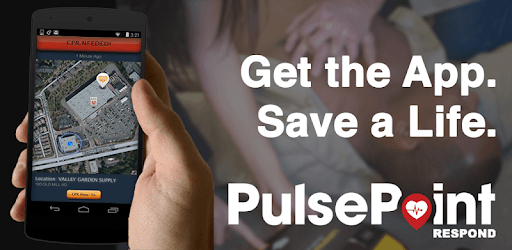
PulsePoint Respond is an Android app developed and published by PulsePoint Foundation at Google Play Store on Dec 22, 2011 for Android users. PulsePoint Respond is so popular that it has gained 2109959 installs so far and growing.
PulsePoint Respond is an app that connects people with real-time updates on emergency incidents in their vicinity. This app plays a significant role in enhancing awareness and helping users feel more informed about their surroundings.
PulsePoint Respond allows users to track various incidents happening nearby, such as traffic accidents, fires, and medical emergencies. It’s especially useful for those who often hear sirens and worry about what's going on. Instead of being left in the dark, users can quickly check the app and get instant updates. This not only eases anxiety but also helps in making informed decisions about safety and travel routes.
Knowing what's happening in your neighborhood brings a tight-knit sense of community. When sirens wail in small towns where everyone knows each other, it can be comforting to use PulsePoint Respond to get information fast. For those who know someone in need, this app can highlight where help is heading and provide a moment of relief.
PulsePoint Respond stands out as a helpful tool for security professionals. For example, a security supervisor can use it to keep track of incidents in their patrol area. This capability ensures they are always aware and can respond appropriately, bolstering their ability to maintain safety.
The app provides real-time notifications about emergencies, such as the presence of an ambulance, fire department, or fire rescue unit in the area. This feature is invaluable for users who may be concerned when they see emergency vehicles nearby. By offering immediate updates, PulsePoint Respond helps users stay informed and reduces the worry about local incidents involving family or friends.
Another significant benefit of PulsePoint Respond is its utility in avoiding traffic and road mishaps. Users can check the app before heading out, especially when navigating through areas known to have accidents. This proactive approach helps in rerouting plans and avoiding unnecessary delays and dangers.
An interesting feature of this app is its ability to monitor incidents at specific locations, such as 'South Cottonwood' or near specific milestones like 'MM 57 on 191.' This provides clear and precise information, making it easier to understand exactly where incidents are occurring and to stay clear of these areas if necessary.
PulsePoint Respond shines not only in providing emergency alerts but also in its ease of use. It's straightforward and user-friendly, making it accessible for users of all ages. However, there have been suggestions to enhance user experience further. For instance, implementing a wizard to guide users through notification settings can prevent notification spam and reduce frustration.
PulsePoint Respond also drives appreciation for local emergency services by keeping users informed of their actions. Knowing that their 911 calls are swiftly responded to and feeling grateful for the emergency responders' services builds a solid, appreciative community bond. Recognizing fire departments and medical teams for their timely help encourages a positive relationship between the community and its protectors.
PulsePoint Respond has proven reliability and a history of usage dating back to when only first responders had access. It continues to be a preferred choice for comprehensive real-time updates on emergencies, showing its consistent performance and trusted nature.
Whether it's for staying informed about local incidents, feeling connected to the community, or avoiding hazards, PulsePoint Respond delivers on all fronts. Its role in enhancing public awareness and safety is invaluable, making it an essential app for anyone looking to stay informed about their surroundings.
Yes, you can run PulsePoint Respond on PC, but first, you will need emulator software installed on your Windows or MAC, which you can download for free. In the below video, you will find PulsePoint Respond in action. Before you install the emulator, check out the minimum and recommended system requirements to run it seamlessly. They may change depending on which version of the emulator you choose. Therefore, we recommend you download the latest version of the emulator. Below you will find three free Android emulators that we have shortlisted based on their popularity:
Up to date graphics drivers from Microsoft or the chipset vendor.
Storage: 1 GB available under installation path, 1.5GB available hard drive space
Internet: Broadband Internet connection
Regardless of which Android emulator you install, the steps to install, configure, and running the PulsePoint Respond app on PC are the same.