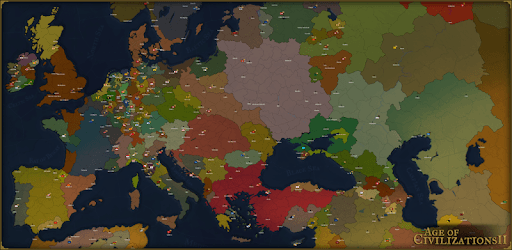
Age of Civilizations II - Lite for PC

Age of Civilizations II - Lite for PC

Published by Łukasz Jakowski

Updated November 20, 2025

AoC2 is a grand strategy wargame that is simple to learn yet hard to master.

What's New

Version1.0636_LITE
Size134.3 MB
What's NewRewritten system of saves in game for more stabilityNew: Minimum army to attack and capture any province must be over 10 unitsIt's possible to rotate the game in landscape mode

Age of Civilizations II - Lite Screenshots

Age of Civilizations II - Lite PC screenshot

About Age of Civilizations II - Lite For PC

Age of Civilizations II - Lite is an Android app developed and published by Łukasz Jakowski at Google Play Store on Dec 10, 2018 for Android users. Age of Civilizations II - Lite is so popular that it has gained 4706690 installs so far and growing.

Exploring the World of "Age of Civilizations II - Lite"

"Age of Civilizations II - Lite" is a captivating strategy game that allows players to dive into the complexities of world domination and historical scenarios. Whether you are a history buff or just love intricate games, this Lite version offers a taste of what the full game provides. It's a unique experience that combines strategy, history, and a touch of tactical warfare to keep you engaged for hours.

Engaging Gameplay

The gameplay of "Age of Civilizations II - Lite" is both challenging and rewarding. Players are tasked with managing various civilizations, conducting diplomacy, and strategizing military movements. The game's map extends through different eras, including old World War I and World War II scenarios. This feature adds a layer of depth and historical context that enhances the gaming experience.

Accessibility and Features

One of the standout features of the Lite version is its accessibility. It's perfect for players who want to get a feel for the game without committing to the full version right away. Despite being a Lite version, it offers extensive features and content. Players can engage in comprehensive scenarios and immerse themselves in the history and strategy that the game offers.

Improvement Areas

While the game is widely enjoyed, some players have noted areas that could use improvement. For instance, the tutorial could be more detailed to help new players navigate the complexities of the game. Additionally, adding animations for attacking territories and expanding the maps could make the game even more engaging and dynamic. Including AI civilizations that release vassals and making available more in-game customization options like creating scenarios and leaders could also enhance the overall experience.

Historical Maps and Scenarios

The game shines in its representation of historical maps and scenarios. From ancient civilizations in a BC Era map to the grand conflicts of the 1440s, each scenario is painstakingly detailed. Players can explore different parts of the world and engage in historical events, making each game session feel unique and educational.

Community and Updates

The community of "Age of Civilizations II - Lite" is enthusiastic and supportive. The game's developer, Lukasz Jakowski, is working on the next installment, "Age of History 3," which has sparked interest and excitement among players. Keeping up with updates and participating in the community can enrich the gaming experience and keep players engaged over time.

Technical Aspects

Although primarily designed for mobile devices, "Age of Civilizations II - Lite" offers a robust experience even on smaller screens. However, some players find the PC version to be more stable and less glitchy. This game could be a refreshing change for those finding other strategy games like "Hearts of Iron IV" too complex. It provides a simplified yet deep strategic experience that’s accessible and fun.

Final Thoughts

"Age of Civilizations II - Lite" is a wonderful introduction to a world of strategy and history. Whether you’re new to strategy games or an old hand at them, the game delivers a rich and varied experience. Dive in, explore various scenarios, and enjoy the journey through time. Ensure you explore all the features this Lite version offers, and consider supporting the development of future games by purchasing the full version.

Can I run Age of Civilizations II - Lite on PC?

Yes, you can run Age of Civilizations II - Lite on PC, but first, you will need emulator software installed on your Windows or MAC, which you can download for free. In the below video, you will find Age of Civilizations II - Lite in action. Before you install the emulator, check out the minimum and recommended system requirements to run it seamlessly. They may change depending on which version of the emulator you choose. Therefore, we recommend you download the latest version of the emulator. Below you will find three free Android emulators that we have shortlisted based on their popularity:

How to Install Age of Civilizations II - Lite on Windows PC

BlueStacks

Minimum
  • OS: Microsoft Windows 7 and above.
  • Processor: Intel or AMD Processor.
  • RAM: Your PC must have at least 4GB of RAM. (Note that having 4GB or more disk space is not a substitute for RAM)
  • Storage: 5GB Free Disk Space.
  • You must be an Administrator on your PC.
Recommended:
  • OS: Microsoft Windows 10
  • Processor: Intel or AMD Multi-Core Processor with Single Thread benchmark score > 1000.
  • Graphics: Intel/Nvidia/ATI, Onboard or Discrete controller with benchmark score >= 750.
  • Please ensure Virtualization is enabled on your PC/Laptop.
  • RAM: 8GB or higher
  • Storage: SSD (or Fusion/Hybrid Drives)
  • Internet: Broadband connection to access games, accounts and related content.

Up to date graphics drivers from Microsoft or the chipset vendor.

  • To start with, download Bluestacks from its official website. The latest version of BluesStacks is v 5, and it is around 400 MB.
  • Once the download is done, click on the Bluestacks set up file to install it on your Windows PC. Follow the on-screen instructions and install it accordingly.
  • The next step is to launch the emulator using the desktop shortcut and sign in using your Google account.
  • Now, head over to Bluestacks home screen and click on the Google Play Store icon.
  • Hit the search bar in Google Play and search for Age of Civilizations II - Lite.
  • Install Age of Civilizations II - Lite from the Play Store by clicking the Install option, which completes downloading of Age of Civilizations II - Lite on PC.

NoxPlayer

Minimum
  • Operating System: Windows XP SP3, Windows Vista, Windows 7, Windows 8, Windows 10, and DirectX 9.0c
  • Processor: At least dual-core processor, both Intel, and AMD are OK
  • Video: Supports Open GL 2.0 or above
  • Memory: 1.5 GB RAM
Recommended
  • Operating System: Windows 7, Windows 8, Windows 10
  • Processor: Multiple core processors which support VT-x or AMB-V Virtualization Technology, better performance with this function enabled
  • Video: The higher performance, the better
  • Memory: 4 GB RAM

Storage: 1 GB available under installation path, 1.5GB available hard drive space

Internet: Broadband Internet connection

  • Download NoxPlayer from the official website. The latest version of NoxPlayer is v 3, and it is around 600 MB.
  • Now install the emulator using the downloaded setup file. Just go through the on-screen instructions and install NoxPlayer on your computer or laptop.
  • After the installation process, launch the Nox Android emulator and log in using your Google account when it asks you.
  • Click on the Google Play Store icon and head over to the search bar to search Age of Civilizations II - Lite. Once found, click on the Install button to install Age of Civilizations II - Lite for PC.
  • If you do not find Age of Civilizations II - Lite on Google Play Store or if you want to skip logging in to Google, you can sideload APK (download the .APK file from this page and open it with NoxPlayer).
  • Launch Age of Civilizations II - Lite from home-screen and start playing it on PC right away!

MEmu

Minimum
  • 2 cores x86/x86_64 Processor (Intel or AMD CPU)
  • WinXP SP3 / Win7 / Win8 / Win10 (Not recommended to run on Server/Enterprise)
  • Latest Windows DirectX 11 / Graphics driver with OpenGL 2.0
  • Hardware Virtualization Technology (Intel VT-x/AMD-V) shall be enabled in BIOS
  • 2GB of RAM (4GB for x64 system)
  • 5GB of hard disk free space
Recommended
  • OS: Microsoft Windows 10 with VT Enabled
  • CPU: Single Thread PassMark score > 1500 (Intel/AMD Multi-Core).
  • Graphics: Intel/Nvidia/ATI, Onboard or Discrete controller with PassMark score > 750.
  • Latest Windows DirectX 11 / Graphics driver with OpenGL 4.5 or higher
  • RAM: 8GB or higher
  • HDD: SSD, 10GB of hard disk free space
  • Internet: Broadband connection with low latency for FPS games
  • Download MEmu Play from the official website. The latest version of NoxPlayer is v 7.5.
  • When the download is completed, install the MEmu emulator on your PC. Follow the on-screen instructions and keep on clicking the Next button until the final step.
  • Now, using the desktop shortcut, look for the MEmu Play emulator and launch it. Once done, it will ask you to log in using your Google account, proceed with the same.
  • MEmu Play will ask you to log in using your Google account. When you log in, it will sync your Google account to MEmu Play. Launch the Google Play Store by clicking on the icon and search for Age of Civilizations II - Lite.
  • Click on the Install button once you find Age of Civilizations II - Lite from the search results. You can also sideload APK (download the .APK file from this page and open it with MEmu) if you want to skip above step.
  • After the installation of Age of Civilizations II - Lite, you're all set to use the app on PC!

Regardless of which Android emulator you install, the steps to install, configure, and running the Age of Civilizations II - Lite app on PC are the same.