Published by olgor.com
Updated November 3, 2025
Optimize your WiFi network using WiFi Analyzer, Get the most out of your WiFi.
| Version | 6.8 |
| Size | 7.9 MB |
| What's New | WiFi Analyzer now works even better!Translated to 17 languages, more are coming soon!New Features:- Supports WiFi 6GHz- Displays channel width by default- Supports Android 13- Best channels for connected AP- Remembers your preferences- Export Graphs- View information about your connection- Connect to open WiFi networks within the app- Detect who is connected to your WiFi- WiFi Speed Test- Signal Tracker |
WiFi Analyzer is an Android app developed and published by olgor.com at Google Play Store on for Android users. WiFi Analyzer is so popular that it has gained 16425692 installs so far and growing.
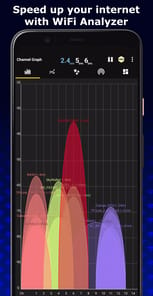
Having trouble with your wireless network? WiFi Analyzer is here to save the day. This handy app helps you troubleshoot networking issues and optimize your WiFi experience with ease. Just by using this app, you can elevate your home or business internet setup to a whole new level. No more dead spots or weak signals—WiFi Analyzer is the ultimate guide you didn’t know you needed.
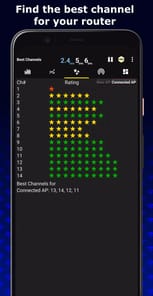
WiFi Analyzer gives you the insights necessary to strengthen your WiFi signal. Whether you're placing extenders around the house or figuring out the best band or channels for your needs, this app provides a straightforward user experience. Even if the most complex part may be adjusting your router settings, you’ll have all the information you need right at your fingertips. The app is incredibly user-friendly, making it accessible for anyone, tech-savvy or not.
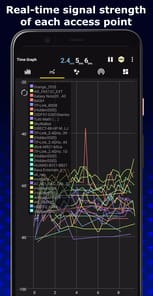
Say goodbye to dead spots! WiFi Analyzer lets you know exactly where your signal is flaky or nonexistent. This feature comes in handy whether you're walking through your home or assessing office spaces. Knowing where the weak spots are helps you take proactive steps to improve your overall WiFi experience. This can make all the difference between dealing with constant buffering and enjoying smooth, uninterrupted internet.
If you ever wondered about the hidden intricacies of your network, WiFi Analyzer can help illuminate these mysteries. It provides a treasure trove of information that even seasoned network professionals would appreciate. From revealing hidden networks to diagnosing potential issues, the app makes it easy to keep your network secure and efficient. Plus, it’s a joy to see how complex networks come to life with just a few taps.
Configuring your router settings can be intimidating, but with WiFi Analyzer, it doesn’t have to be. The app makes it easier to finalize the perfect setup for your router. It's like having a tech-savvy friend right inside your pocket, guiding you through every tweak and adjustment. It's not just useful; it's empowering.
This isn’t just an app for fixing problems. WiFi Analyzer can truly enhance your network experience. It can help you identify the best channels to use, ensure that extenders are working correctly, and even spot hidden routers. All these features combine to create a more robust and enjoyable WiFi experience.
Whether you're using it on a tablet, phone, or even multiple devices at once, WiFi Analyzer seamlessly adapts to meet your needs. This reliability sets it apart from other tools that may offer similar services. So, no matter what device you choose, you can count on WiFi Analyzer to deliver consistent, excellent performance.
While the app is fantastic, some users wish it had a few more features. For instance, defining which WiFi hotspots are personally managed could make the app even more useful. Displaying these more prominently and accounting for them in signal strength calculations could offer additional value. Still, the app excels in its core functions, making these extra feature requests more like icing on the cake.
A factor worth mentioning is the app’s pricing model. While some are more than happy with the free version, there are ads that can be disruptive, especially those that play loud sounds. Some users are hesitant about the subscription model but appreciate that there's an option for a permanent premium version. This flexibility caters to different preferences, making WiFi Analyzer a versatile tool for a broad audience.
In the end, WiFi Analyzer is a powerful, intuitive app that offers a wealth of information and utility. Whether you're a tech expert or someone just looking to improve your home WiFi, this app is designed to make your life easier. Give it a try and experience the magic of WiFi Analyzer firsthand!
Yes, you can run WiFi Analyzer on PC, but first, you will need emulator software installed on your Windows or MAC, which you can download for free. In the below video, you will find WiFi Analyzer in action. Before you install the emulator, check out the minimum and recommended system requirements to run it seamlessly. They may change depending on which version of the emulator you choose. Therefore, we recommend you download the latest version of the emulator. Below you will find three free Android emulators that we have shortlisted based on their popularity:
Up to date graphics drivers from Microsoft or the chipset vendor.
Storage: 1 GB available under installation path, 1.5GB available hard drive space
Internet: Broadband Internet connection
Regardless of which Android emulator you install, the steps to install, configure, and running the WiFi Analyzer app on PC are the same.




![[ROOT] Custom ROM Manager icon](https://cdn.desktoptwo.com/img/com.corphish.customrommanager.free-logo.png)