Warpath for PC

Warpath for PC

Published by LilithGames

Updated October 19, 2025

Real strategy, real warfare

What's New

Version13.40.11
Size1.6 GB
What's NewSpringfest EventsBrave's Path S3 Optimizations[New Officers]Officer PicksAlliance Tag ShareRate Your Conquest ExperienceGlory Server Rule UpdatesAide Unlock Condition Visibility UpdatesAdvanced Expertise Optimizations

Warpath Screenshots

Warpath PC screenshot

About Warpath For PC

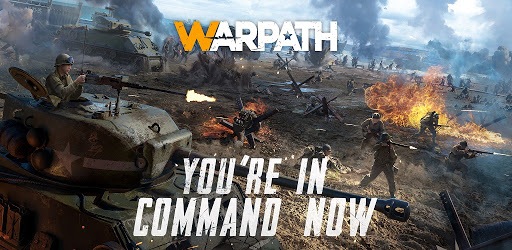
Warpath is an Android app developed and published by LilithGames at Google Play Store on Nov 9, 2020 for Android users. Warpath is so popular that it has gained 5024018 installs so far and growing.

Exploring the Tactical Landscape of Warpath

Warpath is an engaging and visually appealing game that has taken the mobile gaming world by storm. This game is packed with features that attract both casual gamers and serious strategists. Let's dive into some of the reasons why Warpath has garnered such positive attention.

Immersive Gameplay Experience

One of the standout features of Warpath is its immersive gameplay. Players are thrilled by the detailed graphics and the ability to upgrade their camps, making sure their base always stays ahead of the curve. The app delivers a captivating experience that keeps players coming back for more, with many noting their long-term engagement with the game.

Team-Oriented Strategy

Teamwork is crucial in Warpath. The game emphasizes multiplayer alliances, where forming strong alliances is key to success. Players work together to win battles and grow their territories. This not only builds community but also ensures that even new players can find support and quickly integrate into the game dynamics.

Continuous Updates and Development

Warpath stands out due to its consistent updates and improvements. The developers frequently roll out updates to enhance the gameplay experience, keeping it fresh and exciting. Player feedback is taken seriously, and many have noticed significant improvements over time, particularly those who have been playing for more than a year.

Balancing Free and Paid Features

While Warpath does offer in-app purchases, it maintains a fair balance so that free players can also enjoy the game to its fullest. This is quite uncommon in multiplayer games where often, the biggest spenders dominate. In Warpath, strategic alliances and teamwork can often outmatch individual spending power, making it enjoyable for everyone.

User-Friendly Interface

The game is designed for ease of use, with many players praising its smooth performance and intuitive layout. While some find the chat interface a bit challenging, the overall customer service is responsive and efficient, adding to the positive user experience.

Suggestions and Wishes

There are a few wishes from the community that, if addressed, could make Warpath even more remarkable. For example, adding a navy could broaden the strategic options available to players. Some players also wish for more flexible resource-sharing capabilities within alliances, enhancing the collaborative aspect of the game.

Overcoming Challenges

Technical hiccups can sometimes interrupt the game, but the developers are quick to address these issues, ensuring players have a smooth experience. Regular maintenance and prompt customer service help in maintaining the high standards that Warpath is known for.

Conclusion

Warpath is a game that marries strategy, teamwork, and aesthetics into an unforgettable gaming experience. Whether you're upgrading your base, forming alliances, or engaging in epic battles, Warpath offers endless opportunities and a community that keeps players coming back for more.

Can I run Warpath on PC?

Yes, you can run Warpath on PC, but first, you will need emulator software installed on your Windows or MAC, which you can download for free. In the below video, you will find Warpath in action. Before you install the emulator, check out the minimum and recommended system requirements to run it seamlessly. They may change depending on which version of the emulator you choose. Therefore, we recommend you download the latest version of the emulator. Below you will find three free Android emulators that we have shortlisted based on their popularity:

How to Install Warpath on Windows PC

BlueStacks

Minimum
  • OS: Microsoft Windows 7 and above.
  • Processor: Intel or AMD Processor.
  • RAM: Your PC must have at least 4GB of RAM. (Note that having 4GB or more disk space is not a substitute for RAM)
  • Storage: 5GB Free Disk Space.
  • You must be an Administrator on your PC.
Recommended:
  • OS: Microsoft Windows 10
  • Processor: Intel or AMD Multi-Core Processor with Single Thread benchmark score > 1000.
  • Graphics: Intel/Nvidia/ATI, Onboard or Discrete controller with benchmark score >= 750.
  • Please ensure Virtualization is enabled on your PC/Laptop.
  • RAM: 8GB or higher
  • Storage: SSD (or Fusion/Hybrid Drives)
  • Internet: Broadband connection to access games, accounts and related content.

Up to date graphics drivers from Microsoft or the chipset vendor.

  • To start with, download Bluestacks from its official website. The latest version of BluesStacks is v 5, and it is around 400 MB.
  • Once the download is done, click on the Bluestacks set up file to install it on your Windows PC. Follow the on-screen instructions and install it accordingly.
  • The next step is to launch the emulator using the desktop shortcut and sign in using your Google account.
  • Now, head over to Bluestacks home screen and click on the Google Play Store icon.
  • Hit the search bar in Google Play and search for Warpath.
  • Install Warpath from the Play Store by clicking the Install option, which completes downloading of Warpath on PC.

NoxPlayer

Minimum
  • Operating System: Windows XP SP3, Windows Vista, Windows 7, Windows 8, Windows 10, and DirectX 9.0c
  • Processor: At least dual-core processor, both Intel, and AMD are OK
  • Video: Supports Open GL 2.0 or above
  • Memory: 1.5 GB RAM
Recommended
  • Operating System: Windows 7, Windows 8, Windows 10
  • Processor: Multiple core processors which support VT-x or AMB-V Virtualization Technology, better performance with this function enabled
  • Video: The higher performance, the better
  • Memory: 4 GB RAM

Storage: 1 GB available under installation path, 1.5GB available hard drive space

Internet: Broadband Internet connection

  • Download NoxPlayer from the official website. The latest version of NoxPlayer is v 3, and it is around 600 MB.
  • Now install the emulator using the downloaded setup file. Just go through the on-screen instructions and install NoxPlayer on your computer or laptop.
  • After the installation process, launch the Nox Android emulator and log in using your Google account when it asks you.
  • Click on the Google Play Store icon and head over to the search bar to search Warpath. Once found, click on the Install button to install Warpath for PC.
  • If you do not find Warpath on Google Play Store or if you want to skip logging in to Google, you can sideload APK (download the .APK file from this page and open it with NoxPlayer).
  • Launch Warpath from home-screen and start playing it on PC right away!

MEmu

Minimum
  • 2 cores x86/x86_64 Processor (Intel or AMD CPU)
  • WinXP SP3 / Win7 / Win8 / Win10 (Not recommended to run on Server/Enterprise)
  • Latest Windows DirectX 11 / Graphics driver with OpenGL 2.0
  • Hardware Virtualization Technology (Intel VT-x/AMD-V) shall be enabled in BIOS
  • 2GB of RAM (4GB for x64 system)
  • 5GB of hard disk free space
Recommended
  • OS: Microsoft Windows 10 with VT Enabled
  • CPU: Single Thread PassMark score > 1500 (Intel/AMD Multi-Core).
  • Graphics: Intel/Nvidia/ATI, Onboard or Discrete controller with PassMark score > 750.
  • Latest Windows DirectX 11 / Graphics driver with OpenGL 4.5 or higher
  • RAM: 8GB or higher
  • HDD: SSD, 10GB of hard disk free space
  • Internet: Broadband connection with low latency for FPS games
  • Download MEmu Play from the official website. The latest version of NoxPlayer is v 7.5.
  • When the download is completed, install the MEmu emulator on your PC. Follow the on-screen instructions and keep on clicking the Next button until the final step.
  • Now, using the desktop shortcut, look for the MEmu Play emulator and launch it. Once done, it will ask you to log in using your Google account, proceed with the same.
  • MEmu Play will ask you to log in using your Google account. When you log in, it will sync your Google account to MEmu Play. Launch the Google Play Store by clicking on the icon and search for Warpath.
  • Click on the Install button once you find Warpath from the search results. You can also sideload APK (download the .APK file from this page and open it with MEmu) if you want to skip above step.
  • After the installation of Warpath, you're all set to use the app on PC!

Regardless of which Android emulator you install, the steps to install, configure, and running the Warpath app on PC are the same.


Download Warpath For PC