
Published by VIZOR APPS LTD.
Updated August 4, 2025
Travel to the time of Gold Rush with Klondike Adventures!
| Version | 2.143 |
| Size | 440.5 MB |
| What's New | Winter update in Klondike!KLONDIKE FAIR- Jessie and Mike get into a fight over their booth... Which side are you on?SPORTS ADVENTURE- Learn the basics of American football with Billy and Huck. Let's organize a Klondike championship!VALENTINE FACTORY- Eric and Joseph come into surprising inheritance, a factory where workers are magical but problems are quite ordinary... Your help is needed!WATERFALL VALLEY- Join the search for the mythical source of water. |
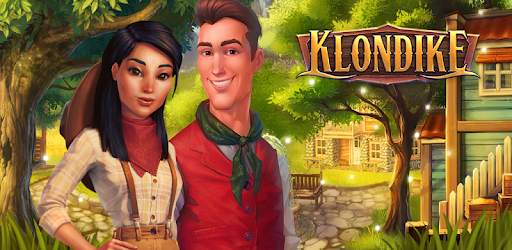
Klondike Adventures is an Android app developed and published by VIZOR APPS LTD. at Google Play Store on Apr 3, 2018 for Android users. Klondike Adventures is so popular that it has gained 109377279 installs so far and growing.
Klondike Adventures is an enthralling and entertaining adventure and farming game. With many features to explore, it promises endless fun for players of all ages. The game captures the attention of new players quickly, and before you know it, you are hooked on its captivating world!
The gameplay in Klondike Adventures is both fun and exciting. Players explore new terrains, build and manage farms, and complete various missions. With every map you beat, it makes you yearn for more. The developers are constantly updating the game, making it a favorite pastime for many.
What sets Klondike Adventures apart is the developers' commitment to continuous improvement. The regular updates keep the game fresh and appealing. New challenges and short-term games are frequently added, keeping players occupied and entertained. The holidays in Klondike Adventures are particularly special, offering unique events and fun missions that many look forward to.
While Klondike Adventures offers in-game purchases, it maintains a balanced experience for all players. You can enjoy the game without spending money. This balance is part of what makes Klondike Adventures one of the best games out there. However, some players feel that certain rewards could be more accessible without purchase, still, the overall experience remains positive.
The game is designed to be addicting, in the best way possible. Completing challenges, growing your farm, and adventuring in new areas all provide satisfaction and a sense of achievement. While some players have dealt with minor issues, these are usually resolved quickly, maintaining the high-quality experience that fans love.
In Klondike Adventures, energy is a crucial component for progressing through challenges. Players have expressed a desire for more accessible energy sources like energy plants in their gardens or new adventures. This would allow more extended play sessions and enhance the overall gaming experience. Nevertheless, the inclusion of energy plants in some adventures is a welcome addition.
Klondike Adventures fosters a vibrant and dedicated community of players. Whether starting anew or as a long-time player, the game ensures everyone enjoys the experience. This sense of community is amplified when suggestions from players are considered, such as the idea of a gift mountain for beating maps.
For fans of farming simulator games, Klondike Adventures stands out with its combination of farming and adventure. The thrill of exploring unknown lands and managing your farm makes it an immersive experience. Moreover, the game’s dedication to providing ads relevant to the gameplay enhances the user's engagement without interruptions from unrelated content.
The captivating missions, vibrant graphics, and engaging storylines make Klondike Adventures a standout game. Its unique blend of farming and adventure ensures that players are always engaged, making it a game you’ll find hard to put down.
As players progress through the levels, new and more interesting challenges are introduced. Some players have voiced concerns about specific rewards and the necessity for additional in-game purchases, but the enjoyment derived from playing still stands strong. Over time, the adjustments made by the developers continue to enhance the experience for all.
Klondike Adventures remains a beloved game to its community of players. The continuous updates, exciting challenges, and addictive gameplay make it a top choice for adventure and farming enthusiasts alike. Dive into the world of Klondike and discover the adventures that await!
Yes, you can run Klondike Adventures on PC, but first, you will need emulator software installed on your Windows or MAC, which you can download for free. In the below video, you will find Klondike Adventures in action. Before you install the emulator, check out the minimum and recommended system requirements to run it seamlessly. They may change depending on which version of the emulator you choose. Therefore, we recommend you download the latest version of the emulator. Below you will find three free Android emulators that we have shortlisted based on their popularity:
Up to date graphics drivers from Microsoft or the chipset vendor.
Storage: 1 GB available under installation path, 1.5GB available hard drive space
Internet: Broadband Internet connection
Regardless of which Android emulator you install, the steps to install, configure, and running the Klondike Adventures app on PC are the same.