SwitchBot for PC

SwitchBot for PC

Published by Wonderlabs, Inc

Updated November 9, 2025

The app for SwitchBot.

What's New

Version9.11.15.13
Size196.4 MB
What's NewMinor bug fixes and improvements. Install or update to the newest version to check it out!

SwitchBot Screenshots

SwitchBot PC screenshot

About SwitchBot For PC

SwitchBot is an Android app developed and published by Wonderlabs, Inc at Google Play Store on Oct 11, 2016 for Android users. SwitchBot is so popular that it has gained 5000 installs so far and growing.

SwitchBot: Simplifying Smart Home Automation

SwitchBot brings a new level of convenience to smart home automation. This versatile device offers an easy-to-use and quick setup solution for various household tasks. Whether it's controlling your lights, curtains, or appliances, SwitchBot does it all.

Effortless Setup

One of the standout features of SwitchBot is its straightforward setup process. Getting started is almost instant, making it a great option for those new to smart home technology. A minimal app interface guides users through linking devices to WiFi, ensuring a seamless start with no unnecessary complications.

Broad Compatibility

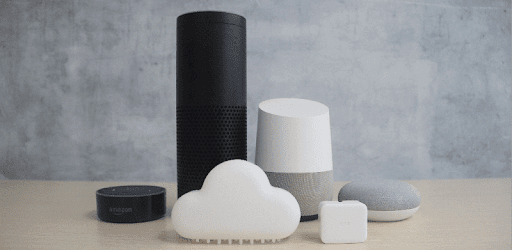
SwitchBot is designed to work with a wide range of devices. From curtains to light switches and beyond, it enhances control and connectivity in your home. Integration with Alexa takes usability a step further. Custom appliances can be mapped directly to Alexa, providing a tailored smart home experience.

Remote Control Convenience

Remote control is a core feature of SwitchBot, allowing you to manage home devices from your phone, regardless of your location. This functionality is perfect for those who want to control their environment remotely, ensuring that everything is just the way you like it before you even walk through the door.

Expandable System

SwitchBot is not just a one-off solution. It's part of an expandable system that grows with your needs. Adding new devices is a breeze, making it simple to continually upgrade and customize your smart home setup. The potential for increasing functionality ensures that SwitchBot can adapt to a growing number of applications.

Customizable Features

Customization is an important aspect of SwitchBot. Users can benefit from the ability to set up custom patterns for infrared controls, which enhances the utility of devices like TVs and DVD players. This allows for a highly tailored user experience, exceeding the capabilities of standard preselected options.

Smart Switch Solution

SwitchBot excels as a smart switch solution. Set up a hub with SwitchBot to easily control non-smart light switches. This capability means you can automate more elements of your home without needing to replace existing fittings. It's a quick and impactful way to modernize everyday functions.

Integration and Expansion

Beyond individual devices, SwitchBot integrates well with other smart systems. For instance, integration with Amazon Echo is seamless, adding another layer of functionality and making everyday interactions even easier. Looking to the future, there's potential to use SwitchBot in larger networks, such as integrating with smartwatches.

Simplifying Daily Routines

SwitchBot simplifies daily routines by bringing convenient automation to numerous tasks. From opening curtains with a simple tap on an app to managing various devices through a single hub, SwitchBot makes life easier.

Versatility and Utility

The versatility and utility of SwitchBot are impressive. It addresses many modern living needs by providing solutions that other devices can't match. Whether you need to control multiple appliances or seek a way to automate lights and curtains, SwitchBot delivers with ease.

SwitchBot stands out as a highly useful product for anyone looking to enhance their smart home. It combines ease of use, broad compatibility, and extensive customization options, making it a top choice for smart home automation. With SwitchBot, everyday tasks become simpler, bringing comfort and convenience to your fingertips.

Can I run SwitchBot on PC?

Yes, you can run SwitchBot on PC, but first, you will need emulator software installed on your Windows or MAC, which you can download for free. In the below video, you will find SwitchBot in action. Before you install the emulator, check out the minimum and recommended system requirements to run it seamlessly. They may change depending on which version of the emulator you choose. Therefore, we recommend you download the latest version of the emulator. Below you will find three free Android emulators that we have shortlisted based on their popularity:

How to Install SwitchBot on Windows PC

BlueStacks

Minimum
  • OS: Microsoft Windows 7 and above.
  • Processor: Intel or AMD Processor.
  • RAM: Your PC must have at least 4GB of RAM. (Note that having 4GB or more disk space is not a substitute for RAM)
  • Storage: 5GB Free Disk Space.
  • You must be an Administrator on your PC.
Recommended:
  • OS: Microsoft Windows 10
  • Processor: Intel or AMD Multi-Core Processor with Single Thread benchmark score > 1000.
  • Graphics: Intel/Nvidia/ATI, Onboard or Discrete controller with benchmark score >= 750.
  • Please ensure Virtualization is enabled on your PC/Laptop.
  • RAM: 8GB or higher
  • Storage: SSD (or Fusion/Hybrid Drives)
  • Internet: Broadband connection to access games, accounts and related content.

Up to date graphics drivers from Microsoft or the chipset vendor.

  • To start with, download Bluestacks from its official website. The latest version of BluesStacks is v 5, and it is around 400 MB.
  • Once the download is done, click on the Bluestacks set up file to install it on your Windows PC. Follow the on-screen instructions and install it accordingly.
  • The next step is to launch the emulator using the desktop shortcut and sign in using your Google account.
  • Now, head over to Bluestacks home screen and click on the Google Play Store icon.
  • Hit the search bar in Google Play and search for SwitchBot.
  • Install SwitchBot from the Play Store by clicking the Install option, which completes downloading of SwitchBot on PC.

NoxPlayer

Minimum
  • Operating System: Windows XP SP3, Windows Vista, Windows 7, Windows 8, Windows 10, and DirectX 9.0c
  • Processor: At least dual-core processor, both Intel, and AMD are OK
  • Video: Supports Open GL 2.0 or above
  • Memory: 1.5 GB RAM
Recommended
  • Operating System: Windows 7, Windows 8, Windows 10
  • Processor: Multiple core processors which support VT-x or AMB-V Virtualization Technology, better performance with this function enabled
  • Video: The higher performance, the better
  • Memory: 4 GB RAM

Storage: 1 GB available under installation path, 1.5GB available hard drive space

Internet: Broadband Internet connection

  • Download NoxPlayer from the official website. The latest version of NoxPlayer is v 3, and it is around 600 MB.
  • Now install the emulator using the downloaded setup file. Just go through the on-screen instructions and install NoxPlayer on your computer or laptop.
  • After the installation process, launch the Nox Android emulator and log in using your Google account when it asks you.
  • Click on the Google Play Store icon and head over to the search bar to search SwitchBot. Once found, click on the Install button to install SwitchBot for PC.
  • If you do not find SwitchBot on Google Play Store or if you want to skip logging in to Google, you can sideload APK (download the .APK file from this page and open it with NoxPlayer).
  • Launch SwitchBot from home-screen and start playing it on PC right away!

MEmu

Minimum
  • 2 cores x86/x86_64 Processor (Intel or AMD CPU)
  • WinXP SP3 / Win7 / Win8 / Win10 (Not recommended to run on Server/Enterprise)
  • Latest Windows DirectX 11 / Graphics driver with OpenGL 2.0
  • Hardware Virtualization Technology (Intel VT-x/AMD-V) shall be enabled in BIOS
  • 2GB of RAM (4GB for x64 system)
  • 5GB of hard disk free space
Recommended
  • OS: Microsoft Windows 10 with VT Enabled
  • CPU: Single Thread PassMark score > 1500 (Intel/AMD Multi-Core).
  • Graphics: Intel/Nvidia/ATI, Onboard or Discrete controller with PassMark score > 750.
  • Latest Windows DirectX 11 / Graphics driver with OpenGL 4.5 or higher
  • RAM: 8GB or higher
  • HDD: SSD, 10GB of hard disk free space
  • Internet: Broadband connection with low latency for FPS games
  • Download MEmu Play from the official website. The latest version of NoxPlayer is v 7.5.
  • When the download is completed, install the MEmu emulator on your PC. Follow the on-screen instructions and keep on clicking the Next button until the final step.
  • Now, using the desktop shortcut, look for the MEmu Play emulator and launch it. Once done, it will ask you to log in using your Google account, proceed with the same.
  • MEmu Play will ask you to log in using your Google account. When you log in, it will sync your Google account to MEmu Play. Launch the Google Play Store by clicking on the icon and search for SwitchBot.
  • Click on the Install button once you find SwitchBot from the search results. You can also sideload APK (download the .APK file from this page and open it with MEmu) if you want to skip above step.
  • After the installation of SwitchBot, you're all set to use the app on PC!

Regardless of which Android emulator you install, the steps to install, configure, and running the SwitchBot app on PC are the same.


Download SwitchBot For PC