Published by Supersolid
Attract Heroes! Defeat Monsters! Rebuild your Town today!
| Version | 0.10.2 |
| Size | 46.0 MB |
| What's New | • Prepare your villagers for an outbreak in the next seasonal quest!• Various bug fixes and improvements0.10.2• Fixed graphical issues on certain devices |
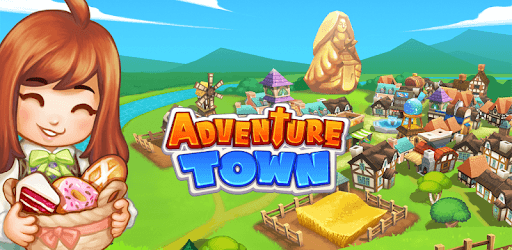
Adventure Town is an Android app developed and published by Supersolid at Google Play Store on Nov 25, 2013 for Android users. Adventure Town is so popular that it has gained 1000000 installs so far and growing.
Adventure Town is an incredible game that has captured the hearts of millions of players around the world. With its captivating gameplay and stunning graphics, this game offers an unforgettable adventure that will keep you hooked for hours on end.
If you're a fan of adventure games, then Adventure Town is a must-play for you. This game takes you on a thrilling journey through a world filled with excitement and wonder. From battling monsters to expanding your town, there's never a dull moment in this game.
One of the things that sets Adventure Town apart from other games is its unique combination of farming and dungeon crawling. You'll find yourself planting crops and tending to your town, while also embarking on epic quests and battling fearsome creatures. It's the perfect blend of strategy and action, making it a game that appeals to a wide range of players.
Adventure Town offers a vast and immersive world for you to explore. With each new update, the game introduces exciting new features and expands the map, giving you even more opportunities for adventure. Whether you're looking for new lands to conquer or new challenges to overcome, Adventure Town has something for everyone.
One of the most requested updates from players is the addition of more land and villages on the green side of the map. The developers have taken note of this feedback and are constantly working to improve the game based on player suggestions. With each update, you can expect new maps, new worlds, and a whole host of new adventures to embark on.
Adventure Town is the perfect game for those who are always on the go. With its idle gameplay mechanics, you can easily pick up where you left off, even after long periods of inactivity. The timers for building and dungeon raids may be long, but they add to the overall experience of the game. It's a game that encourages you to come back and check on your progress, making it ideal for busy individuals.
For those who prefer a more relaxed gaming experience, Adventure Town offers resource gathering even when you're not actively playing the game. This means that you can still progress and gather resources, even if you're not able to dedicate a lot of time to playing. It's a feature that caters to all types of players and ensures that everyone can enjoy the game at their own pace.
Adventure Town has been around for years, and it's still going strong. Players who have been with the game since its early days continue to enjoy it, thanks to its offline capabilities and seamless data restoration. You can play the game offline without any bugs, and if you ever switch devices, you can easily restore your previous data and continue your adventure.
Furthermore, Adventure Town has become a game that brings people together. Many players have recommended the game to their friends and siblings, forming a community of adventurers who play together. The developers have taken note of this and are considering adding a feature that allows players to visit their friends' towns when they go online. It's a feature that will further enhance the social aspect of the game and create even more opportunities for collaboration and exploration.
Yes, Adventure Town can be played offline without any issues. You can enjoy the game even when you don't have access to Wi-Fi or mobile data.
Absolutely! Adventure Town allows you to easily restore your previous data when you switch devices. You won't lose any progress, and you can continue your adventure seamlessly.
Yes, the developers are constantly working on updates to improve the game based on player feedback. They have taken note of the requests for more land and villages and are actively working on expanding the map to provide even more adventure opportunities.
Yes, Adventure Town offers resource gathering even when you're not actively playing. This feature ensures that you can still progress and gather resources, even if you're not able to dedicate a lot of time to playing.
Adventure Town is suitable for players of all age groups. It's a game that can be enjoyed by both young and old, thanks to its engaging gameplay, stunning graphics, and captivating storyline.
Adventure Town is more than just a game – it's an experience. Embark on an epic adventure, build your town, battle fearsome monsters, and explore a world filled with excitement and wonder. Download Adventure Town today and let the adventure begin!
Yes, you can run Adventure Town on PC, but first, you will need emulator software installed on your Windows or MAC, which you can download for free. In the below video, you will find Adventure Town in action. Before you install the emulator, check out the minimum and recommended system requirements to run it seamlessly. They may change depending on which version of the emulator you choose. Therefore, we recommend you download the latest version of the emulator. Below you will find three free Android emulators that we have shortlisted based on their popularity:
Up to date graphics drivers from Microsoft or the chipset vendor.
Storage: 1 GB available under installation path, 1.5GB available hard drive space
Internet: Broadband Internet connection
Regardless of which Android emulator you install, the steps to install, configure, and running the Adventure Town app on PC are the same.