Published by RingCentral
Updated April 28, 2026
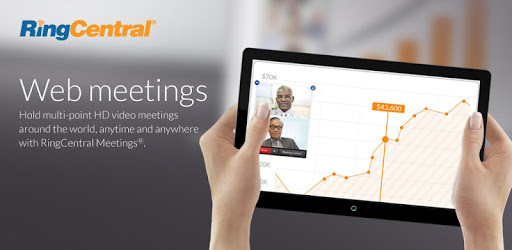
Hold multi-point HD video meetings around the world, anytime and anywhere.
| Version | 21.1.40033.0329 |
| Size | 107.1 MB |
| What's New | AES 256-bit GCM encryption supportMeeting reactionsSkin tones for meeting reactionsEnhancements to meeting end/leave flowCustomizable disclaimer for recordingAbility to send messages to participants in Waiting RoomsRe-enable clickable links in meeting chatShow annotator’s name by defaultRemoved the meeting ID from the title barSecurity section when scheduling a meetingMeeting and webinar passwords now called Passcodes |
RingCentral Meetings is an Android app developed and published by RingCentral at Google Play Store on Oct 21, 2013 for Android users. RingCentral Meetings is so popular that it has gained 100000 installs so far and growing.
In today's fast-paced world, staying connected and maintaining effective communication is more important than ever. Whether you're running a clinic, organizing addiction therapy groups, or working remotely, RingCentral Meetings is the app that will revolutionize the way you connect with your group. With its user-friendly interface and convenient features, this app has garnered rave reviews from users across various industries.
One of the standout features of RingCentral Meetings is its ability to effortlessly facilitate group meetings. Users have expressed their love for the app, praising its convenience and ease of use. Whether you're a clinic coordinator or a therapist conducting physical therapy sessions, this app has got you covered. Say goodbye to the hassle of traditional phone calls and embrace the simplicity of using data or Wi-Fi to connect with your group. The clear connection and excellent audio quality ensure that every participant can understand and contribute effectively.
Moreover, RingCentral Meetings has been a game-changer for those facing challenges like physical limitations or the need to maintain social distancing. Users have expressed their appreciation for the app's role in allowing them to continue their therapy sessions or express their feelings and concerns from the comfort of their own homes. For individuals like grandparents, this app has proven to be a convenient tool for staying connected with their loved ones.
When the COVID-19 pandemic hit, many professionals found themselves working remotely and struggling to maintain effective communication with their colleagues. RingCentral Meetings emerged as a savior, enabling seamless contact and collaboration. Users have praised the app for its user-friendly interface and its ability to bridge the gap between colleagues working from different locations.
Not only does RingCentral Meetings provide a platform for video conferencing, but it also offers a screen sharing feature that sets it apart from other similar apps. Professionals in various fields have found this feature to be invaluable for presentations, remote training sessions, and collaborative work. Whether you're a business owner, a freelancer, or a remote employee, this app will undoubtedly enhance your productivity and streamline your communication.
RingCentral Meetings is built on the foundation of Zoom, a renowned web conferencing system. By rebranding and integrating this exceptional technology into their suite of services, RingCentral has positioned itself as a leader in the field of group communication. With a team of experienced developers behind it, RingCentral Meetings offers a seamless and reliable experience for users.
Countless businesses have witnessed significant improvements in their operations after adopting RingCentral. From improved collaboration to enhanced client communication, this app has proven its worth time and time again. If you're still unsure about its capabilities, take advantage of the 30-day free trial and experience the power of RingCentral Meetings for yourself.
Absolutely! RingCentral Meetings caters to businesses of all sizes. Its user-friendly interface and comprehensive features make it an excellent choice for small businesses looking to enhance their communication and collaboration.
Yes, RingCentral Meetings is available on both mobile and desktop platforms. You can enjoy the convenience of video conferencing and screen sharing on the go, making it perfect for professionals who are always on the move.
While there are other web conferencing systems available, RingCentral Meetings stands out due to its seamless integration with the Zoom platform. It offers a unique combination of user-friendly features, excellent call quality, and reliable screen sharing capabilities.
RingCentral Meetings is primarily designed for professional use and group communication. However, individuals can also utilize its features for personal video calls, allowing you to stay connected with friends and family.
To get started with RingCentral Meetings, simply visit their website and sign up for a free trial. You can also contact their toll-free numbers for assistance and further information.
RingCentral Meetings is more than just an app or game; it's a powerful tool that brings people together, enhances collaboration, and simplifies communication. Whether you're a healthcare professional, a business owner, or a remote worker, this app is a must-have in your arsenal. Experience the convenience and efficiency of RingCentral Meetings today!
Yes, you can run RingCentral Meetings on PC, but first, you will need emulator software installed on your Windows or MAC, which you can download for free. In the below video, you will find RingCentral Meetings in action. Before you install the emulator, check out the minimum and recommended system requirements to run it seamlessly. They may change depending on which version of the emulator you choose. Therefore, we recommend you download the latest version of the emulator. Below you will find three free Android emulators that we have shortlisted based on their popularity:
Up to date graphics drivers from Microsoft or the chipset vendor.
Storage: 1 GB available under installation path, 1.5GB available hard drive space
Internet: Broadband Internet connection
Regardless of which Android emulator you install, the steps to install, configure, and running the RingCentral Meetings app on PC are the same.