FreeFlight 6 for PC

FreeFlight 6 for PC

Published by Parrot SA

Updated September 12, 2025

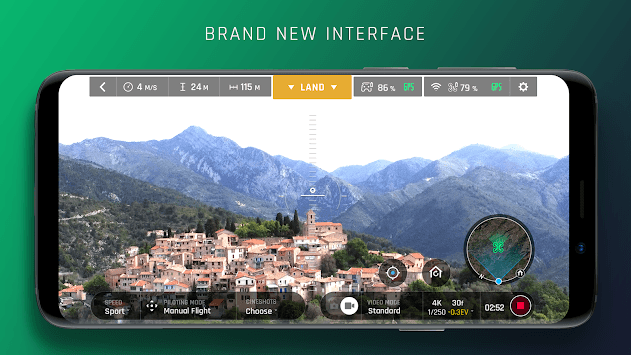
FreeFlight 6, the new intuitive piloting interface for ANAFI.

What's New

Version6.7.6
Size395.6 MB
What's NewApp stability improvements.

FreeFlight 6 Screenshots

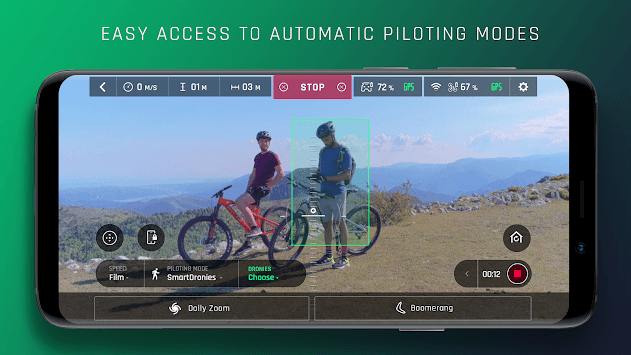
FreeFlight 6 PC screenshot 1FreeFlight 6 PC screenshot 2FreeFlight 6 PC screenshot 3

About FreeFlight 6 For PC

FreeFlight 6 is an Android app developed and published by Parrot SA at Google Play Store on Jun 30, 2018 for Android users. FreeFlight 6 is so popular that it has gained 10000 installs so far and growing.

Reliable Performance with FreeFlight 6

FreeFlight 6 offers a reliable connection for your drone adventures. Its speed and performance are impressive, making your flights smooth and enjoyable. With quick download and connection times, you'll be up and flying in no time. Whether you're using it for professional tasks or a fun day out, FreeFlight 6 ensures a seamless experience with minimal crashes, unlike other apps that can be quite frustrating.

User-Friendly Interface

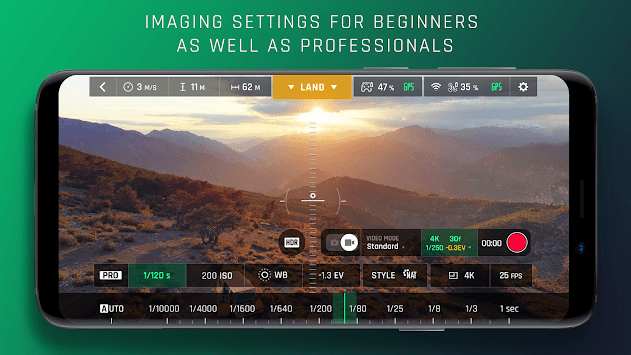
One of the standout features of FreeFlight 6 is its clean, simple, and easy-to-interact-with interface. While the flying mode UI might be a bit confusing initially, overall, the app is straightforward to use. The app design makes it accessible for both beginners and professionals, ensuring everyone can enjoy their flying experience without unnecessary complications.

Fine-Tuning Flight Controls and Camera Settings

FreeFlight 6 goes beyond basic controls, offering extensive options to fine-tune your flight and camera settings. This level of customization allows users to adapt the drone's behavior to their specific needs, from autonomous flight modes to precise camera adjustments. This makes it similar to flying a high-end DSLR, providing endless capabilities for both still shots and video recordings.

Impressive Features and Regular Updates

FreeFlight 6 continues to evolve with regular updates that add valuable features. Recent updates have included 2.7k video output and Automatic Exposure Bracketing (AEB) for photos. Plus, new panorama modes have been introduced, making it even more versatile for photographers and videographers. This continuous improvement keeps the app at the cutting edge of drone technology.

Exciting Flying Experience

Flying with FreeFlight 6 is an exciting experience, offering features like hand launching that add to the fun. The app makes flying accessible and thrilling, whether it's your first time or you’re a seasoned pilot. For those who love capturing breathtaking aerial shots, the 360° panoramas are incredibly easy to create and look spectacular.

Flexibility and Professional Use

FreeFlight 6 is designed with flexibility in mind, suitable for both hobbyists and professionals. From drone cinematographers to casual flyers, it provides a versatile controller and an easy-to-use interface. This flexibility means you can switch between different modes and settings with ease, making it a valuable tool for any drone enthusiast.

Considerations and Improvements

While FreeFlight 6 excels in many areas, there's always room for improvement. Some users have suggested the option to use meters for distance and feet for altitude. Additionally, the 150m height limit can be restrictive, especially when flying in mountainous areas. Users also recommend locking saved Flight Plan maps to prevent accidental changes.

Compatibility and Device Issues

Generally, FreeFlight 6 runs smoothly, but it's important to note that some older or less capable smartphones may experience issues with video streaming. Most problems can be avoided by ensuring your device is updated and compatible with the app's requirements. Regular updates from Parrot ensure ongoing enhancements and bug fixes.

Conclusion

FreeFlight 6 stands out as a powerful and user-friendly app for drone enthusiasts. Its reliable performance, intuitive interface, and extensive settings make it a top choice for both newbies and professionals. With continuous updates and new features, FreeFlight 6 ensures you always have the best tools for your flying and photography needs. Enjoy your flights and high-quality captures with confidence and ease using FreeFlight 6.

Can I run FreeFlight 6 on PC?

Yes, you can run FreeFlight 6 on PC, but first, you will need emulator software installed on your Windows or MAC, which you can download for free. In the below video, you will find FreeFlight 6 in action. Before you install the emulator, check out the minimum and recommended system requirements to run it seamlessly. They may change depending on which version of the emulator you choose. Therefore, we recommend you download the latest version of the emulator. Below you will find three free Android emulators that we have shortlisted based on their popularity:

How to Install FreeFlight 6 on Windows PC

BlueStacks

Minimum
  • OS: Microsoft Windows 7 and above.
  • Processor: Intel or AMD Processor.
  • RAM: Your PC must have at least 4GB of RAM. (Note that having 4GB or more disk space is not a substitute for RAM)
  • Storage: 5GB Free Disk Space.
  • You must be an Administrator on your PC.
Recommended:
  • OS: Microsoft Windows 10
  • Processor: Intel or AMD Multi-Core Processor with Single Thread benchmark score > 1000.
  • Graphics: Intel/Nvidia/ATI, Onboard or Discrete controller with benchmark score >= 750.
  • Please ensure Virtualization is enabled on your PC/Laptop.
  • RAM: 8GB or higher
  • Storage: SSD (or Fusion/Hybrid Drives)
  • Internet: Broadband connection to access games, accounts and related content.

Up to date graphics drivers from Microsoft or the chipset vendor.

  • To start with, download Bluestacks from its official website. The latest version of BluesStacks is v 5, and it is around 400 MB.
  • Once the download is done, click on the Bluestacks set up file to install it on your Windows PC. Follow the on-screen instructions and install it accordingly.
  • The next step is to launch the emulator using the desktop shortcut and sign in using your Google account.
  • Now, head over to Bluestacks home screen and click on the Google Play Store icon.
  • Hit the search bar in Google Play and search for FreeFlight 6.
  • Install FreeFlight 6 from the Play Store by clicking the Install option, which completes downloading of FreeFlight 6 on PC.

NoxPlayer

Minimum
  • Operating System: Windows XP SP3, Windows Vista, Windows 7, Windows 8, Windows 10, and DirectX 9.0c
  • Processor: At least dual-core processor, both Intel, and AMD are OK
  • Video: Supports Open GL 2.0 or above
  • Memory: 1.5 GB RAM
Recommended
  • Operating System: Windows 7, Windows 8, Windows 10
  • Processor: Multiple core processors which support VT-x or AMB-V Virtualization Technology, better performance with this function enabled
  • Video: The higher performance, the better
  • Memory: 4 GB RAM

Storage: 1 GB available under installation path, 1.5GB available hard drive space

Internet: Broadband Internet connection

  • Download NoxPlayer from the official website. The latest version of NoxPlayer is v 3, and it is around 600 MB.
  • Now install the emulator using the downloaded setup file. Just go through the on-screen instructions and install NoxPlayer on your computer or laptop.
  • After the installation process, launch the Nox Android emulator and log in using your Google account when it asks you.
  • Click on the Google Play Store icon and head over to the search bar to search FreeFlight 6. Once found, click on the Install button to install FreeFlight 6 for PC.
  • If you do not find FreeFlight 6 on Google Play Store or if you want to skip logging in to Google, you can sideload APK (download the .APK file from this page and open it with NoxPlayer).
  • Launch FreeFlight 6 from home-screen and start playing it on PC right away!

MEmu

Minimum
  • 2 cores x86/x86_64 Processor (Intel or AMD CPU)
  • WinXP SP3 / Win7 / Win8 / Win10 (Not recommended to run on Server/Enterprise)
  • Latest Windows DirectX 11 / Graphics driver with OpenGL 2.0
  • Hardware Virtualization Technology (Intel VT-x/AMD-V) shall be enabled in BIOS
  • 2GB of RAM (4GB for x64 system)
  • 5GB of hard disk free space
Recommended
  • OS: Microsoft Windows 10 with VT Enabled
  • CPU: Single Thread PassMark score > 1500 (Intel/AMD Multi-Core).
  • Graphics: Intel/Nvidia/ATI, Onboard or Discrete controller with PassMark score > 750.
  • Latest Windows DirectX 11 / Graphics driver with OpenGL 4.5 or higher
  • RAM: 8GB or higher
  • HDD: SSD, 10GB of hard disk free space
  • Internet: Broadband connection with low latency for FPS games
  • Download MEmu Play from the official website. The latest version of NoxPlayer is v 7.5.
  • When the download is completed, install the MEmu emulator on your PC. Follow the on-screen instructions and keep on clicking the Next button until the final step.
  • Now, using the desktop shortcut, look for the MEmu Play emulator and launch it. Once done, it will ask you to log in using your Google account, proceed with the same.
  • MEmu Play will ask you to log in using your Google account. When you log in, it will sync your Google account to MEmu Play. Launch the Google Play Store by clicking on the icon and search for FreeFlight 6.
  • Click on the Install button once you find FreeFlight 6 from the search results. You can also sideload APK (download the .APK file from this page and open it with MEmu) if you want to skip above step.
  • After the installation of FreeFlight 6, you're all set to use the app on PC!

Regardless of which Android emulator you install, the steps to install, configure, and running the FreeFlight 6 app on PC are the same.
Download FreeFlight 6 For PC