Published by Unfold Creative LLC
Updated June 12, 2026
Minimal Layouts & Templates
| Version | 8.154.0 |
| Size | 165.7 MB |
| What's New | With the Unfold app, you can grow and succeed on social media and have fun while doing it.— Create unique content with hundreds stories, posts, Reels templates— Easily edit your images and videos with effects and more— Plan out your Instagram grid and schedule posts— Share your entire world in one link with a free, custom link in bio siteWe love hearing your ideas and feedback. Go to Menu > Settings > Contact in the app. |
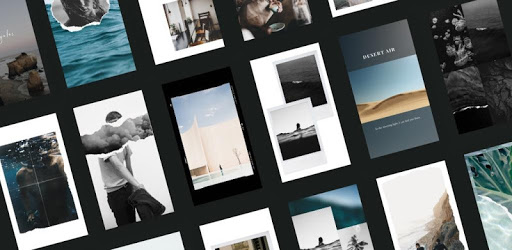
Unfold — Create Stories is an Android app developed and published by Unfold Creative LLC at Google Play Store on Apr 19, 2018 for Android users. Unfold — Create Stories is so popular that it has gained 1000000 installs so far and growing.
Unfold — Create Stories has become an indispensable tool for creators around the world. With its incredible features and user-friendly interface, this app has everything you need to promote your work, whether it's music, photography, writing, video, and more. Let's dive into what makes Unfold so amazing and why it's a must-have for every creator out there.
Unfold makes it incredibly easy to create stunning stories and posts for your social media accounts. With a wide range of templates, filters, stickers, and more, you have endless possibilities to showcase your creativity. Whether you're a photographer, writer, or musician, Unfold has the tools to help you stand out from the crowd.
One of the best things about Unfold is its user-friendly interface. Even if you're not tech-savvy, you can easily navigate through the app and create beautiful stories in no time. The app provides a seamless experience, allowing you to focus on what you do best – creating amazing content.
Unfold offers a wide variety of templates and designs that will take your stories to the next level. From elegant and minimalistic layouts to bold and eye-catching designs, there's something for everyone. Whether you're looking to promote a new song, share your latest photography project, or tell a captivating story, Unfold has the perfect template for you.
What sets Unfold apart from other apps is its attention to detail. The templates are meticulously designed, ensuring that every element complements your content. With Unfold, you can create stories that not only engage your audience but also reflect your unique style and personality.
Unfold goes beyond just creating stories. It also helps you organize, plan, and schedule your posts. With its intuitive interface, you can easily plan your content calendar, ensuring that you stay consistent and engage your audience regularly.
Whether you're a social media influencer, a small business owner, or a content creator, Unfold's scheduling feature is a game-changer. You can plan your posts in advance, saving you time and allowing you to focus on creating amazing content. Say goodbye to last-minute scrambling and hello to a stress-free content creation process.
Yes, Unfold offers a free version with a wide range of templates and features. However, there is also a Plus membership available for those who want access to even more templates and exclusive features.
Absolutely! Unfold is designed to cater to the needs of creators from various fields, including music, photography, writing, video, and more. No matter what your creative passion is, Unfold has the tools to help you showcase your work in a stunning way.
Yes, Unfold allows you to plan and schedule your posts in advance. This feature is incredibly useful for staying consistent with your content and engaging your audience regularly.
While the free version of Unfold offers a wide range of templates and features, there are some additional templates and exclusive features available only to Plus members. However, the free version still provides more than enough tools to create stunning stories and posts.
Absolutely! Unfold's user-friendly interface makes it easy for beginners to navigate and create beautiful stories. Even if you're not tech-savvy, you'll find the app intuitive and straightforward to use.
Unfold — Create Stories is the ultimate app for every creator. With its easy-to-use interface, stunning templates, and powerful features, it's no wonder why creators around the world are falling in love with Unfold. Whether you're a photographer, writer, musician, or social media influencer, Unfold has everything you need to take your content to the next level. Download Unfold today and unleash your creativity!
Yes, you can run Unfold — Create Stories on PC, but first, you will need emulator software installed on your Windows or MAC, which you can download for free. In the below video, you will find Unfold — Create Stories in action. Before you install the emulator, check out the minimum and recommended system requirements to run it seamlessly. They may change depending on which version of the emulator you choose. Therefore, we recommend you download the latest version of the emulator. Below you will find three free Android emulators that we have shortlisted based on their popularity:
Up to date graphics drivers from Microsoft or the chipset vendor.
Storage: 1 GB available under installation path, 1.5GB available hard drive space
Internet: Broadband Internet connection
Regardless of which Android emulator you install, the steps to install, configure, and running the Unfold — Create Stories app on PC are the same.