mySugr: the blood sugar tracker made just for you for PC

mySugr: the blood sugar tracker made just for you for PC

Published by mySugr GmbH

Updated September 7, 2025

It's never been easier to manage your diabetes and HbA1c – try it today!

What's New

Version3.141.0
Size103.6 MB
What's NewSmall improvement: download the latest version of mySugr and “make diabetes suck less”. Your feedback means a lot to us: we’re constantly updating our app so that we can offer you the best possible diabetes management.If you think we’re doing a great job, then please rate us and spread the word about your experiences with mySugr.

mySugr: the blood sugar tracker made just for you Screenshots

mySugr: the blood sugar tracker made just for you PC screenshot

About mySugr: the blood sugar tracker made just for you For PC

mySugr: the blood sugar tracker made just for you is an Android app developed and published by mySugr GmbH at Google Play Store on Dec 6, 2013 for Android users. mySugr: the blood sugar tracker made just for you is so popular that it has gained 1000000 installs so far and growing.

mySugr: The Blood Sugar Tracker Made Just for You

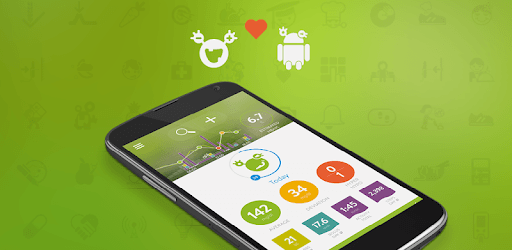
Managing diabetes can be challenging, but with mySugr, it's a whole lot easier. This app is specially designed to help you keep track of your blood sugar levels and offers many features that make monitoring and managing your diabetes a breeze. Perfect for anyone, whether you're new to diabetes management or have been handling it for years, mySugr has something for everyone.

Track and Manage Blood Sugar Levels Effortlessly

One of the best features of mySugr is its simplicity. You can log your blood sugar levels, meals, medication, and other relevant information easily. The app graphs these entries, making it handy to share with your doctor. This allows your healthcare provider to make informed decisions about your treatment. No more struggling to remember what you ate or how much insulin you took; it's all logged for you.

Compatibility and Convenience

mySugr works seamlessly with Bluetooth to connect to devices like your Accu-Chek meter. This makes syncing your blood sugar readings hassle-free. The app saves these tests, offering a professional and organized way to track your levels. It's a real game-changer when you want to show your doctor accurate, up-to-date information.

Pro Features Worth the Upgrade

While the free version of mySugr is amazing, the Pro version offers even more. Unlocking all features can help you keep even better tabs on your blood sugar. This includes extra functionalities like detailed reports, expanded logging features, and more personalized insights. Many users find that the upgrade is worth it for the added value it brings.

An Excellent Educational Tool

For those new to diabetes, mySugr serves as an excellent educational resource. The app not only helps you log your readings but also offers estimates of your HbA1c levels. This helps in understanding how your daily activities, diet, and medications affect your blood sugar. It's a great tool to stay disciplined on what you eat and how you manage your condition.

Added Motivation with the Sugar Monster

One of the unique features that set mySugr apart is the Sugar Monster. This cute character adds a fun element to the app, helping to reduce anxiety around blood sugar testing. Tickling the monster for doing your duty can be a small but effective way to stay motivated. It turns a sometimes daunting task into something enjoyable.

No More Ads!

Another standout feature of mySugr is the completely ad-free experience. Even the free version lets you enjoy an uninterrupted, smooth user experience. This alone can make your daily health tracking much more pleasant and less stressful.

Useful for Everyone

Whether you're managing diabetes yourself or caring for a loved one, mySugr proves to be an indispensable tool. It covers various needs, from heart failure and kidney issues to diet tracking and medication reminders. The app’s support team is quick to respond, ensuring you have the help you need at your fingertips.

Why mySugr Stands Out

In summary, mySugr offers an all-in-one solution for managing diabetes. With its user-friendly interface, seamless device compatibility, and helpful features, it stands out as a must-have for anyone looking to take control of their blood sugar. The added bonus of a cute Sugar Monster and ad-free experience makes it even better.

Can I run mySugr: the blood sugar tracker made just for you on PC?

Yes, you can run mySugr: the blood sugar tracker made just for you on PC, but first, you will need emulator software installed on your Windows or MAC, which you can download for free. In the below video, you will find mySugr: the blood sugar tracker made just for you in action. Before you install the emulator, check out the minimum and recommended system requirements to run it seamlessly. They may change depending on which version of the emulator you choose. Therefore, we recommend you download the latest version of the emulator. Below you will find three free Android emulators that we have shortlisted based on their popularity:

How to Install mySugr: the blood sugar tracker made just for you on Windows PC

BlueStacks

Minimum
  • OS: Microsoft Windows 7 and above.
  • Processor: Intel or AMD Processor.
  • RAM: Your PC must have at least 4GB of RAM. (Note that having 4GB or more disk space is not a substitute for RAM)
  • Storage: 5GB Free Disk Space.
  • You must be an Administrator on your PC.
Recommended:
  • OS: Microsoft Windows 10
  • Processor: Intel or AMD Multi-Core Processor with Single Thread benchmark score > 1000.
  • Graphics: Intel/Nvidia/ATI, Onboard or Discrete controller with benchmark score >= 750.
  • Please ensure Virtualization is enabled on your PC/Laptop.
  • RAM: 8GB or higher
  • Storage: SSD (or Fusion/Hybrid Drives)
  • Internet: Broadband connection to access games, accounts and related content.

Up to date graphics drivers from Microsoft or the chipset vendor.

  • To start with, download Bluestacks from its official website. The latest version of BluesStacks is v 5, and it is around 400 MB.
  • Once the download is done, click on the Bluestacks set up file to install it on your Windows PC. Follow the on-screen instructions and install it accordingly.
  • The next step is to launch the emulator using the desktop shortcut and sign in using your Google account.
  • Now, head over to Bluestacks home screen and click on the Google Play Store icon.
  • Hit the search bar in Google Play and search for mySugr: the blood sugar tracker made just for you.
  • Install mySugr: the blood sugar tracker made just for you from the Play Store by clicking the Install option, which completes downloading of mySugr: the blood sugar tracker made just for you on PC.

NoxPlayer

Minimum
  • Operating System: Windows XP SP3, Windows Vista, Windows 7, Windows 8, Windows 10, and DirectX 9.0c
  • Processor: At least dual-core processor, both Intel, and AMD are OK
  • Video: Supports Open GL 2.0 or above
  • Memory: 1.5 GB RAM
Recommended
  • Operating System: Windows 7, Windows 8, Windows 10
  • Processor: Multiple core processors which support VT-x or AMB-V Virtualization Technology, better performance with this function enabled
  • Video: The higher performance, the better
  • Memory: 4 GB RAM

Storage: 1 GB available under installation path, 1.5GB available hard drive space

Internet: Broadband Internet connection

  • Download NoxPlayer from the official website. The latest version of NoxPlayer is v 3, and it is around 600 MB.
  • Now install the emulator using the downloaded setup file. Just go through the on-screen instructions and install NoxPlayer on your computer or laptop.
  • After the installation process, launch the Nox Android emulator and log in using your Google account when it asks you.
  • Click on the Google Play Store icon and head over to the search bar to search mySugr: the blood sugar tracker made just for you. Once found, click on the Install button to install mySugr: the blood sugar tracker made just for you for PC.
  • If you do not find mySugr: the blood sugar tracker made just for you on Google Play Store or if you want to skip logging in to Google, you can sideload APK (download the .APK file from this page and open it with NoxPlayer).
  • Launch mySugr: the blood sugar tracker made just for you from home-screen and start playing it on PC right away!

MEmu

Minimum
  • 2 cores x86/x86_64 Processor (Intel or AMD CPU)
  • WinXP SP3 / Win7 / Win8 / Win10 (Not recommended to run on Server/Enterprise)
  • Latest Windows DirectX 11 / Graphics driver with OpenGL 2.0
  • Hardware Virtualization Technology (Intel VT-x/AMD-V) shall be enabled in BIOS
  • 2GB of RAM (4GB for x64 system)
  • 5GB of hard disk free space
Recommended
  • OS: Microsoft Windows 10 with VT Enabled
  • CPU: Single Thread PassMark score > 1500 (Intel/AMD Multi-Core).
  • Graphics: Intel/Nvidia/ATI, Onboard or Discrete controller with PassMark score > 750.
  • Latest Windows DirectX 11 / Graphics driver with OpenGL 4.5 or higher
  • RAM: 8GB or higher
  • HDD: SSD, 10GB of hard disk free space
  • Internet: Broadband connection with low latency for FPS games
  • Download MEmu Play from the official website. The latest version of NoxPlayer is v 7.5.
  • When the download is completed, install the MEmu emulator on your PC. Follow the on-screen instructions and keep on clicking the Next button until the final step.
  • Now, using the desktop shortcut, look for the MEmu Play emulator and launch it. Once done, it will ask you to log in using your Google account, proceed with the same.
  • MEmu Play will ask you to log in using your Google account. When you log in, it will sync your Google account to MEmu Play. Launch the Google Play Store by clicking on the icon and search for mySugr: the blood sugar tracker made just for you.
  • Click on the Install button once you find mySugr: the blood sugar tracker made just for you from the search results. You can also sideload APK (download the .APK file from this page and open it with MEmu) if you want to skip above step.
  • After the installation of mySugr: the blood sugar tracker made just for you, you're all set to use the app on PC!

Regardless of which Android emulator you install, the steps to install, configure, and running the mySugr: the blood sugar tracker made just for you app on PC are the same.


Download mySugr: the blood sugar tracker made just for you For PC