
Published by Fieldmargin
Updated August 25, 2025
Keep track of everything on your farm, wherever you are.
| Version | 9.6.1 |
| Size | 77.4 MB |
| What's New | Field IDs - give your fields IDs and descriptionsSplit and merge herds - better tools for recording changes to your animal groupsField worked areas - set a numerical area for your fields in addition to the mapped area |
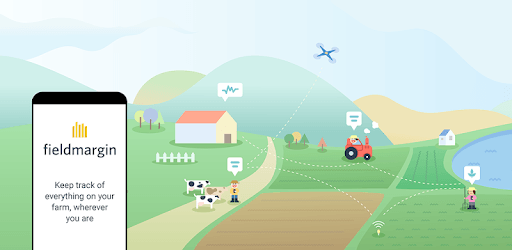
fieldmargin is an Android app developed and published by Fieldmargin at Google Play Store on Jan 24, 2017 for Android users. fieldmargin is so popular that it has gained 280717 installs so far and growing.
Are you looking for a farm management app that is versatile, user-friendly, and packed with useful features? Look no further than fieldmargin! This app has been gaining popularity among farmers and agricultural enthusiasts due to its exceptional functionality and constant updates. Whether you have a diversified farm or are involved in regenerative agriculture, fieldmargin has got you covered.
One of the standout features of fieldmargin is its ability to provide a real-life overhead view of your farm. This feature adds a level of tangibility, making it easy to lay out tasks and manage them effectively. The app also allows you to share your farm's data with other team members, facilitating seamless communication and teamwork. With fieldmargin, everyone is on the same page, ensuring that nothing falls through the cracks.
Additionally, fieldmargin offers a comprehensive record-keeping system, allowing you to track various aspects of your farm, including fertilizers, spray applications, and more. This data can be easily recorded and accessed, providing valuable insights into your farm's development and progress. The app is constantly being improved, and the dedicated staff behind fieldmargin are always ready to assist you with any questions or concerns you may have.
One of the standout features of fieldmargin is its mapping capabilities. The app allows you to configure your farm's map according to your specific needs, providing you with a visual representation of your fields. This feature is particularly useful for metal detectorists who have permission to detect on farms but may not have access to all the land the farmer owns. By using fieldmargin, you can easily view who owns the land and what they have, making it a game-changer for the metal detecting community.
Furthermore, fieldmargin allows you to upload existing maps with geometries, such as shapefiles or GPX files. This feature saves you valuable time, as you don't have to manually draw all your fields again. Simply upload your existing maps, and fieldmargin will do the rest.
Fieldmargin is designed to cater to a wide range of farming operations. Whether you're managing a ranch, aquaculture ponds, or transitioning from traditional farming practices to regenerative agriculture, fieldmargin has the tools you need to succeed. The app covers every aspect of your farm, from operations and grazing to livestock management. It works seamlessly on all devices and even functions offline, ensuring that you can access your farm's data anytime, anywhere.
Fieldmargin's user-friendly interface makes it easy to set up farm maps and navigate through its various features. The developers are constantly working to improve the app, responding quickly to user feedback and addressing any issues that may arise. They are committed to making fieldmargin the go-to app for farm management, and their dedication is evident in the app's capabilities.
Yes, fieldmargin allows you to upload existing maps with geometries, saving you time and effort.
While fieldmargin is not specifically designed for aquaculture or ranch management, many users have found it to be highly effective in these areas. The app's versatility and user-friendly interface make it suitable for a wide range of farming operations.
Yes, fieldmargin can be a valuable tool for metal detectorists. By using the app, you can easily view who owns the land and what they have, making it easier to plan your metal detecting activities.
Fieldmargin is constantly evolving, and the developers are working on implementing a livestock management feature. This addition will further enhance the app's capabilities, allowing users to have cropping and livestock records in one place.
Absolutely! Fieldmargin is designed to cater to farms of all sizes. Whether you have a small family farm or a large-scale operation, fieldmargin has the tools and features you need to effectively manage your farm.
In conclusion, fieldmargin is the ultimate app for farm management. With its intuitive interface, extensive features, and constant updates, it is a must-have tool for farmers and agricultural enthusiasts. Try fieldmargin today and experience the difference it can make in your farming operations!
Yes, you can run fieldmargin on PC, but first, you will need emulator software installed on your Windows or MAC, which you can download for free. In the below video, you will find fieldmargin in action. Before you install the emulator, check out the minimum and recommended system requirements to run it seamlessly. They may change depending on which version of the emulator you choose. Therefore, we recommend you download the latest version of the emulator. Below you will find three free Android emulators that we have shortlisted based on their popularity:
Up to date graphics drivers from Microsoft or the chipset vendor.
Storage: 1 GB available under installation path, 1.5GB available hard drive space
Internet: Broadband Internet connection
Regardless of which Android emulator you install, the steps to install, configure, and running the fieldmargin app on PC are the same.