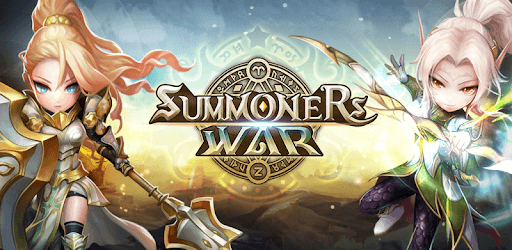
Summoners War for PC

Summoners War for PC

Published by Com2uS

Updated March 18, 2026

A global RPG that mesmerized users worldwide! Win battles with unique decks!

What's New

Version9.1.1
Size2.0 GB
What's NewA global RPG that has captivated Summoners worldwide!Win battles with your own unique deck and strategy.- The Lord of the Rings Collab Update- Collab special events added- Other QoL improved and errors fixedGot feedback? Leave a review or visit https://customer.withhive.com/com2us and drop us a line!

Summoners War Screenshots

Summoners War PC screenshot

About Summoners War For PC

Summoners War is an Android app developed and published by Com2uS at Google Play Store on Jun 2, 2014 for Android users. Summoners War is so popular that it has gained 50000000 installs so far and growing.

Summoners War: A Game Worth the Grind

Are you ready to embark on an epic journey filled with monsters, battles, and endless possibilities? Look no further than Summoners War, a game that has captivated players for years with its immersive gameplay and generous rewards. Whether you're a casual player or a seasoned gamer, Summoners War offers something for everyone.

A Game of Grinding and Strategy

Summoners War is not for the faint of heart. If you dislike grinding, this game may not be for you. It takes time and dedication to rune up and skill up your monsters, but trust me when I say it's worth it. The sense of accomplishment you feel when your team becomes unstoppable is unparalleled.

But don't worry, Summoners War isn't all about mindless grinding. It's a game that requires strategy and careful planning. From building the perfect team to devising the most effective battle strategies, every decision you make will impact your success in the game.

A Decade of Excellence

Summoners War is celebrating its 10-year anniversary next year, and the developers have something special in store for players. While the details are still under wraps, rumors suggest that there will be an epic event where players can select 10x nat5*s and receive one at random. This celebration is a testament to the game's longevity and the love it has garnered from its dedicated fanbase.

A Community Like No Other

One of the things that sets Summoners War apart from other games is its incredibly friendly and supportive community. Whether you're a seasoned player or a newbie, you'll find that players are always willing to lend a helping hand and share their knowledge. So don't be afraid to jump in and join the conversation!

FAQ

1. How can I recover my Summoners War account if my Facebook account was hacked?

If your Summoners War account was linked to a hacked Facebook account, you can reach out to the game's support team for assistance. They will guide you through the process of recovering your account and ensuring its security.

2. Can I compete in high ranks without spending a lot of money?

While it's true that competing in high ranks may require some financial investment, Summoners War still offers a fun and enjoyable experience for free-to-play players. With constant updates and improvements, the game provides ample opportunities for players to progress and improve their monsters without spending real money.

3. Are the developers generous with rewards?

Absolutely! The developers of Summoners War understand the importance of rewarding their players. From premium items like devilmons and crystals to in-game events with exciting prizes, there's always something to look forward to. The constant updates and improvements over the past few years have made the game even more enjoyable for both new and veteran players.

Summoners War is more than just a game; it's a journey filled with excitement, challenges, and camaraderie. So why wait? Join millions of players around the world and experience the magic of Summoners War for yourself!

Can I run Summoners War on PC?

Yes, you can run Summoners War on PC, but first, you will need emulator software installed on your Windows or MAC, which you can download for free. In the below video, you will find Summoners War in action. Before you install the emulator, check out the minimum and recommended system requirements to run it seamlessly. They may change depending on which version of the emulator you choose. Therefore, we recommend you download the latest version of the emulator. Below you will find three free Android emulators that we have shortlisted based on their popularity:

How to Install Summoners War on Windows PC

BlueStacks

Minimum
  • OS: Microsoft Windows 7 and above.
  • Processor: Intel or AMD Processor.
  • RAM: Your PC must have at least 4GB of RAM. (Note that having 4GB or more disk space is not a substitute for RAM)
  • Storage: 5GB Free Disk Space.
  • You must be an Administrator on your PC.
Recommended:
  • OS: Microsoft Windows 10
  • Processor: Intel or AMD Multi-Core Processor with Single Thread benchmark score > 1000.
  • Graphics: Intel/Nvidia/ATI, Onboard or Discrete controller with benchmark score >= 750.
  • Please ensure Virtualization is enabled on your PC/Laptop.
  • RAM: 8GB or higher
  • Storage: SSD (or Fusion/Hybrid Drives)
  • Internet: Broadband connection to access games, accounts and related content.

Up to date graphics drivers from Microsoft or the chipset vendor.

  • To start with, download Bluestacks from its official website. The latest version of BluesStacks is v 5, and it is around 400 MB.
  • Once the download is done, click on the Bluestacks set up file to install it on your Windows PC. Follow the on-screen instructions and install it accordingly.
  • The next step is to launch the emulator using the desktop shortcut and sign in using your Google account.
  • Now, head over to Bluestacks home screen and click on the Google Play Store icon.
  • Hit the search bar in Google Play and search for Summoners War.
  • Install Summoners War from the Play Store by clicking the Install option, which completes downloading of Summoners War on PC.

NoxPlayer

Minimum
  • Operating System: Windows XP SP3, Windows Vista, Windows 7, Windows 8, Windows 10, and DirectX 9.0c
  • Processor: At least dual-core processor, both Intel, and AMD are OK
  • Video: Supports Open GL 2.0 or above
  • Memory: 1.5 GB RAM
Recommended
  • Operating System: Windows 7, Windows 8, Windows 10
  • Processor: Multiple core processors which support VT-x or AMB-V Virtualization Technology, better performance with this function enabled
  • Video: The higher performance, the better
  • Memory: 4 GB RAM

Storage: 1 GB available under installation path, 1.5GB available hard drive space

Internet: Broadband Internet connection

  • Download NoxPlayer from the official website. The latest version of NoxPlayer is v 3, and it is around 600 MB.
  • Now install the emulator using the downloaded setup file. Just go through the on-screen instructions and install NoxPlayer on your computer or laptop.
  • After the installation process, launch the Nox Android emulator and log in using your Google account when it asks you.
  • Click on the Google Play Store icon and head over to the search bar to search Summoners War. Once found, click on the Install button to install Summoners War for PC.
  • If you do not find Summoners War on Google Play Store or if you want to skip logging in to Google, you can sideload APK (download the .APK file from this page and open it with NoxPlayer).
  • Launch Summoners War from home-screen and start playing it on PC right away!

MEmu

Minimum
  • 2 cores x86/x86_64 Processor (Intel or AMD CPU)
  • WinXP SP3 / Win7 / Win8 / Win10 (Not recommended to run on Server/Enterprise)
  • Latest Windows DirectX 11 / Graphics driver with OpenGL 2.0
  • Hardware Virtualization Technology (Intel VT-x/AMD-V) shall be enabled in BIOS
  • 2GB of RAM (4GB for x64 system)
  • 5GB of hard disk free space
Recommended
  • OS: Microsoft Windows 10 with VT Enabled
  • CPU: Single Thread PassMark score > 1500 (Intel/AMD Multi-Core).
  • Graphics: Intel/Nvidia/ATI, Onboard or Discrete controller with PassMark score > 750.
  • Latest Windows DirectX 11 / Graphics driver with OpenGL 4.5 or higher
  • RAM: 8GB or higher
  • HDD: SSD, 10GB of hard disk free space
  • Internet: Broadband connection with low latency for FPS games
  • Download MEmu Play from the official website. The latest version of NoxPlayer is v 7.5.
  • When the download is completed, install the MEmu emulator on your PC. Follow the on-screen instructions and keep on clicking the Next button until the final step.
  • Now, using the desktop shortcut, look for the MEmu Play emulator and launch it. Once done, it will ask you to log in using your Google account, proceed with the same.
  • MEmu Play will ask you to log in using your Google account. When you log in, it will sync your Google account to MEmu Play. Launch the Google Play Store by clicking on the icon and search for Summoners War.
  • Click on the Install button once you find Summoners War from the search results. You can also sideload APK (download the .APK file from this page and open it with MEmu) if you want to skip above step.
  • After the installation of Summoners War, you're all set to use the app on PC!

Regardless of which Android emulator you install, the steps to install, configure, and running the Summoners War app on PC are the same.

Download Summoners War For PC