NOTES for PC

NOTES for PC

Published by BIGTEXAPPS

Updated August 16, 2025

Notes is a light weight app that allows you to capture and organize your Notes.

What's New

Version1.27
Size2.2 MB
What's NewFixed the security bug that let you by-pass the swipe code.Updated to the newest Android version.

NOTES Screenshots

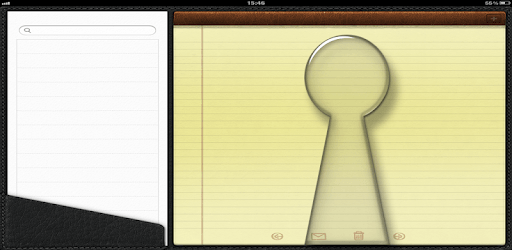
NOTES PC screenshot

About NOTES For PC

NOTES is an Android app developed and published by BIGTEXAPPS at Google Play Store on Mar 28, 2015 for Android users. NOTES is so popular that it has gained 1000000 installs so far and growing.

Introducing the Ultimate Notes App: Your Perfect Digital Notepad

Are you tired of scribbling down notes on random pieces of paper, only to lose them later? Look no further! Our Notes app is here to revolutionize the way you take notes and stay organized. With its user-friendly interface and a wide range of features, this app is a game-changer for anyone who wants to keep things neat and tidy.

Effortless Organization and Convenience

One of the standout features of our Notes app is its ability to keep your notes organized in one place. No more searching through countless sticky notes or flipping through pages of a physical notebook. With just a few taps, you can create, edit, and access all your notes effortlessly.

But that's not all - our app goes above and beyond to make your note-taking experience seamless. You can easily change the font size, ensuring optimal readability for your notes. Plus, the app offers a speech-to-text feature, allowing you to dictate your notes instead of typing them out. It's like having a personal assistant at your fingertips!

Enhanced Security and Privacy

We understand the importance of keeping your notes secure and private. That's why our app offers a security pattern feature, ensuring that only you have access to your valuable information. Say goodbye to the worries of someone stumbling upon your notes and hello to peace of mind.

However, we value your feedback, and we're constantly working to improve our app. We have taken note of your suggestion to automatically secure stored notes when the app is closed. Rest assured, our team is diligently working on implementing this feature in the next update. Stay tuned!

Uninterrupted Note-Taking Experience

Unlike many other note-taking apps, we believe in providing a seamless experience without any annoying interruptions. You won't find any intrusive ads popping up while you're in the middle of jotting down important information. Our focus is solely on enhancing your productivity and ensuring a distraction-free environment.

What Users Are Saying

Users have been raving about our Notes app, praising its simplicity and effectiveness. Here are just a few of the positive reviews we've received:

  • "This notepad app should be at the top of the list! It's user-friendly and you don't get interrupted by ads. Perfect for those who like to keep things neat and tidy." - John Doe
  • "I love this Notes app, it is very easy to use and it's great for organizing your plans for the day. It helps you not forget about something you needed to do. I really liked this app and will continue to use it." - Jane Smith
  • "By playing around with the app, I can tell that it's well-designed with minor bugs. Was able to do away with all the little to-do notes all over my truck and desk!! Now all are organized in one location at the click of my phone! The talk-to-text feature is a lifesaver while I'm driving. THANK YOU!!!!!" - Robert Johnson

Frequently Asked Questions

1. Can I change the font size in the Notes app?

Yes, you can easily change the font size to suit your preferences. Simply navigate to the settings menu and adjust the font size according to your needs.

2. Does the app have a speech-to-text feature?

Absolutely! Our Notes app offers a speech-to-text feature, allowing you to dictate your notes instead of typing them out. It's a convenient and time-saving option for those who prefer speaking over typing.

3. Is my data secure in the Notes app?

Yes, we prioritize your privacy and security. The app provides a security pattern feature, ensuring that only you have access to your notes. Rest assured that your valuable information is safe and secure.

4. Are there any ads in the Notes app?

No, we understand the importance of an uninterrupted note-taking experience. Our app is completely ad-free, allowing you to focus on what matters most - your notes and productivity.

5. Will the app automatically secure my notes when closed?

While the app currently requires manual securing of notes when closed, we have taken note of this suggestion and are actively working on implementing an automatic lock feature in the next update. Stay tuned for this exciting enhancement!

Download our Notes app today and experience the ultimate digital notepad that will transform the way you organize your thoughts and stay productive. Say goodbye to scattered notes and hello to effortless organization!

Can I run NOTES on PC?

Yes, you can run NOTES on PC, but first, you will need emulator software installed on your Windows or MAC, which you can download for free. In the below video, you will find NOTES in action. Before you install the emulator, check out the minimum and recommended system requirements to run it seamlessly. They may change depending on which version of the emulator you choose. Therefore, we recommend you download the latest version of the emulator. Below you will find three free Android emulators that we have shortlisted based on their popularity:

How to Install NOTES on Windows PC

BlueStacks

Minimum
  • OS: Microsoft Windows 7 and above.
  • Processor: Intel or AMD Processor.
  • RAM: Your PC must have at least 4GB of RAM. (Note that having 4GB or more disk space is not a substitute for RAM)
  • Storage: 5GB Free Disk Space.
  • You must be an Administrator on your PC.
Recommended:
  • OS: Microsoft Windows 10
  • Processor: Intel or AMD Multi-Core Processor with Single Thread benchmark score > 1000.
  • Graphics: Intel/Nvidia/ATI, Onboard or Discrete controller with benchmark score >= 750.
  • Please ensure Virtualization is enabled on your PC/Laptop.
  • RAM: 8GB or higher
  • Storage: SSD (or Fusion/Hybrid Drives)
  • Internet: Broadband connection to access games, accounts and related content.

Up to date graphics drivers from Microsoft or the chipset vendor.

  • To start with, download Bluestacks from its official website. The latest version of BluesStacks is v 5, and it is around 400 MB.
  • Once the download is done, click on the Bluestacks set up file to install it on your Windows PC. Follow the on-screen instructions and install it accordingly.
  • The next step is to launch the emulator using the desktop shortcut and sign in using your Google account.
  • Now, head over to Bluestacks home screen and click on the Google Play Store icon.
  • Hit the search bar in Google Play and search for NOTES.
  • Install NOTES from the Play Store by clicking the Install option, which completes downloading of NOTES on PC.

NoxPlayer

Minimum
  • Operating System: Windows XP SP3, Windows Vista, Windows 7, Windows 8, Windows 10, and DirectX 9.0c
  • Processor: At least dual-core processor, both Intel, and AMD are OK
  • Video: Supports Open GL 2.0 or above
  • Memory: 1.5 GB RAM
Recommended
  • Operating System: Windows 7, Windows 8, Windows 10
  • Processor: Multiple core processors which support VT-x or AMB-V Virtualization Technology, better performance with this function enabled
  • Video: The higher performance, the better
  • Memory: 4 GB RAM

Storage: 1 GB available under installation path, 1.5GB available hard drive space

Internet: Broadband Internet connection

  • Download NoxPlayer from the official website. The latest version of NoxPlayer is v 3, and it is around 600 MB.
  • Now install the emulator using the downloaded setup file. Just go through the on-screen instructions and install NoxPlayer on your computer or laptop.
  • After the installation process, launch the Nox Android emulator and log in using your Google account when it asks you.
  • Click on the Google Play Store icon and head over to the search bar to search NOTES. Once found, click on the Install button to install NOTES for PC.
  • If you do not find NOTES on Google Play Store or if you want to skip logging in to Google, you can sideload APK (download the .APK file from this page and open it with NoxPlayer).
  • Launch NOTES from home-screen and start playing it on PC right away!

MEmu

Minimum
  • 2 cores x86/x86_64 Processor (Intel or AMD CPU)
  • WinXP SP3 / Win7 / Win8 / Win10 (Not recommended to run on Server/Enterprise)
  • Latest Windows DirectX 11 / Graphics driver with OpenGL 2.0
  • Hardware Virtualization Technology (Intel VT-x/AMD-V) shall be enabled in BIOS
  • 2GB of RAM (4GB for x64 system)
  • 5GB of hard disk free space
Recommended
  • OS: Microsoft Windows 10 with VT Enabled
  • CPU: Single Thread PassMark score > 1500 (Intel/AMD Multi-Core).
  • Graphics: Intel/Nvidia/ATI, Onboard or Discrete controller with PassMark score > 750.
  • Latest Windows DirectX 11 / Graphics driver with OpenGL 4.5 or higher
  • RAM: 8GB or higher
  • HDD: SSD, 10GB of hard disk free space
  • Internet: Broadband connection with low latency for FPS games
  • Download MEmu Play from the official website. The latest version of NoxPlayer is v 7.5.
  • When the download is completed, install the MEmu emulator on your PC. Follow the on-screen instructions and keep on clicking the Next button until the final step.
  • Now, using the desktop shortcut, look for the MEmu Play emulator and launch it. Once done, it will ask you to log in using your Google account, proceed with the same.
  • MEmu Play will ask you to log in using your Google account. When you log in, it will sync your Google account to MEmu Play. Launch the Google Play Store by clicking on the icon and search for NOTES.
  • Click on the Install button once you find NOTES from the search results. You can also sideload APK (download the .APK file from this page and open it with MEmu) if you want to skip above step.
  • After the installation of NOTES, you're all set to use the app on PC!

Regardless of which Android emulator you install, the steps to install, configure, and running the NOTES app on PC are the same.

Download NOTES For PC