Altametrics Schedules for PC

Altametrics Schedules for PC

Published by Altametrics

Updated October 14, 2025

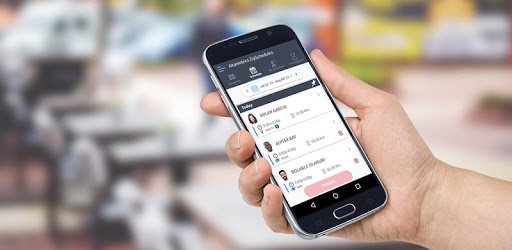
Altametrics Schedules puts the work schedule in your pocket.

What's New

Version6.4
Size35.4 MB
What's NewWhat’s NewWe regularly update the app to make it faster and more reliable. Here’s what’s new in the latest update:• Bug Fixes & Performance Enhancements• Resolved minor issues and improved overall performance.Enjoying the app?Please leave us a review! Your feedback helps keep Altametrics Schedules running smoothly.Need help?Contact us at [email protected]

Altametrics Schedules Screenshots

Altametrics Schedules PC screenshot

About Altametrics Schedules For PC

Altametrics Schedules is an Android app developed and published by Altametrics at Google Play Store on Feb 13, 2017 for Android users. Altametrics Schedules is so popular that it has gained 10000 installs so far and growing.

Altametrics Schedules: Simplify Your Work Schedule and Increase Productivity

Are you tired of the hassle that comes with managing your work schedule? Do you find it difficult to keep track of your shifts and communicate with your team? Look no further than Altametrics Schedules, the ultimate app designed to streamline your work schedule and make your life easier.

A User-Friendly Solution for All

Altametrics Schedules is a powerful tool that caters to the needs of both managers and employees. With its intuitive interface and extensive features, this app is perfect for businesses of all sizes. Whether you're a manager looking to efficiently schedule your team or an employee seeking to swap shifts or request time off, Altametrics Schedules has got you covered.

Say Goodbye to Scheduling Woes

Gone are the days of struggling to access your work schedule. Altametrics Schedules provides easy access to your schedule anytime, anywhere. No more worrying about being late for work or missing important shifts. Stay on top of your schedule with just a few taps on your phone.

Effortlessly Manage Your Team

For managers, Altametrics Schedules offers a seamless solution to handle a large team. Keep track of employee availability, accept or deny shift requests, and ensure smooth operations. The app's collaborative features, such as the Activity Stream, allow team members to track tasks, monitor progress, and address any issues that arise.

Unlock the Full Potential of Altametrics Schedules

Altametrics Schedules goes beyond being a simple scheduling app. It empowers you to take control of your work life and boost productivity. Here are some key features that make Altametrics Schedules stand out:

Shift Swapping and Coverage

Unable to work a shift? No problem. Altametrics Schedules allows you to easily find a replacement by offering your shift to other team members. Say goodbye to the stress of finding coverage and ensure smooth operations for your business.

Request Time Off with Ease

Need a day off? Altametrics Schedules makes it simple to request time off. No more endless paperwork or back-and-forth communication. Just submit your request through the app and wait for approval.

Stay Connected with Notifications

Altametrics Schedules keeps you informed with timely notifications. Be notified of any changes to your schedule, shift offers, or shift requests. Stay in the loop and never miss an important update.

Customer Reviews

Altametrics Schedules has garnered positive reviews from users who have experienced its benefits firsthand:

"Managing my large team has become a breeze with Altametrics Schedules. It has truly been a helping hand in ensuring performance and regularity." - Satisfied Manager

"This app has never let me down. It always has the right schedule, and I love the options to request time off and trade shifts. Highly recommended!" - Happy Employee

"Altametrics Schedules is a game-changer for my business. It has simplified the scheduling process and made my life so much easier. Thank you!" - Grateful Business Owner

Unlock Your Work Schedule's Full Potential

Don't let the stress of managing your work schedule weigh you down. Altametrics Schedules is here to revolutionize the way you handle your shifts. Say goodbye to confusion and inefficiency, and embrace a seamless scheduling experience. Download Altametrics Schedules today and take control of your work life!

Frequently Asked Questions

1. Can I access Altametrics Schedules on multiple devices?

Yes, Altametrics Schedules is designed to be accessible on multiple devices, including smartphones, tablets, and computers. Stay connected and updated on your schedule no matter where you are.

2. How can I resolve login issues?

If you're experiencing trouble logging in, ensure that you have entered the correct email address and password. If the issue persists, try resetting your password or contacting Altametrics Schedules' support team for assistance.

3. Can I receive notifications for shift offers and requests?

Absolutely! Altametrics Schedules provides notifications to keep you informed about any shift offers, requests, or changes to your schedule. Stay connected and never miss an important update.

4. Is Altametrics Schedules suitable for businesses of all sizes?

Yes, Altametrics Schedules caters to the needs of businesses of all sizes. Whether you're a small team or a large organization, this app offers the features and flexibility to streamline your scheduling process.

5. Can I easily swap shifts with other employees?

Yes, Altametrics Schedules allows you to effortlessly swap shifts with other employees. Simply find a suitable replacement and coordinate the shift swap through the app. No more hassle or confusion.

Can I run Altametrics Schedules on PC?

Yes, you can run Altametrics Schedules on PC, but first, you will need emulator software installed on your Windows or MAC, which you can download for free. In the below video, you will find Altametrics Schedules in action. Before you install the emulator, check out the minimum and recommended system requirements to run it seamlessly. They may change depending on which version of the emulator you choose. Therefore, we recommend you download the latest version of the emulator. Below you will find three free Android emulators that we have shortlisted based on their popularity:

How to Install Altametrics Schedules on Windows PC

BlueStacks

Minimum
  • OS: Microsoft Windows 7 and above.
  • Processor: Intel or AMD Processor.
  • RAM: Your PC must have at least 4GB of RAM. (Note that having 4GB or more disk space is not a substitute for RAM)
  • Storage: 5GB Free Disk Space.
  • You must be an Administrator on your PC.
Recommended:
  • OS: Microsoft Windows 10
  • Processor: Intel or AMD Multi-Core Processor with Single Thread benchmark score > 1000.
  • Graphics: Intel/Nvidia/ATI, Onboard or Discrete controller with benchmark score >= 750.
  • Please ensure Virtualization is enabled on your PC/Laptop.
  • RAM: 8GB or higher
  • Storage: SSD (or Fusion/Hybrid Drives)
  • Internet: Broadband connection to access games, accounts and related content.

Up to date graphics drivers from Microsoft or the chipset vendor.

  • To start with, download Bluestacks from its official website. The latest version of BluesStacks is v 5, and it is around 400 MB.
  • Once the download is done, click on the Bluestacks set up file to install it on your Windows PC. Follow the on-screen instructions and install it accordingly.
  • The next step is to launch the emulator using the desktop shortcut and sign in using your Google account.
  • Now, head over to Bluestacks home screen and click on the Google Play Store icon.
  • Hit the search bar in Google Play and search for Altametrics Schedules.
  • Install Altametrics Schedules from the Play Store by clicking the Install option, which completes downloading of Altametrics Schedules on PC.

NoxPlayer

Minimum
  • Operating System: Windows XP SP3, Windows Vista, Windows 7, Windows 8, Windows 10, and DirectX 9.0c
  • Processor: At least dual-core processor, both Intel, and AMD are OK
  • Video: Supports Open GL 2.0 or above
  • Memory: 1.5 GB RAM
Recommended
  • Operating System: Windows 7, Windows 8, Windows 10
  • Processor: Multiple core processors which support VT-x or AMB-V Virtualization Technology, better performance with this function enabled
  • Video: The higher performance, the better
  • Memory: 4 GB RAM

Storage: 1 GB available under installation path, 1.5GB available hard drive space

Internet: Broadband Internet connection

  • Download NoxPlayer from the official website. The latest version of NoxPlayer is v 3, and it is around 600 MB.
  • Now install the emulator using the downloaded setup file. Just go through the on-screen instructions and install NoxPlayer on your computer or laptop.
  • After the installation process, launch the Nox Android emulator and log in using your Google account when it asks you.
  • Click on the Google Play Store icon and head over to the search bar to search Altametrics Schedules. Once found, click on the Install button to install Altametrics Schedules for PC.
  • If you do not find Altametrics Schedules on Google Play Store or if you want to skip logging in to Google, you can sideload APK (download the .APK file from this page and open it with NoxPlayer).
  • Launch Altametrics Schedules from home-screen and start playing it on PC right away!

MEmu

Minimum
  • 2 cores x86/x86_64 Processor (Intel or AMD CPU)
  • WinXP SP3 / Win7 / Win8 / Win10 (Not recommended to run on Server/Enterprise)
  • Latest Windows DirectX 11 / Graphics driver with OpenGL 2.0
  • Hardware Virtualization Technology (Intel VT-x/AMD-V) shall be enabled in BIOS
  • 2GB of RAM (4GB for x64 system)
  • 5GB of hard disk free space
Recommended
  • OS: Microsoft Windows 10 with VT Enabled
  • CPU: Single Thread PassMark score > 1500 (Intel/AMD Multi-Core).
  • Graphics: Intel/Nvidia/ATI, Onboard or Discrete controller with PassMark score > 750.
  • Latest Windows DirectX 11 / Graphics driver with OpenGL 4.5 or higher
  • RAM: 8GB or higher
  • HDD: SSD, 10GB of hard disk free space
  • Internet: Broadband connection with low latency for FPS games
  • Download MEmu Play from the official website. The latest version of NoxPlayer is v 7.5.
  • When the download is completed, install the MEmu emulator on your PC. Follow the on-screen instructions and keep on clicking the Next button until the final step.
  • Now, using the desktop shortcut, look for the MEmu Play emulator and launch it. Once done, it will ask you to log in using your Google account, proceed with the same.
  • MEmu Play will ask you to log in using your Google account. When you log in, it will sync your Google account to MEmu Play. Launch the Google Play Store by clicking on the icon and search for Altametrics Schedules.
  • Click on the Install button once you find Altametrics Schedules from the search results. You can also sideload APK (download the .APK file from this page and open it with MEmu) if you want to skip above step.
  • After the installation of Altametrics Schedules, you're all set to use the app on PC!

Regardless of which Android emulator you install, the steps to install, configure, and running the Altametrics Schedules app on PC are the same.


Download Altametrics Schedules For PC