Do it (Tomorrow) for PC

Do it (Tomorrow) for PC

Published by Adylitica, Inc.

Updated November 23, 2026

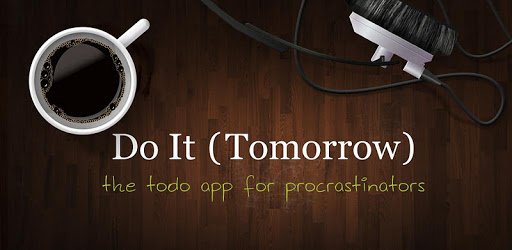
Why do today what you can put off till tomorrow?

What's New

Version2.3.5
Size4.0 MB
What's NewReminder: turn on sync in settings, this will backup your tasks and auto-restore in the case of any problems. Also allows access your tasks at www.tomorrow.do.Version 2.3.5 Fix issues with restoring purchased widgetsVersion 2.3.4 brings high resolution graphics for new phones and in-app-billing 3.0Version 2.3.3 brings some widget fixes and google sync improvementsPlease stay tuned for updates - via http://facebook.com/todoapp or http://twitter.com/todotomorrow

Do it (Tomorrow) Screenshots

Do it (Tomorrow) PC screenshot

About Do it (Tomorrow) For PC

Do it (Tomorrow) is an Android app developed and published by Adylitica, Inc. at Google Play Store on Jun 21, 2011 for Android users. Do it (Tomorrow) is so popular that it has gained 1000000 installs so far and growing.

Introducing "Do it (Tomorrow)": The Ultimate Productivity App

Are you tired of juggling multiple to-do lists and struggling to stay organized? Look no further! "Do it (Tomorrow)" is the ultimate app that will revolutionize the way you manage your tasks and boost your productivity. With its user-friendly interface and innovative features, this app is a game-changer for anyone looking to streamline their daily tasks. Let's dive into what makes "Do it (Tomorrow)" the go-to app for millions of users worldwide.

Effortless Task Management

Say goodbye to complicated task management systems. "Do it (Tomorrow)" offers a simple and intuitive interface that allows you to effortlessly organize your to-do list. Whether you're a student, a professional, or a busy parent, this app will help you stay on top of your tasks with ease. No more struggling to remember where you put that note or list. With "Do it (Tomorrow)," everything is conveniently stored in one place.

Seamless Task Prioritization

One of the standout features of "Do it (Tomorrow)" is its ability to prioritize tasks effectively. Unlike other productivity apps that require meticulous time budgeting, this app allows you to sort your tasks into "do now" or "do later" categories. This simple yet powerful feature ensures that your most important tasks are always right in front of you, eliminating the overwhelm and helping you focus on what truly matters.

Automatic Task Rollover

Ever find yourself forgetting to complete a task? "Do it (Tomorrow)" has got you covered. If you don't manage to complete a task on a given day, it automatically rolls over to the next day. This ensures that nothing falls through the cracks and helps you maintain a consistent workflow. With this app by your side, you'll never miss a deadline again.

Sync Across Devices

Stay connected and organized no matter where you are. "Do it (Tomorrow)" offers seamless syncing across multiple devices, including your phone and computer. This means you can access your to-do list anytime, anywhere. Whether you're on the go or working from your desk, you'll always have your tasks at your fingertips.

Frequently Asked Questions

1. Is "Do it (Tomorrow)" available for both Android and iOS?

Yes, "Do it (Tomorrow)" is available for both Android and iOS devices. You can download it from the respective app stores.

2. Can I rearrange my task list?

Absolutely! "Do it (Tomorrow)" allows you to easily rearrange your task list. Simply type in your tasks and use the intuitive buttons to move them up or down the list.

3. Does "Do it (Tomorrow)" have a feature for long-term planning?

While "Do it (Tomorrow)" primarily focuses on daily task management, it does not currently offer a specific long-term planning feature. However, its automatic task rollover ensures that unfinished tasks are carried over to the next day, helping you stay on track with your long-term goals.

4. Can I use "Do it (Tomorrow)" offline?

Yes, you can use "Do it (Tomorrow)" offline. The app allows you to access and update your task list even without an internet connection. Once you're back online, any changes you made will be synced across your devices.

5. Is "Do it (Tomorrow)" suitable for individuals with ADHD?

Yes, "Do it (Tomorrow)" is highly recommended for individuals with ADHD. Its simple and concise approach to task management makes it a perfect fit for those who need a little help staying organized without feeling overwhelmed.

Don't waste another minute struggling to keep up with your tasks. Download "Do it (Tomorrow)" today and experience the power of efficient task management right at your fingertips. Get ready to supercharge your productivity and achieve more than ever before!

Can I run Do it (Tomorrow) on PC?

Yes, you can run Do it (Tomorrow) on PC, but first, you will need emulator software installed on your Windows or MAC, which you can download for free. In the below video, you will find Do it (Tomorrow) in action. Before you install the emulator, check out the minimum and recommended system requirements to run it seamlessly. They may change depending on which version of the emulator you choose. Therefore, we recommend you download the latest version of the emulator. Below you will find three free Android emulators that we have shortlisted based on their popularity:

How to Install Do it (Tomorrow) on Windows PC

BlueStacks

Minimum
  • OS: Microsoft Windows 7 and above.
  • Processor: Intel or AMD Processor.
  • RAM: Your PC must have at least 4GB of RAM. (Note that having 4GB or more disk space is not a substitute for RAM)
  • Storage: 5GB Free Disk Space.
  • You must be an Administrator on your PC.
Recommended:
  • OS: Microsoft Windows 10
  • Processor: Intel or AMD Multi-Core Processor with Single Thread benchmark score > 1000.
  • Graphics: Intel/Nvidia/ATI, Onboard or Discrete controller with benchmark score >= 750.
  • Please ensure Virtualization is enabled on your PC/Laptop.
  • RAM: 8GB or higher
  • Storage: SSD (or Fusion/Hybrid Drives)
  • Internet: Broadband connection to access games, accounts and related content.

Up to date graphics drivers from Microsoft or the chipset vendor.

  • To start with, download Bluestacks from its official website. The latest version of BluesStacks is v 5, and it is around 400 MB.
  • Once the download is done, click on the Bluestacks set up file to install it on your Windows PC. Follow the on-screen instructions and install it accordingly.
  • The next step is to launch the emulator using the desktop shortcut and sign in using your Google account.
  • Now, head over to Bluestacks home screen and click on the Google Play Store icon.
  • Hit the search bar in Google Play and search for Do it (Tomorrow).
  • Install Do it (Tomorrow) from the Play Store by clicking the Install option, which completes downloading of Do it (Tomorrow) on PC.

NoxPlayer

Minimum
  • Operating System: Windows XP SP3, Windows Vista, Windows 7, Windows 8, Windows 10, and DirectX 9.0c
  • Processor: At least dual-core processor, both Intel, and AMD are OK
  • Video: Supports Open GL 2.0 or above
  • Memory: 1.5 GB RAM
Recommended
  • Operating System: Windows 7, Windows 8, Windows 10
  • Processor: Multiple core processors which support VT-x or AMB-V Virtualization Technology, better performance with this function enabled
  • Video: The higher performance, the better
  • Memory: 4 GB RAM

Storage: 1 GB available under installation path, 1.5GB available hard drive space

Internet: Broadband Internet connection

  • Download NoxPlayer from the official website. The latest version of NoxPlayer is v 3, and it is around 600 MB.
  • Now install the emulator using the downloaded setup file. Just go through the on-screen instructions and install NoxPlayer on your computer or laptop.
  • After the installation process, launch the Nox Android emulator and log in using your Google account when it asks you.
  • Click on the Google Play Store icon and head over to the search bar to search Do it (Tomorrow). Once found, click on the Install button to install Do it (Tomorrow) for PC.
  • If you do not find Do it (Tomorrow) on Google Play Store or if you want to skip logging in to Google, you can sideload APK (download the .APK file from this page and open it with NoxPlayer).
  • Launch Do it (Tomorrow) from home-screen and start playing it on PC right away!

MEmu

Minimum
  • 2 cores x86/x86_64 Processor (Intel or AMD CPU)
  • WinXP SP3 / Win7 / Win8 / Win10 (Not recommended to run on Server/Enterprise)
  • Latest Windows DirectX 11 / Graphics driver with OpenGL 2.0
  • Hardware Virtualization Technology (Intel VT-x/AMD-V) shall be enabled in BIOS
  • 2GB of RAM (4GB for x64 system)
  • 5GB of hard disk free space
Recommended
  • OS: Microsoft Windows 10 with VT Enabled
  • CPU: Single Thread PassMark score > 1500 (Intel/AMD Multi-Core).
  • Graphics: Intel/Nvidia/ATI, Onboard or Discrete controller with PassMark score > 750.
  • Latest Windows DirectX 11 / Graphics driver with OpenGL 4.5 or higher
  • RAM: 8GB or higher
  • HDD: SSD, 10GB of hard disk free space
  • Internet: Broadband connection with low latency for FPS games
  • Download MEmu Play from the official website. The latest version of NoxPlayer is v 7.5.
  • When the download is completed, install the MEmu emulator on your PC. Follow the on-screen instructions and keep on clicking the Next button until the final step.
  • Now, using the desktop shortcut, look for the MEmu Play emulator and launch it. Once done, it will ask you to log in using your Google account, proceed with the same.
  • MEmu Play will ask you to log in using your Google account. When you log in, it will sync your Google account to MEmu Play. Launch the Google Play Store by clicking on the icon and search for Do it (Tomorrow).
  • Click on the Install button once you find Do it (Tomorrow) from the search results. You can also sideload APK (download the .APK file from this page and open it with MEmu) if you want to skip above step.
  • After the installation of Do it (Tomorrow), you're all set to use the app on PC!

Regardless of which Android emulator you install, the steps to install, configure, and running the Do it (Tomorrow) app on PC are the same.