CamperMate for PC

CamperMate for PC

Published by GeoZone

Updated October 17, 2025

Find everything you need when you're traveling NZ or AUS with CamperMate

What's New

Version4.29.62
Size82.5 MB
What's NewWe've made some minor display and performance enhancements. We've also added more campsites, updated pricing and descriptions.

CamperMate Screenshots

CamperMate PC screenshot

About CamperMate For PC

CamperMate is an Android app developed and published by GeoZone at Google Play Store on Sep 14, 2011 for Android users. CamperMate is so popular that it has gained 100000 installs so far and growing.

Discover the Wonders of CamperMate

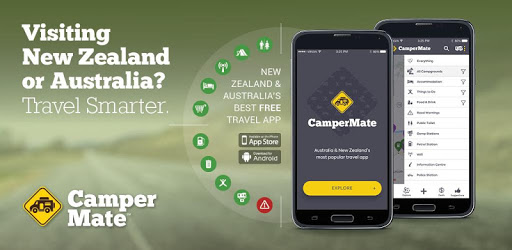
Imagine you're on an epic road trip across Australia, New Zealand, or perhaps planning a spontaneous camping trip. CamperMate can be your best friend on these adventures. It is a comprehensive, user-friendly app designed to make your camping and traveling experience as hassle-free as possible.

User-Friendly and Practical

CamperMate stands out because of its incredible ease of use. Whether you’re a seasoned traveler or a camping newbie, navigating through the app is straightforward. The app provides detailed information on various camping sites, rest areas, and much more. Plus, if you find yourself in a pinch without internet, the offline maps feature ensures you won't get lost.

Offline Maps and Iconic Features

One of the standout features of CamperMate has always been its offline maps. This feature is a lifesaver, particularly in remote areas where internet connectivity is spotty at best. Additionally, the app uses colorful icons to denote different amenities like showers, rest areas, and accommodations. However, it’s worth noting that the icons recently underwent some changes, such as the color for showers. These tiny changes can sometimes be confusing, but overall, the functionality remains top-notch.

Planning and Flexibility

For those who prefer a spontaneous itinerary, CamperMate is the perfect companion. The app provides real-time updates and tips from fellow travelers, helping you make informed decisions on the go. Imagine needing to change your plans without internet; the offline functionality comes to the rescue with numerous camping options and user feedback.

Extensive Coverage and Helpful Community

CamperMate shines in its expansive coverage of free campsites and other amenities across Australia and New Zealand. Usually, apps in this category may miss out on showing numerous free options, but CamperMate excels in offering plenty of choices. The user comments and ratings are particularly beneficial, giving you insights into various spots directly from other travelers.

Perfect for Families

For families hitting the road, CamperMate provides invaluable assistance. From finding family-friendly campsites to ensuring you have access to necessary amenities like showers and restrooms, the app covers all bases. It's a reliable tool, whether you're camping across Australia with six family members or exploring New Zealand’s scenic routes.

Making Every Adventure Count

Traveling through NZ's North Island or embarking on a bikepacking adventure from Perth to Sydney, CamperMate is your go-to resource. It offers not only site information but also tips and deals that make your travels easier and more enjoyable. The user feedback section is especially helpful when you need quick, reliable information about a camping spot or rest area.

A Must-Have Travel Companion

CamperMate is highly recommended for its wealth of features, ease of use, and real-time updates. Whether you're looking for free sleeping spots, bathrooms, or a good place to park your camper, this app has you covered. Planning with CamperMate becomes a seamless experience, making your adventure that much more enjoyable.

Overall, CamperMate delivers on its promise, making it an essential tool for anyone interested in exploring the great outdoors. Don't leave home without it!

Can I run CamperMate on PC?

Yes, you can run CamperMate on PC, but first, you will need emulator software installed on your Windows or MAC, which you can download for free. In the below video, you will find CamperMate in action. Before you install the emulator, check out the minimum and recommended system requirements to run it seamlessly. They may change depending on which version of the emulator you choose. Therefore, we recommend you download the latest version of the emulator. Below you will find three free Android emulators that we have shortlisted based on their popularity:

How to Install CamperMate on Windows PC

BlueStacks

Minimum
  • OS: Microsoft Windows 7 and above.
  • Processor: Intel or AMD Processor.
  • RAM: Your PC must have at least 4GB of RAM. (Note that having 4GB or more disk space is not a substitute for RAM)
  • Storage: 5GB Free Disk Space.
  • You must be an Administrator on your PC.
Recommended:
  • OS: Microsoft Windows 10
  • Processor: Intel or AMD Multi-Core Processor with Single Thread benchmark score > 1000.
  • Graphics: Intel/Nvidia/ATI, Onboard or Discrete controller with benchmark score >= 750.
  • Please ensure Virtualization is enabled on your PC/Laptop.
  • RAM: 8GB or higher
  • Storage: SSD (or Fusion/Hybrid Drives)
  • Internet: Broadband connection to access games, accounts and related content.

Up to date graphics drivers from Microsoft or the chipset vendor.

  • To start with, download Bluestacks from its official website. The latest version of BluesStacks is v 5, and it is around 400 MB.
  • Once the download is done, click on the Bluestacks set up file to install it on your Windows PC. Follow the on-screen instructions and install it accordingly.
  • The next step is to launch the emulator using the desktop shortcut and sign in using your Google account.
  • Now, head over to Bluestacks home screen and click on the Google Play Store icon.
  • Hit the search bar in Google Play and search for CamperMate.
  • Install CamperMate from the Play Store by clicking the Install option, which completes downloading of CamperMate on PC.

NoxPlayer

Minimum
  • Operating System: Windows XP SP3, Windows Vista, Windows 7, Windows 8, Windows 10, and DirectX 9.0c
  • Processor: At least dual-core processor, both Intel, and AMD are OK
  • Video: Supports Open GL 2.0 or above
  • Memory: 1.5 GB RAM
Recommended
  • Operating System: Windows 7, Windows 8, Windows 10
  • Processor: Multiple core processors which support VT-x or AMB-V Virtualization Technology, better performance with this function enabled
  • Video: The higher performance, the better
  • Memory: 4 GB RAM

Storage: 1 GB available under installation path, 1.5GB available hard drive space

Internet: Broadband Internet connection

  • Download NoxPlayer from the official website. The latest version of NoxPlayer is v 3, and it is around 600 MB.
  • Now install the emulator using the downloaded setup file. Just go through the on-screen instructions and install NoxPlayer on your computer or laptop.
  • After the installation process, launch the Nox Android emulator and log in using your Google account when it asks you.
  • Click on the Google Play Store icon and head over to the search bar to search CamperMate. Once found, click on the Install button to install CamperMate for PC.
  • If you do not find CamperMate on Google Play Store or if you want to skip logging in to Google, you can sideload APK (download the .APK file from this page and open it with NoxPlayer).
  • Launch CamperMate from home-screen and start playing it on PC right away!

MEmu

Minimum
  • 2 cores x86/x86_64 Processor (Intel or AMD CPU)
  • WinXP SP3 / Win7 / Win8 / Win10 (Not recommended to run on Server/Enterprise)
  • Latest Windows DirectX 11 / Graphics driver with OpenGL 2.0
  • Hardware Virtualization Technology (Intel VT-x/AMD-V) shall be enabled in BIOS
  • 2GB of RAM (4GB for x64 system)
  • 5GB of hard disk free space
Recommended
  • OS: Microsoft Windows 10 with VT Enabled
  • CPU: Single Thread PassMark score > 1500 (Intel/AMD Multi-Core).
  • Graphics: Intel/Nvidia/ATI, Onboard or Discrete controller with PassMark score > 750.
  • Latest Windows DirectX 11 / Graphics driver with OpenGL 4.5 or higher
  • RAM: 8GB or higher
  • HDD: SSD, 10GB of hard disk free space
  • Internet: Broadband connection with low latency for FPS games
  • Download MEmu Play from the official website. The latest version of NoxPlayer is v 7.5.
  • When the download is completed, install the MEmu emulator on your PC. Follow the on-screen instructions and keep on clicking the Next button until the final step.
  • Now, using the desktop shortcut, look for the MEmu Play emulator and launch it. Once done, it will ask you to log in using your Google account, proceed with the same.
  • MEmu Play will ask you to log in using your Google account. When you log in, it will sync your Google account to MEmu Play. Launch the Google Play Store by clicking on the icon and search for CamperMate.
  • Click on the Install button once you find CamperMate from the search results. You can also sideload APK (download the .APK file from this page and open it with MEmu) if you want to skip above step.
  • After the installation of CamperMate, you're all set to use the app on PC!

Regardless of which Android emulator you install, the steps to install, configure, and running the CamperMate app on PC are the same.

Download CamperMate For PC