Bet Blocker for PC

Bet Blocker for PC

Published by webstoyanov

Updated August 12, 2025

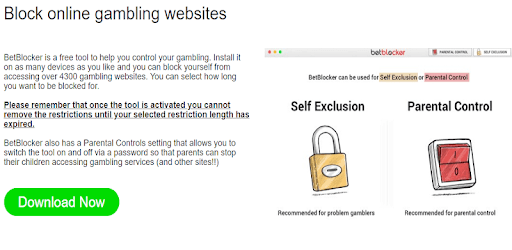
BetBlocker is a free tool to help you control your gambling.

What's New

Version19.6
Size11.5 MB
What's NewMinor bug fixes and improvements. Install or update to the newest version to check it out!

Bet Blocker Screenshots

Bet Blocker PC screenshot

About Bet Blocker For PC

Bet Blocker is an Android app developed and published by webstoyanov at Google Play Store on Jun 27, 2018 for Android users. Bet Blocker is so popular that it has gained 1000 installs so far and growing.

Bet Blocker: The Ultimate Solution for Gambling Addiction

Are you struggling with a gambling addiction? Have you tried every method possible to break free, but nothing seems to work? Look no further, because Bet Blocker is here to save the day. This app is a lifesaver for those who are trapped in the vicious cycle of gambling and are desperate for a way out.

Unlike other solutions like Gamcare and Gamstop, which can be easily bypassed by altering your details slightly, Bet Blocker provides foolproof protection. With this app, any attempt to access gambling websites or apps will be instantly blocked, giving you the peace of mind you deserve.

Protect Your Loved Ones

Not only does Bet Blocker help you overcome your own gambling addiction, but it also allows you to protect your loved ones. By installing this app on your children's phones, you can ensure that they won't be exposed to any 18+ material while browsing the internet. It's a little bit of peace of mind in a digital world filled with potential dangers.

Moreover, Bet Blocker is not just limited to blocking gambling websites. It is also effective in preventing access to other harmful content, making it an excellent tool for ensuring a safe online experience for your entire family.

Unbeatable Protection

When it comes to blocking access to gambling sites, Bet Blocker is second to none. Users have reported their unsuccessful attempts to bypass the app's restrictions, even resorting to force-stopping, uninstalling, disabling admin, and activating other VPNs. Yet, Bet Blocker remained steadfast, denying access and effectively curbing their gambling habits.

One user even shared their experience of trying to tamper with the VPN, only to be scolded by the app. It's clear that Bet Blocker is a successful tool for addressing gambling addiction and providing users with the support they need to overcome their issues.

Effortless and Effective

Installing and using Bet Blocker is a breeze. Users have praised the app's simplicity and effectiveness in blocking gambling sites. It's a relief for those who have struggled with self-exclusion in physical betting shops, only to find themselves still allowed in. Bet Blocker ensures that you stay true to your commitment to quit gambling.

Furthermore, the app's customer support deserves a special mention. Users have expressed their gratitude for the prompt assistance they received, with one user even stating that the support team worked tirelessly to resolve their issues. It's clear that the Bet Blocker team is dedicated to helping users overcome their gambling addiction.

Conclusion

If you're ready to break free from the clutches of gambling addiction, Bet Blocker is the app you need. With its unbeatable protection, ease of use, and dedicated customer support, it's no wonder why users are singing its praises. Don't wait any longer – download Bet Blocker today and take the first step towards a gambling-free life.

Frequently Asked Questions

1. Is Bet Blocker compatible with all devices?

Yes, Bet Blocker is compatible with a wide range of devices, ensuring that you can access its powerful features regardless of the device you use.

2. Can Bet Blocker be bypassed?

No, Bet Blocker has proven to be highly effective in blocking access to gambling sites. Users have reported unsuccessful attempts to bypass its restrictions.

3. Does Bet Blocker offer support for other types of harmful content?

Yes, Bet Blocker is not limited to blocking gambling websites. It also provides protection against other harmful content, making it a comprehensive tool for a safe online experience.

4. How responsive is Bet Blocker's customer support?

Bet Blocker's customer support is highly responsive and dedicated to assisting users. They have received praise for their prompt assistance and commitment to resolving issues.

5. Can Bet Blocker be easily uninstalled?

While Bet Blocker is designed to be difficult to bypass, it can be uninstalled like any other app. However, it's important to remember that the app provides valuable support in overcoming gambling addiction, and uninstalling it may expose you to potential risks.

Can I run Bet Blocker on PC?

Yes, you can run Bet Blocker on PC, but first, you will need emulator software installed on your Windows or MAC, which you can download for free. In the below video, you will find Bet Blocker in action. Before you install the emulator, check out the minimum and recommended system requirements to run it seamlessly. They may change depending on which version of the emulator you choose. Therefore, we recommend you download the latest version of the emulator. Below you will find three free Android emulators that we have shortlisted based on their popularity:

How to Install Bet Blocker on Windows PC

BlueStacks

Minimum
  • OS: Microsoft Windows 7 and above.
  • Processor: Intel or AMD Processor.
  • RAM: Your PC must have at least 4GB of RAM. (Note that having 4GB or more disk space is not a substitute for RAM)
  • Storage: 5GB Free Disk Space.
  • You must be an Administrator on your PC.
Recommended:
  • OS: Microsoft Windows 10
  • Processor: Intel or AMD Multi-Core Processor with Single Thread benchmark score > 1000.
  • Graphics: Intel/Nvidia/ATI, Onboard or Discrete controller with benchmark score >= 750.
  • Please ensure Virtualization is enabled on your PC/Laptop.
  • RAM: 8GB or higher
  • Storage: SSD (or Fusion/Hybrid Drives)
  • Internet: Broadband connection to access games, accounts and related content.

Up to date graphics drivers from Microsoft or the chipset vendor.

  • To start with, download Bluestacks from its official website. The latest version of BluesStacks is v 5, and it is around 400 MB.
  • Once the download is done, click on the Bluestacks set up file to install it on your Windows PC. Follow the on-screen instructions and install it accordingly.
  • The next step is to launch the emulator using the desktop shortcut and sign in using your Google account.
  • Now, head over to Bluestacks home screen and click on the Google Play Store icon.
  • Hit the search bar in Google Play and search for Bet Blocker.
  • Install Bet Blocker from the Play Store by clicking the Install option, which completes downloading of Bet Blocker on PC.

NoxPlayer

Minimum
  • Operating System: Windows XP SP3, Windows Vista, Windows 7, Windows 8, Windows 10, and DirectX 9.0c
  • Processor: At least dual-core processor, both Intel, and AMD are OK
  • Video: Supports Open GL 2.0 or above
  • Memory: 1.5 GB RAM
Recommended
  • Operating System: Windows 7, Windows 8, Windows 10
  • Processor: Multiple core processors which support VT-x or AMB-V Virtualization Technology, better performance with this function enabled
  • Video: The higher performance, the better
  • Memory: 4 GB RAM

Storage: 1 GB available under installation path, 1.5GB available hard drive space

Internet: Broadband Internet connection

  • Download NoxPlayer from the official website. The latest version of NoxPlayer is v 3, and it is around 600 MB.
  • Now install the emulator using the downloaded setup file. Just go through the on-screen instructions and install NoxPlayer on your computer or laptop.
  • After the installation process, launch the Nox Android emulator and log in using your Google account when it asks you.
  • Click on the Google Play Store icon and head over to the search bar to search Bet Blocker. Once found, click on the Install button to install Bet Blocker for PC.
  • If you do not find Bet Blocker on Google Play Store or if you want to skip logging in to Google, you can sideload APK (download the .APK file from this page and open it with NoxPlayer).
  • Launch Bet Blocker from home-screen and start playing it on PC right away!

MEmu

Minimum
  • 2 cores x86/x86_64 Processor (Intel or AMD CPU)
  • WinXP SP3 / Win7 / Win8 / Win10 (Not recommended to run on Server/Enterprise)
  • Latest Windows DirectX 11 / Graphics driver with OpenGL 2.0
  • Hardware Virtualization Technology (Intel VT-x/AMD-V) shall be enabled in BIOS
  • 2GB of RAM (4GB for x64 system)
  • 5GB of hard disk free space
Recommended
  • OS: Microsoft Windows 10 with VT Enabled
  • CPU: Single Thread PassMark score > 1500 (Intel/AMD Multi-Core).
  • Graphics: Intel/Nvidia/ATI, Onboard or Discrete controller with PassMark score > 750.
  • Latest Windows DirectX 11 / Graphics driver with OpenGL 4.5 or higher
  • RAM: 8GB or higher
  • HDD: SSD, 10GB of hard disk free space
  • Internet: Broadband connection with low latency for FPS games
  • Download MEmu Play from the official website. The latest version of NoxPlayer is v 7.5.
  • When the download is completed, install the MEmu emulator on your PC. Follow the on-screen instructions and keep on clicking the Next button until the final step.
  • Now, using the desktop shortcut, look for the MEmu Play emulator and launch it. Once done, it will ask you to log in using your Google account, proceed with the same.
  • MEmu Play will ask you to log in using your Google account. When you log in, it will sync your Google account to MEmu Play. Launch the Google Play Store by clicking on the icon and search for Bet Blocker.
  • Click on the Install button once you find Bet Blocker from the search results. You can also sideload APK (download the .APK file from this page and open it with MEmu) if you want to skip above step.
  • After the installation of Bet Blocker, you're all set to use the app on PC!

Regardless of which Android emulator you install, the steps to install, configure, and running the Bet Blocker app on PC are the same.


Download Bet Blocker For PC