Nepali Bible for PC

Nepali Bible for PC

Published by YC Tech

Updated October 13, 2025

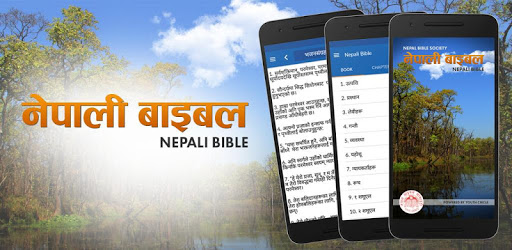
Nepali Bible android app to access Nepali Holy Bible on the go.

What's New

Version2.2.1
Size42.6 MB
What's NewDark Mode – Added a new dark theme for comfortable viewing at night.Prayers and Stories – Introduced a dedicated section for prayers and inspiring stories.Improved Search – Faster, more accurate search results for easier navigation.Seamless UX – Refined UI and transitions for a smoother overall experience.Bug Fixes – Resolved issues and improved app stability.

Nepali Bible Screenshots

Nepali Bible PC screenshot

About Nepali Bible For PC

Nepali Bible is an Android app developed and published by YC Tech at Google Play Store on Aug 7, 2016 for Android users. Nepali Bible is so popular that it has gained 1022705 installs so far and growing.

Nepali Bible: An All-in-One Resource for Spiritual Growth

The Nepali Bible offers a unique and comprehensive platform for believers seeking to grow spiritually. With features that cater to a variety of needs, this app has created an enriched experience for its users.

Access to a Digital Bible

One of the standout features of the Nepali Bible is the ability to access the Holy Bible in the Nepali language. This app is ideal for those who wish to read and study the scripture in their native tongue. It ensures that one can read the Bible anytime, anywhere, eliminating the need to carry a physical copy.

Enhanced Usability and Functionality

The app focuses heavily on user convenience. It allows for easy navigation through chapters and verses, making it simple for users to find and read specific passages. The inclusion of subheadings and titles assists in better understanding and study of scripture. Efforts have been made to use simple and correct Nepali words, enhancing readability and comprehension.

Daily Verses and Devotional Content

Another remarkable feature of the Nepali Bible is its provision of daily verses. This encourages a routine of daily scripture reading and meditation, helping believers to stay connected to their faith on a regular basis. Additionally, new bhajans are available for users, enriching their spiritual journey with music and worship.

User-Friendly Interface

Thanks to a user-friendly interface, the Nepali Bible is easy to use even for those who may not be tech-savvy. The recent updates have improved the user experience significantly. Customizable fonts and distinct voice options for male and female readings add to the convenience and personalization of the app.

Spiritual Songs and Bhajans

Incorporating spiritual songs and bhajans into the app has been a well-received feature. Users have the option to listen to and sing along with their favorite hymns, enhancing their worship experience. Integration of songbooks, complete with verses and chords, provides a more holistic approach to musical worship.

Continuous Improvements and Updates

The team behind the Nepali Bible is dedicated to ongoing improvement. Recent updates have brought in significant enhancements, such as bug fixes and new features. Users have noted the addition of titles and the inclusion of Adrian Dewan songs as improvements that have enriched their experience.

Cross-Platform Availability

Plans to make the Nepali Bible accessible on computers and laptops are underway, which will undoubtedly broaden its usability. This will allow users to engage with the app across multiple devices, ensuring that they have access to the Bible wherever they are.

Ad-Free Premium Experience

The suggestion to make the app ad-free would undoubtedly heighten the user experience. Ads can be distracting, and a premium version of the app without advertisements would allow for an uninterrupted and more fulfilling spiritual journey.

Connecting Communities

The Nepali Bible serves as a surrogate for church for those who may not have easy access to one. It creates a community feeling and provides resources that help believers stay connected to their faith. Even in remote areas, this app ensures that anyone can engage in Bible study and worship.

In summary, the Nepali Bible is a robust, user-friendly platform that delivers an all-in-one resource for those seeking to deepen their spiritual life. With its vast array of features and continuous enhancements, it stands as a valuable tool for believers.

Can I run Nepali Bible on PC?

Yes, you can run Nepali Bible on PC, but first, you will need emulator software installed on your Windows or MAC, which you can download for free. In the below video, you will find Nepali Bible in action. Before you install the emulator, check out the minimum and recommended system requirements to run it seamlessly. They may change depending on which version of the emulator you choose. Therefore, we recommend you download the latest version of the emulator. Below you will find three free Android emulators that we have shortlisted based on their popularity:

How to Install Nepali Bible on Windows PC

BlueStacks

Minimum
  • OS: Microsoft Windows 7 and above.
  • Processor: Intel or AMD Processor.
  • RAM: Your PC must have at least 4GB of RAM. (Note that having 4GB or more disk space is not a substitute for RAM)
  • Storage: 5GB Free Disk Space.
  • You must be an Administrator on your PC.
Recommended:
  • OS: Microsoft Windows 10
  • Processor: Intel or AMD Multi-Core Processor with Single Thread benchmark score > 1000.
  • Graphics: Intel/Nvidia/ATI, Onboard or Discrete controller with benchmark score >= 750.
  • Please ensure Virtualization is enabled on your PC/Laptop.
  • RAM: 8GB or higher
  • Storage: SSD (or Fusion/Hybrid Drives)
  • Internet: Broadband connection to access games, accounts and related content.

Up to date graphics drivers from Microsoft or the chipset vendor.

  • To start with, download Bluestacks from its official website. The latest version of BluesStacks is v 5, and it is around 400 MB.
  • Once the download is done, click on the Bluestacks set up file to install it on your Windows PC. Follow the on-screen instructions and install it accordingly.
  • The next step is to launch the emulator using the desktop shortcut and sign in using your Google account.
  • Now, head over to Bluestacks home screen and click on the Google Play Store icon.
  • Hit the search bar in Google Play and search for Nepali Bible.
  • Install Nepali Bible from the Play Store by clicking the Install option, which completes downloading of Nepali Bible on PC.

NoxPlayer

Minimum
  • Operating System: Windows XP SP3, Windows Vista, Windows 7, Windows 8, Windows 10, and DirectX 9.0c
  • Processor: At least dual-core processor, both Intel, and AMD are OK
  • Video: Supports Open GL 2.0 or above
  • Memory: 1.5 GB RAM
Recommended
  • Operating System: Windows 7, Windows 8, Windows 10
  • Processor: Multiple core processors which support VT-x or AMB-V Virtualization Technology, better performance with this function enabled
  • Video: The higher performance, the better
  • Memory: 4 GB RAM

Storage: 1 GB available under installation path, 1.5GB available hard drive space

Internet: Broadband Internet connection

  • Download NoxPlayer from the official website. The latest version of NoxPlayer is v 3, and it is around 600 MB.
  • Now install the emulator using the downloaded setup file. Just go through the on-screen instructions and install NoxPlayer on your computer or laptop.
  • After the installation process, launch the Nox Android emulator and log in using your Google account when it asks you.
  • Click on the Google Play Store icon and head over to the search bar to search Nepali Bible. Once found, click on the Install button to install Nepali Bible for PC.
  • If you do not find Nepali Bible on Google Play Store or if you want to skip logging in to Google, you can sideload APK (download the .APK file from this page and open it with NoxPlayer).
  • Launch Nepali Bible from home-screen and start playing it on PC right away!

MEmu

Minimum
  • 2 cores x86/x86_64 Processor (Intel or AMD CPU)
  • WinXP SP3 / Win7 / Win8 / Win10 (Not recommended to run on Server/Enterprise)
  • Latest Windows DirectX 11 / Graphics driver with OpenGL 2.0
  • Hardware Virtualization Technology (Intel VT-x/AMD-V) shall be enabled in BIOS
  • 2GB of RAM (4GB for x64 system)
  • 5GB of hard disk free space
Recommended
  • OS: Microsoft Windows 10 with VT Enabled
  • CPU: Single Thread PassMark score > 1500 (Intel/AMD Multi-Core).
  • Graphics: Intel/Nvidia/ATI, Onboard or Discrete controller with PassMark score > 750.
  • Latest Windows DirectX 11 / Graphics driver with OpenGL 4.5 or higher
  • RAM: 8GB or higher
  • HDD: SSD, 10GB of hard disk free space
  • Internet: Broadband connection with low latency for FPS games
  • Download MEmu Play from the official website. The latest version of NoxPlayer is v 7.5.
  • When the download is completed, install the MEmu emulator on your PC. Follow the on-screen instructions and keep on clicking the Next button until the final step.
  • Now, using the desktop shortcut, look for the MEmu Play emulator and launch it. Once done, it will ask you to log in using your Google account, proceed with the same.
  • MEmu Play will ask you to log in using your Google account. When you log in, it will sync your Google account to MEmu Play. Launch the Google Play Store by clicking on the icon and search for Nepali Bible.
  • Click on the Install button once you find Nepali Bible from the search results. You can also sideload APK (download the .APK file from this page and open it with MEmu) if you want to skip above step.
  • After the installation of Nepali Bible, you're all set to use the app on PC!

Regardless of which Android emulator you install, the steps to install, configure, and running the Nepali Bible app on PC are the same.


Download Nepali Bible For PC