Whats Web for PC

Whats Web for PC

Published by ITamazons

Updated November 22, 2026

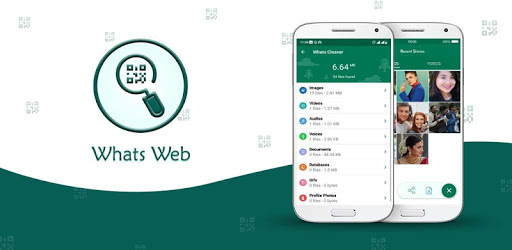
Whats web- multiple tools for Whatsup

What's New

Version8.5.6
Size19.5 MB
What's New* WhatsApp web screen mobile compatible* Use upto six WhatsApp Web account* Light and dark theme * Change App User Interface* Added New feature - Quotes for WhatsApp status* Improve app performance* Fixed crash issue

Whats Web Screenshots

Whats Web PC screenshot

About Whats Web For PC

Whats Web is an Android app developed and published by ITamazons at Google Play Store on Nov 30, 2016 for Android users. Whats Web is so popular that it has gained 5000000 installs so far and growing.

Introducing Whats Web: The Ultimate App for Seamless Communication

Are you tired of constantly switching between devices to access your WhatsApp account? Look no further! Whats Web is here to revolutionize the way you connect with your loved ones. With its exceptional features and user-friendly interface, this app is a game-changer in the world of communication.

Unleash the Power of Whats Web

Whats Web is a highly efficient app that allows you to access your WhatsApp account on multiple devices simultaneously. Gone are the days when you had to juggle between your phone, tablet, and computer to stay connected. With Whats Web, you can now conveniently manage your conversations, send messages, and stay updated with the latest happenings, all from a single platform.

One of the standout features of Whats Web is its stability and quick loading time. You won't have to endure any frustrating delays or glitches while using this app. It is designed to provide a seamless experience, ensuring that you can effortlessly navigate through your chats and make the most out of your conversations.

Enhanced Features for a Superior Experience

Whats Web strives to offer an unparalleled user experience. While the app primarily focuses on text messages, we understand the need for additional functionalities. Therefore, we are continuously working towards expanding the capabilities of Whats Web to include call monitoring as well. Stay tuned for exciting updates!

Additionally, Whats Web ensures your privacy and security. Rest assured that your conversations are protected, and your personal information remains confidential. We prioritize the safety of our users and are committed to providing a secure platform for seamless communication.

FAQs

1. Will Whats Web log out automatically?

No, Whats Web does not log out automatically. You can stay logged in as long as you want, ensuring uninterrupted access to your WhatsApp account.

2. What if I need to get the QR code from another device?

If you need to obtain the QR code from another device, you can easily do so. Whats Web allows you to connect your WhatsApp account without the need for physical access to the device.

3. Will I need to update the QR code when a new version of Whats Web is released?

No, updating Whats Web to a new version does not require you to generate a new QR code. You can seamlessly continue using the app without any interruptions.

4. When can we expect the next version of Whats Web?

We understand the importance of keeping our users informed about updates. While we cannot provide an exact date, we assure you that we are constantly working on enhancing Whats Web. Stay tuned for exciting new features and improvements in the near future.

5. Why am I unable to see some messages in Whats Web?

If you are experiencing empty messages or missing conversations, please ensure that your internet connection is stable. In case the issue persists, kindly reach out to our support team for further assistance.

6. Will Whats Web prompt for the QR code again?

No, once you have successfully connected Whats Web to your WhatsApp account, it will not prompt you for the QR code again. You can enjoy uninterrupted access to your conversations.

Thank you for choosing Whats Web! We appreciate your support and look forward to providing you with an exceptional communication experience. Stay connected, stay empowered!

Can I run Whats Web on PC?

Yes, you can run Whats Web on PC, but first, you will need emulator software installed on your Windows or MAC, which you can download for free. In the below video, you will find Whats Web in action. Before you install the emulator, check out the minimum and recommended system requirements to run it seamlessly. They may change depending on which version of the emulator you choose. Therefore, we recommend you download the latest version of the emulator. Below you will find three free Android emulators that we have shortlisted based on their popularity:

How to Install Whats Web on Windows PC

BlueStacks

Minimum
  • OS: Microsoft Windows 7 and above.
  • Processor: Intel or AMD Processor.
  • RAM: Your PC must have at least 4GB of RAM. (Note that having 4GB or more disk space is not a substitute for RAM)
  • Storage: 5GB Free Disk Space.
  • You must be an Administrator on your PC.
Recommended:
  • OS: Microsoft Windows 10
  • Processor: Intel or AMD Multi-Core Processor with Single Thread benchmark score > 1000.
  • Graphics: Intel/Nvidia/ATI, Onboard or Discrete controller with benchmark score >= 750.
  • Please ensure Virtualization is enabled on your PC/Laptop.
  • RAM: 8GB or higher
  • Storage: SSD (or Fusion/Hybrid Drives)
  • Internet: Broadband connection to access games, accounts and related content.

Up to date graphics drivers from Microsoft or the chipset vendor.

  • To start with, download Bluestacks from its official website. The latest version of BluesStacks is v 5, and it is around 400 MB.
  • Once the download is done, click on the Bluestacks set up file to install it on your Windows PC. Follow the on-screen instructions and install it accordingly.
  • The next step is to launch the emulator using the desktop shortcut and sign in using your Google account.
  • Now, head over to Bluestacks home screen and click on the Google Play Store icon.
  • Hit the search bar in Google Play and search for Whats Web.
  • Install Whats Web from the Play Store by clicking the Install option, which completes downloading of Whats Web on PC.

NoxPlayer

Minimum
  • Operating System: Windows XP SP3, Windows Vista, Windows 7, Windows 8, Windows 10, and DirectX 9.0c
  • Processor: At least dual-core processor, both Intel, and AMD are OK
  • Video: Supports Open GL 2.0 or above
  • Memory: 1.5 GB RAM
Recommended
  • Operating System: Windows 7, Windows 8, Windows 10
  • Processor: Multiple core processors which support VT-x or AMB-V Virtualization Technology, better performance with this function enabled
  • Video: The higher performance, the better
  • Memory: 4 GB RAM

Storage: 1 GB available under installation path, 1.5GB available hard drive space

Internet: Broadband Internet connection

  • Download NoxPlayer from the official website. The latest version of NoxPlayer is v 3, and it is around 600 MB.
  • Now install the emulator using the downloaded setup file. Just go through the on-screen instructions and install NoxPlayer on your computer or laptop.
  • After the installation process, launch the Nox Android emulator and log in using your Google account when it asks you.
  • Click on the Google Play Store icon and head over to the search bar to search Whats Web. Once found, click on the Install button to install Whats Web for PC.
  • If you do not find Whats Web on Google Play Store or if you want to skip logging in to Google, you can sideload APK (download the .APK file from this page and open it with NoxPlayer).
  • Launch Whats Web from home-screen and start playing it on PC right away!

MEmu

Minimum
  • 2 cores x86/x86_64 Processor (Intel or AMD CPU)
  • WinXP SP3 / Win7 / Win8 / Win10 (Not recommended to run on Server/Enterprise)
  • Latest Windows DirectX 11 / Graphics driver with OpenGL 2.0
  • Hardware Virtualization Technology (Intel VT-x/AMD-V) shall be enabled in BIOS
  • 2GB of RAM (4GB for x64 system)
  • 5GB of hard disk free space
Recommended
  • OS: Microsoft Windows 10 with VT Enabled
  • CPU: Single Thread PassMark score > 1500 (Intel/AMD Multi-Core).
  • Graphics: Intel/Nvidia/ATI, Onboard or Discrete controller with PassMark score > 750.
  • Latest Windows DirectX 11 / Graphics driver with OpenGL 4.5 or higher
  • RAM: 8GB or higher
  • HDD: SSD, 10GB of hard disk free space
  • Internet: Broadband connection with low latency for FPS games
  • Download MEmu Play from the official website. The latest version of NoxPlayer is v 7.5.
  • When the download is completed, install the MEmu emulator on your PC. Follow the on-screen instructions and keep on clicking the Next button until the final step.
  • Now, using the desktop shortcut, look for the MEmu Play emulator and launch it. Once done, it will ask you to log in using your Google account, proceed with the same.
  • MEmu Play will ask you to log in using your Google account. When you log in, it will sync your Google account to MEmu Play. Launch the Google Play Store by clicking on the icon and search for Whats Web.
  • Click on the Install button once you find Whats Web from the search results. You can also sideload APK (download the .APK file from this page and open it with MEmu) if you want to skip above step.
  • After the installation of Whats Web, you're all set to use the app on PC!

Regardless of which Android emulator you install, the steps to install, configure, and running the Whats Web app on PC are the same.