WoFit for PC

WoFit for PC

Published by WoFit

Updated August 19, 2025

WoFit is one application for fitness activity

What's New

Version7.8.5
Size127.9 MB
What's New1.优化连接性问题 2.修复一些bug

WoFit Screenshots

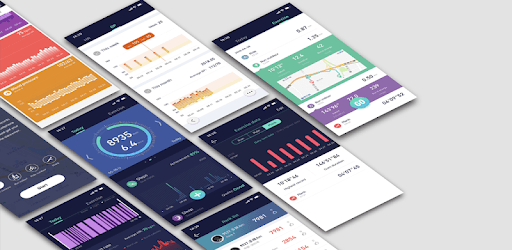
WoFit PC screenshot

About WoFit For PC

WoFit is an Android app developed and published by WoFit at Google Play Store on May 3, 2018 for Android users. WoFit is so popular that it has gained 139834 installs so far and growing.

Introducing WoFit: Your Ultimate Health and Fitness Companion

Are you looking for a reliable and user-friendly app to help you track your health and fitness goals? Look no further than WoFit! This incredible app is designed to provide you with accurate health information and assist you in achieving your wellness objectives. With its impressive features and seamless interface, WoFit is the perfect companion for your V19 band or any other compatible device.

Unleash the Power of WoFit

WoFit offers a wide range of functions to help you monitor your health and stay on top of your fitness routine. From tracking your steps to monitoring your heart rate, this app has got you covered. Let's take a closer look at some of its key features:

1. Accurate Pedometer

With WoFit, you can trust that every step you take is accurately counted. The pedometer feature ensures that you stay motivated and reach your daily step goals effortlessly. Whether you're walking, running, or hiking, WoFit keeps track of your progress and provides you with valuable insights.

2. Comprehensive Health Functions

When it comes to your well-being, WoFit leaves no stone unturned. This app offers a range of health functions, including heart rate monitoring and blood pressure tracking. While some users have expressed concerns about the accuracy of the blood pressure monitor, WoFit continues to improve its performance and provide you with reliable data for a better understanding of your overall health.

3. Easy-to-Use Interface

WoFit prides itself on its user-friendly interface. Whether you're a tech-savvy individual or a beginner, navigating through the app is a breeze. Its attractive design and intuitive layout make it a joy to use, ensuring that you can access all the information you need with just a few taps.

4. Multi-Device Compatibility

Do you own multiple phones or devices? No problem! WoFit allows you to install the app on all your devices, although only one can be paired at a time. This flexibility ensures that you can access your health data wherever you go, keeping you informed and motivated on your fitness journey.

Frequently Asked Questions

Q: Can I rely on the accuracy of the heart rate monitor and blood pressure monitor?

A: While the accuracy of the heart rate monitor has been praised by many users, some have expressed concerns about the blood pressure monitor. WoFit continues to work on improving the accuracy of this feature to provide you with reliable data for a better understanding of your health.

Q: How do I set my target weight in WoFit?

A: Setting your target weight in WoFit is easy. Simply navigate to the settings menu and locate the "Target Weight" option. From there, you can input your desired weight and let WoFit assist you in reaching your goals.

Q: Can I use the SpO2 sensor without using the sensor on my finger?

A: No, the SpO2 sensor in WoFit requires the use of the sensor on your finger as per the instructions. This ensures accurate readings and allows you to monitor your blood oxygen levels effectively.

Q: How can I synchronize my blood pressure readings from my home or doctor's office unit with WoFit?

A: To synchronize your blood pressure readings, simply open the WoFit app, turn on the private mode, and enter the value from your professional unit. By leaving it on the personal setting, you can compare the readings and ensure they align closely with your actual measurements. It is recommended to reset the personal value several times a week for the most accurate snapshot of your day and night.

In conclusion, WoFit is a remarkable app that offers a range of features to help you achieve your health and fitness goals. With its accurate pedometer, comprehensive health functions, easy-to-use interface, and multi-device compatibility, WoFit is the ultimate companion for your wellness journey. Start using WoFit today and experience the difference it can make in your life!

Can I run WoFit on PC?

Yes, you can run WoFit on PC, but first, you will need emulator software installed on your Windows or MAC, which you can download for free. In the below video, you will find WoFit in action. Before you install the emulator, check out the minimum and recommended system requirements to run it seamlessly. They may change depending on which version of the emulator you choose. Therefore, we recommend you download the latest version of the emulator. Below you will find three free Android emulators that we have shortlisted based on their popularity:

How to Install WoFit on Windows PC

BlueStacks

Minimum
  • OS: Microsoft Windows 7 and above.
  • Processor: Intel or AMD Processor.
  • RAM: Your PC must have at least 4GB of RAM. (Note that having 4GB or more disk space is not a substitute for RAM)
  • Storage: 5GB Free Disk Space.
  • You must be an Administrator on your PC.
Recommended:
  • OS: Microsoft Windows 10
  • Processor: Intel or AMD Multi-Core Processor with Single Thread benchmark score > 1000.
  • Graphics: Intel/Nvidia/ATI, Onboard or Discrete controller with benchmark score >= 750.
  • Please ensure Virtualization is enabled on your PC/Laptop.
  • RAM: 8GB or higher
  • Storage: SSD (or Fusion/Hybrid Drives)
  • Internet: Broadband connection to access games, accounts and related content.

Up to date graphics drivers from Microsoft or the chipset vendor.

  • To start with, download Bluestacks from its official website. The latest version of BluesStacks is v 5, and it is around 400 MB.
  • Once the download is done, click on the Bluestacks set up file to install it on your Windows PC. Follow the on-screen instructions and install it accordingly.
  • The next step is to launch the emulator using the desktop shortcut and sign in using your Google account.
  • Now, head over to Bluestacks home screen and click on the Google Play Store icon.
  • Hit the search bar in Google Play and search for WoFit.
  • Install WoFit from the Play Store by clicking the Install option, which completes downloading of WoFit on PC.

NoxPlayer

Minimum
  • Operating System: Windows XP SP3, Windows Vista, Windows 7, Windows 8, Windows 10, and DirectX 9.0c
  • Processor: At least dual-core processor, both Intel, and AMD are OK
  • Video: Supports Open GL 2.0 or above
  • Memory: 1.5 GB RAM
Recommended
  • Operating System: Windows 7, Windows 8, Windows 10
  • Processor: Multiple core processors which support VT-x or AMB-V Virtualization Technology, better performance with this function enabled
  • Video: The higher performance, the better
  • Memory: 4 GB RAM

Storage: 1 GB available under installation path, 1.5GB available hard drive space

Internet: Broadband Internet connection

  • Download NoxPlayer from the official website. The latest version of NoxPlayer is v 3, and it is around 600 MB.
  • Now install the emulator using the downloaded setup file. Just go through the on-screen instructions and install NoxPlayer on your computer or laptop.
  • After the installation process, launch the Nox Android emulator and log in using your Google account when it asks you.
  • Click on the Google Play Store icon and head over to the search bar to search WoFit. Once found, click on the Install button to install WoFit for PC.
  • If you do not find WoFit on Google Play Store or if you want to skip logging in to Google, you can sideload APK (download the .APK file from this page and open it with NoxPlayer).
  • Launch WoFit from home-screen and start playing it on PC right away!

MEmu

Minimum
  • 2 cores x86/x86_64 Processor (Intel or AMD CPU)
  • WinXP SP3 / Win7 / Win8 / Win10 (Not recommended to run on Server/Enterprise)
  • Latest Windows DirectX 11 / Graphics driver with OpenGL 2.0
  • Hardware Virtualization Technology (Intel VT-x/AMD-V) shall be enabled in BIOS
  • 2GB of RAM (4GB for x64 system)
  • 5GB of hard disk free space
Recommended
  • OS: Microsoft Windows 10 with VT Enabled
  • CPU: Single Thread PassMark score > 1500 (Intel/AMD Multi-Core).
  • Graphics: Intel/Nvidia/ATI, Onboard or Discrete controller with PassMark score > 750.
  • Latest Windows DirectX 11 / Graphics driver with OpenGL 4.5 or higher
  • RAM: 8GB or higher
  • HDD: SSD, 10GB of hard disk free space
  • Internet: Broadband connection with low latency for FPS games
  • Download MEmu Play from the official website. The latest version of NoxPlayer is v 7.5.
  • When the download is completed, install the MEmu emulator on your PC. Follow the on-screen instructions and keep on clicking the Next button until the final step.
  • Now, using the desktop shortcut, look for the MEmu Play emulator and launch it. Once done, it will ask you to log in using your Google account, proceed with the same.
  • MEmu Play will ask you to log in using your Google account. When you log in, it will sync your Google account to MEmu Play. Launch the Google Play Store by clicking on the icon and search for WoFit.
  • Click on the Install button once you find WoFit from the search results. You can also sideload APK (download the .APK file from this page and open it with MEmu) if you want to skip above step.
  • After the installation of WoFit, you're all set to use the app on PC!

Regardless of which Android emulator you install, the steps to install, configure, and running the WoFit app on PC are the same.


Download WoFit For PC