Sonic Dash for PC

Sonic Dash for PC

Published by SEGA

Updated April 16, 2026

NEW: Run and build up zones!

What's New

Version9.3.0
Size293.6 MB
What's New2 New Runners dash onto the track!Watch out for Valentine Whisper as she breaks hearts on track!Lunar Tangle lion dances onto the track!

Sonic Dash Screenshots

Sonic Dash PC screenshot

About Sonic Dash For PC

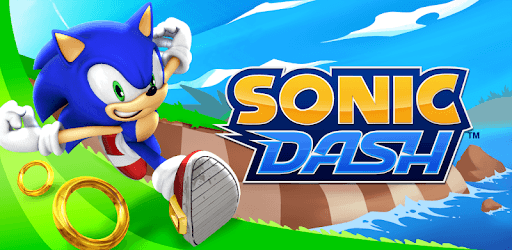
Sonic Dash is an Android app developed and published by SEGA at Google Play Store on Nov 26, 2013 for Android users. Sonic Dash is so popular that it has gained 100000000 installs so far and growing.

Sonic Dash: A Thrilling Endless Runner Game

Sonic Dash is an exhilarating endless runner game that brings back the nostalgic memories of our beloved childhood hero, Sonic. With its fast-paced gameplay and stunning visuals, this game is sure to captivate both new and old fans of the franchise.

Unleash Sonic's Speed and Skills

In Sonic Dash, players get the chance to control Sonic as he dashes through vibrant and challenging environments. The game allows you to experience the thrill of running at supersonic speeds, collecting rings, and defeating enemies along the way.

With its intuitive controls and responsive touch mechanics, Sonic Dash offers a seamless gaming experience. Swipe left and right to avoid obstacles, jump over hurdles, and unleash Sonic's signature spin attack to take down enemies in your path.

Unlock a World of Characters and Skins

One of the highlights of Sonic Dash is the wide variety of characters and skins available for players to unlock. From classic characters like Tails to new additions like Sir Galahad and Sir Lancelot, there's a character for everyone to enjoy.

Each character comes with their own unique abilities and playstyle, adding depth and strategy to the gameplay. Additionally, the game offers a plethora of skins that allow you to customize Sonic and his friends to your liking, making each run feel fresh and exciting.

Challenging Events and Boss Battles

Sonic Dash keeps players engaged with its regular events and boss battles. These events provide an extra layer of challenge and excitement, allowing you to test your skills and compete with other players for rewards and high scores.

However, it seems that some players have encountered issues with the recent event. Rest assured, the developers are constantly working to improve the game and address any bugs or glitches that may arise. Keep an eye out for updates to ensure a smooth and enjoyable gaming experience.

Frequently Asked Questions

1. How can I fix the issue of not seeing the event in the game?

If you're unable to see the event in Sonic Dash, try updating the game from the Play Store. This should resolve any issues related to event visibility. If the problem persists, consider reaching out to the game's support team for further assistance.

2. Why are the cards not loading in my Sonic Dash game?

If you're experiencing difficulties with loading cards in Sonic Dash, it may be due to a temporary glitch. Try restarting the game or clearing the cache to see if that resolves the issue. If the problem persists, consider contacting the game's support team for additional guidance.

3. Is Sonic Dash a free-to-play game?

Yes, Sonic Dash is available to play for free. However, it does offer in-app purchases for additional characters, skins, and other optional content. These purchases are entirely optional and do not hinder your progress in the game.

4. Can I play Sonic Dash offline?

No, Sonic Dash requires an internet connection to play. This is necessary to ensure a seamless experience, as the game features online leaderboards, events, and social features that enhance the overall gameplay.

In conclusion, Sonic Dash is a thrilling and addictive endless runner game that brings Sonic's adventures to the palm of your hand. With its fast-paced gameplay, a wide range of characters and skins, and exciting events, this game is a must-play for fans of the franchise. So lace up your running shoes and join Sonic on his epic journey today!

Can I run Sonic Dash on PC?

Yes, you can run Sonic Dash on PC, but first, you will need emulator software installed on your Windows or MAC, which you can download for free. In the below video, you will find Sonic Dash in action. Before you install the emulator, check out the minimum and recommended system requirements to run it seamlessly. They may change depending on which version of the emulator you choose. Therefore, we recommend you download the latest version of the emulator. Below you will find three free Android emulators that we have shortlisted based on their popularity:

How to Install Sonic Dash on Windows PC

BlueStacks

Minimum
  • OS: Microsoft Windows 7 and above.
  • Processor: Intel or AMD Processor.
  • RAM: Your PC must have at least 4GB of RAM. (Note that having 4GB or more disk space is not a substitute for RAM)
  • Storage: 5GB Free Disk Space.
  • You must be an Administrator on your PC.
Recommended:
  • OS: Microsoft Windows 10
  • Processor: Intel or AMD Multi-Core Processor with Single Thread benchmark score > 1000.
  • Graphics: Intel/Nvidia/ATI, Onboard or Discrete controller with benchmark score >= 750.
  • Please ensure Virtualization is enabled on your PC/Laptop.
  • RAM: 8GB or higher
  • Storage: SSD (or Fusion/Hybrid Drives)
  • Internet: Broadband connection to access games, accounts and related content.

Up to date graphics drivers from Microsoft or the chipset vendor.

  • To start with, download Bluestacks from its official website. The latest version of BluesStacks is v 5, and it is around 400 MB.
  • Once the download is done, click on the Bluestacks set up file to install it on your Windows PC. Follow the on-screen instructions and install it accordingly.
  • The next step is to launch the emulator using the desktop shortcut and sign in using your Google account.
  • Now, head over to Bluestacks home screen and click on the Google Play Store icon.
  • Hit the search bar in Google Play and search for Sonic Dash.
  • Install Sonic Dash from the Play Store by clicking the Install option, which completes downloading of Sonic Dash on PC.

NoxPlayer

Minimum
  • Operating System: Windows XP SP3, Windows Vista, Windows 7, Windows 8, Windows 10, and DirectX 9.0c
  • Processor: At least dual-core processor, both Intel, and AMD are OK
  • Video: Supports Open GL 2.0 or above
  • Memory: 1.5 GB RAM
Recommended
  • Operating System: Windows 7, Windows 8, Windows 10
  • Processor: Multiple core processors which support VT-x or AMB-V Virtualization Technology, better performance with this function enabled
  • Video: The higher performance, the better
  • Memory: 4 GB RAM

Storage: 1 GB available under installation path, 1.5GB available hard drive space

Internet: Broadband Internet connection

  • Download NoxPlayer from the official website. The latest version of NoxPlayer is v 3, and it is around 600 MB.
  • Now install the emulator using the downloaded setup file. Just go through the on-screen instructions and install NoxPlayer on your computer or laptop.
  • After the installation process, launch the Nox Android emulator and log in using your Google account when it asks you.
  • Click on the Google Play Store icon and head over to the search bar to search Sonic Dash. Once found, click on the Install button to install Sonic Dash for PC.
  • If you do not find Sonic Dash on Google Play Store or if you want to skip logging in to Google, you can sideload APK (download the .APK file from this page and open it with NoxPlayer).
  • Launch Sonic Dash from home-screen and start playing it on PC right away!

MEmu

Minimum
  • 2 cores x86/x86_64 Processor (Intel or AMD CPU)
  • WinXP SP3 / Win7 / Win8 / Win10 (Not recommended to run on Server/Enterprise)
  • Latest Windows DirectX 11 / Graphics driver with OpenGL 2.0
  • Hardware Virtualization Technology (Intel VT-x/AMD-V) shall be enabled in BIOS
  • 2GB of RAM (4GB for x64 system)
  • 5GB of hard disk free space
Recommended
  • OS: Microsoft Windows 10 with VT Enabled
  • CPU: Single Thread PassMark score > 1500 (Intel/AMD Multi-Core).
  • Graphics: Intel/Nvidia/ATI, Onboard or Discrete controller with PassMark score > 750.
  • Latest Windows DirectX 11 / Graphics driver with OpenGL 4.5 or higher
  • RAM: 8GB or higher
  • HDD: SSD, 10GB of hard disk free space
  • Internet: Broadband connection with low latency for FPS games
  • Download MEmu Play from the official website. The latest version of NoxPlayer is v 7.5.
  • When the download is completed, install the MEmu emulator on your PC. Follow the on-screen instructions and keep on clicking the Next button until the final step.
  • Now, using the desktop shortcut, look for the MEmu Play emulator and launch it. Once done, it will ask you to log in using your Google account, proceed with the same.
  • MEmu Play will ask you to log in using your Google account. When you log in, it will sync your Google account to MEmu Play. Launch the Google Play Store by clicking on the icon and search for Sonic Dash.
  • Click on the Install button once you find Sonic Dash from the search results. You can also sideload APK (download the .APK file from this page and open it with MEmu) if you want to skip above step.
  • After the installation of Sonic Dash, you're all set to use the app on PC!

Regardless of which Android emulator you install, the steps to install, configure, and running the Sonic Dash app on PC are the same.

Download Sonic Dash For PC