Published by Safe Roads Alliance, Inc.
Updated November 15, 2026
RoadReady logs teen driving practice during the Learner’s Permit phase.
| Version | 3.3.4 |
| Size | 45.9 MB |
| What's New | Updated driving log export |
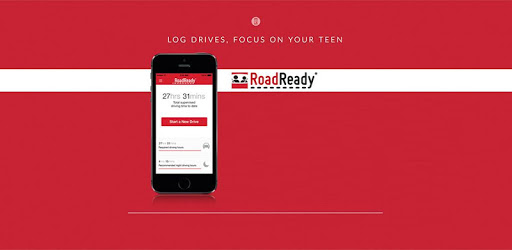
RoadReady is an Android app developed and published by Safe Roads Alliance, Inc. at Google Play Store on May 30, 2018 for Android users. RoadReady is so popular that it has gained 698481 installs so far and growing.
Are you tired of keeping track of a paper driving log? Look no further! RoadReady is the perfect app to help you effortlessly log your driving hours and stay organized. With its user-friendly interface and convenient features, RoadReady is a game-changer for anyone on their journey towards getting their driver's license.
RoadReady eliminates the hassle of manually recording your driving hours. Say goodbye to the days of jotting down every detail on a piece of paper. With just a few taps on your phone, you can easily log your driving time and keep everything neatly organized.
One user mentioned, "I found adding drives as long previous drives worked the best for me. That way I didn't have to remember to start and stop each drive. Also, it kept the drive times more rounded off for easier tracking instead of having to deal with weird minutes and seconds."
By allowing you to enter previous drives as hours, RoadReady ensures that you never miss a minute of your valuable driving time. It's a quick and easy way to stay on top of your progress without any unnecessary stress.
RoadReady understands that every driver has unique preferences and needs. That's why it offers customizable options to enhance your experience. Whether you're driving during the day or night, on local roads or highways, RoadReady has got you covered.
One satisfied user mentioned, "Nice thing that you can change timing (day or night) and road (local or highway)." This flexibility allows you to accurately track your driving experience and tailor it to your specific circumstances.
RoadReady seamlessly integrates with your devices, making it even more convenient to use. You can install it on multiple phones using a single account, perfect for families with multiple drivers. This way, you can easily create a comprehensive log for each of your children.
Another user shared, "I look forward to using it for my other 3 children." RoadReady's ability to cater to the needs of an entire family sets it apart from other driving log apps.
RoadReady prioritizes user satisfaction and continuously strives to improve its performance. One user mentioned, "I had issues saving drives because an ad always blocked the save button, but I left a review and they fixed my problem the next day." This level of responsiveness demonstrates RoadReady's commitment to providing a seamless user experience.
Furthermore, RoadReady ensures that your data is secure and easily accessible. You can generate a printable log with just a few clicks, making it effortless to submit your driving hours to the state. No more worrying about lost or misplaced papers!
RoadReady is designed to be used solely for logging your driving hours. It is important to prioritize safety and avoid distractions while driving, so we recommend not using other apps simultaneously.
Currently, RoadReady does not offer the feature to change the level of the license. However, the app provides a comprehensive tracking system to help you meet the required driving hours for your specific license level.
Absolutely! RoadReady is available for both Android and iOS devices. You can easily download it from the Google Play Store or the Apple App Store.
Yes, RoadReady allows you to install the app on multiple phones using a single account. This is especially beneficial for families with multiple drivers, as you can conveniently create separate logs for each individual.
RoadReady eliminates the need for manual record-keeping by providing a user-friendly interface to log your driving hours. It keeps all your data neatly organized and easily accessible. You can generate a printable log anytime you need it, ensuring you stay organized and prepared.
Don't let the stress of keeping track of your driving hours hinder your progress. Download RoadReady today and experience the convenience of a seamless and efficient driving log app. Start your journey towards getting your driver's license with confidence!
Yes, you can run RoadReady on PC, but first, you will need emulator software installed on your Windows or MAC, which you can download for free. In the below video, you will find RoadReady in action. Before you install the emulator, check out the minimum and recommended system requirements to run it seamlessly. They may change depending on which version of the emulator you choose. Therefore, we recommend you download the latest version of the emulator. Below you will find three free Android emulators that we have shortlisted based on their popularity:
Up to date graphics drivers from Microsoft or the chipset vendor.
Storage: 1 GB available under installation path, 1.5GB available hard drive space
Internet: Broadband Internet connection
Regardless of which Android emulator you install, the steps to install, configure, and running the RoadReady app on PC are the same.