VicEmergency for PC

VicEmergency for PC

Published by Department of Justice and Regulation, Victoria

Updated October 28, 2025

The official Victorian Government app for emergency warnings and information

What's New

Version6.9.0
Size7.0 MB
What's NewMinor bug fixes and improvements. Install or update to the newest version to check it out!

VicEmergency Screenshots

VicEmergency PC screenshot

About VicEmergency For PC

VicEmergency is an Android app developed and published by Department of Justice and Regulation, Victoria at Google Play Store on Dec 20, 2010 for Android users. VicEmergency is so popular that it has gained 100000 installs so far and growing.

VicEmergency: Your Reliable Companion in Emergency Situations

For those living in areas prone to natural disasters like bushfires, floods, and severe weather conditions, having reliable and timely information is crucial. VicEmergency steps in as a vital tool, ensuring you stay informed and prepared.

Simple Setup and Personalized Alerts

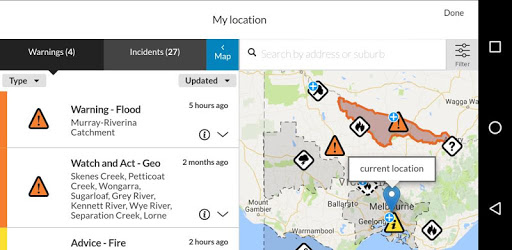
VicEmergency boasts a user-friendly interface that makes it easy to set up a profile tailored to your location. You can create a watch zone with a radius of 20 KM, ensuring that you receive notifications relevant to your area. The app allows for multiple types of warnings such as bushfires, building fires, and floods, letting you select the types of notifications you prefer.

Your Safety, Top Priority

If you live in high-risk areas, having accurate and timely updates is essential. VicEmergency excels in providing fast updates, which can literally be lifesaving. During critical times, the app continually syncs and updates its maps, making it a reliable companion, especially in bushfire zones. The real-time notifications help you make informed decisions about your safety.

Detailed and Timely Information

The speed at which VicEmergency updates information is impressive. For instance, incidents like car fires are quickly updated as soon as they are under control. The detailed notifications ensure that you are never left wondering about the severity or status of an incident. This rapid and comprehensive update mechanism makes the app a must-have for anyone living in disaster-prone areas.

Enhanced Map Interface

The app features an improved map interface that integrates with Google Maps. This enhancement allows for better navigation and a clearer understanding of the incidents happening in your watch zone. This integration ensures you can scroll through the map to see further incidents beyond your immediate area.

Designed for Rural and Urban Use

Whether you live in a rural area or an urban setting, VicEmergency serves as an essential part of your safety toolkit. The app helps keep your fire action plans up to date and makes your family feel more secure during high-risk days. Its effectiveness isn't confined to rural areas alone; urban dwellers will find it equally useful.

A Community-Driven Approach

One of the standout features of VicEmergency is its potential to foster a sense of community. The timely alerts and notifications ensure that everyone is on the same page, minimizing panic and maximizing community response efficiency during emergencies. The presence of emergency services like the Ambulance, Police, and SES adds a layer of reassurance, making you feel supported when things go wrong.

A Continually Improving Tool

The app has seen vast improvements over its previous versions, making it more reliable and efficient. These continuous updates ensure that the app remains a relevant and powerful tool in helping you stay informed and safe. The community feedback has led to enhancements that make VicEmergency a standout in its category.

Overall, VicEmergency is not just an app but a lifeline for those living in high-risk areas. With its real-time updates, detailed notifications, user-friendly interface, and robust map integration, it stands as a vital tool to ensure your safety during emergencies.

Can I run VicEmergency on PC?

Yes, you can run VicEmergency on PC, but first, you will need emulator software installed on your Windows or MAC, which you can download for free. In the below video, you will find VicEmergency in action. Before you install the emulator, check out the minimum and recommended system requirements to run it seamlessly. They may change depending on which version of the emulator you choose. Therefore, we recommend you download the latest version of the emulator. Below you will find three free Android emulators that we have shortlisted based on their popularity:

How to Install VicEmergency on Windows PC

BlueStacks

Minimum
  • OS: Microsoft Windows 7 and above.
  • Processor: Intel or AMD Processor.
  • RAM: Your PC must have at least 4GB of RAM. (Note that having 4GB or more disk space is not a substitute for RAM)
  • Storage: 5GB Free Disk Space.
  • You must be an Administrator on your PC.
Recommended:
  • OS: Microsoft Windows 10
  • Processor: Intel or AMD Multi-Core Processor with Single Thread benchmark score > 1000.
  • Graphics: Intel/Nvidia/ATI, Onboard or Discrete controller with benchmark score >= 750.
  • Please ensure Virtualization is enabled on your PC/Laptop.
  • RAM: 8GB or higher
  • Storage: SSD (or Fusion/Hybrid Drives)
  • Internet: Broadband connection to access games, accounts and related content.

Up to date graphics drivers from Microsoft or the chipset vendor.

  • To start with, download Bluestacks from its official website. The latest version of BluesStacks is v 5, and it is around 400 MB.
  • Once the download is done, click on the Bluestacks set up file to install it on your Windows PC. Follow the on-screen instructions and install it accordingly.
  • The next step is to launch the emulator using the desktop shortcut and sign in using your Google account.
  • Now, head over to Bluestacks home screen and click on the Google Play Store icon.
  • Hit the search bar in Google Play and search for VicEmergency.
  • Install VicEmergency from the Play Store by clicking the Install option, which completes downloading of VicEmergency on PC.

NoxPlayer

Minimum
  • Operating System: Windows XP SP3, Windows Vista, Windows 7, Windows 8, Windows 10, and DirectX 9.0c
  • Processor: At least dual-core processor, both Intel, and AMD are OK
  • Video: Supports Open GL 2.0 or above
  • Memory: 1.5 GB RAM
Recommended
  • Operating System: Windows 7, Windows 8, Windows 10
  • Processor: Multiple core processors which support VT-x or AMB-V Virtualization Technology, better performance with this function enabled
  • Video: The higher performance, the better
  • Memory: 4 GB RAM

Storage: 1 GB available under installation path, 1.5GB available hard drive space

Internet: Broadband Internet connection

  • Download NoxPlayer from the official website. The latest version of NoxPlayer is v 3, and it is around 600 MB.
  • Now install the emulator using the downloaded setup file. Just go through the on-screen instructions and install NoxPlayer on your computer or laptop.
  • After the installation process, launch the Nox Android emulator and log in using your Google account when it asks you.
  • Click on the Google Play Store icon and head over to the search bar to search VicEmergency. Once found, click on the Install button to install VicEmergency for PC.
  • If you do not find VicEmergency on Google Play Store or if you want to skip logging in to Google, you can sideload APK (download the .APK file from this page and open it with NoxPlayer).
  • Launch VicEmergency from home-screen and start playing it on PC right away!

MEmu

Minimum
  • 2 cores x86/x86_64 Processor (Intel or AMD CPU)
  • WinXP SP3 / Win7 / Win8 / Win10 (Not recommended to run on Server/Enterprise)
  • Latest Windows DirectX 11 / Graphics driver with OpenGL 2.0
  • Hardware Virtualization Technology (Intel VT-x/AMD-V) shall be enabled in BIOS
  • 2GB of RAM (4GB for x64 system)
  • 5GB of hard disk free space
Recommended
  • OS: Microsoft Windows 10 with VT Enabled
  • CPU: Single Thread PassMark score > 1500 (Intel/AMD Multi-Core).
  • Graphics: Intel/Nvidia/ATI, Onboard or Discrete controller with PassMark score > 750.
  • Latest Windows DirectX 11 / Graphics driver with OpenGL 4.5 or higher
  • RAM: 8GB or higher
  • HDD: SSD, 10GB of hard disk free space
  • Internet: Broadband connection with low latency for FPS games
  • Download MEmu Play from the official website. The latest version of NoxPlayer is v 7.5.
  • When the download is completed, install the MEmu emulator on your PC. Follow the on-screen instructions and keep on clicking the Next button until the final step.
  • Now, using the desktop shortcut, look for the MEmu Play emulator and launch it. Once done, it will ask you to log in using your Google account, proceed with the same.
  • MEmu Play will ask you to log in using your Google account. When you log in, it will sync your Google account to MEmu Play. Launch the Google Play Store by clicking on the icon and search for VicEmergency.
  • Click on the Install button once you find VicEmergency from the search results. You can also sideload APK (download the .APK file from this page and open it with MEmu) if you want to skip above step.
  • After the installation of VicEmergency, you're all set to use the app on PC!

Regardless of which Android emulator you install, the steps to install, configure, and running the VicEmergency app on PC are the same.


Download VicEmergency For PC