Dice Merge! Puzzle Master for PC

Dice Merge! Puzzle Master for PC

Published by MobilityWare

Fun Drag & Match Puzzles Game

What's New

Version1.16.1.2633
Size144.0 MB
What's NewBack end performance improvements and bug fixes.

Dice Merge! Puzzle Master Screenshots

Dice Merge! Puzzle Master PC screenshot

About Dice Merge! Puzzle Master For PC

Dice Merge! Puzzle Master is an Android app developed and published by MobilityWare at Google Play Store on Aug 26, 2020 for Android users. Dice Merge! Puzzle Master is so popular that it has gained 2747104 installs so far and growing.

Dice Merge! Puzzle Master: A Fun and Addicting Puzzle Game for All

Looking for a puzzle game that will challenge your mind and keep you entertained for hours? Look no further than Dice Merge! Puzzle Master. This addictive game is not only easy to play, but it also provides a great way to relax and work your mind. With its unique concept of merging dice, you'll find yourself hooked in no time.

Endless Fun and Challenging Gameplay

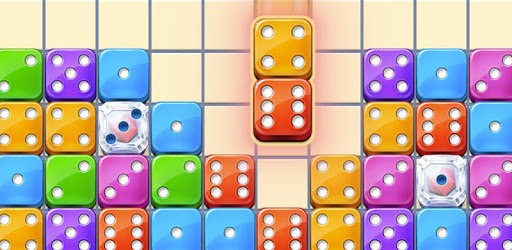
Dice Merge! Puzzle Master offers a refreshing twist to traditional puzzle games. The objective is simple - merge dice together to form combinations of three or more of the same number. As you progress through the levels, the challenge increases, keeping you engaged and entertained. Whether you're a puzzle enthusiast or new to this genre, this game is designed to provide endless fun for players of all skill levels.

Manage Your Moves Strategically

Strategic thinking is key in Dice Merge! Puzzle Master. You'll need to carefully plan your moves to create the highest possible combinations and maximize your score. With dice popping up randomly, you'll have to make quick decisions and place them strategically to achieve your goal. And if you ever need a little help, you can use power-ups like bombs or wild dice to clear obstacles or undo a move. Earn these power-ups by watching ads or purchasing them for an enhanced gaming experience.

A Relaxing and Rewarding Experience

One of the best things about Dice Merge! Puzzle Master is its ability to provide both relaxation and excitement. The gameplay is designed to be calming, allowing you to unwind and focus on merging dice. The beautiful graphics add to the overall experience, making it visually pleasing and enjoyable. Additionally, the game offers free rewards through ads, giving you the opportunity to progress without spending money.

FAQs

1. Can I play Dice Merge! Puzzle Master offline?

No, Dice Merge! Puzzle Master requires an internet connection to play. However, you can enjoy the game without any interruptions as long as you have a stable internet connection.

2. Why are there ads in the game?

Ads are a way for the developers to support the game and provide it to players for free. Watching ads also allows you to earn free rewards, enhancing your gaming experience without spending money.

3. I'm experiencing issues with the game, what should I do?

If you encounter any problems while playing Dice Merge! Puzzle Master, we recommend trying the following steps:

  • Make sure your device is running the latest version of the game.
  • Check if there are any updates available for your device's operating system.
  • If the issue persists, try uninstalling and reinstalling the game.
  • If none of the above steps work, you can reach out to the customer service team for assistance. They are dedicated to resolving any issues you may encounter.

Overall, Dice Merge! Puzzle Master is a fantastic game that offers a unique and enjoyable puzzle experience. With its challenging gameplay, relaxing atmosphere, and beautiful graphics, it's no wonder players are hooked. Give it a try and see for yourself!

Can I run Dice Merge! Puzzle Master on PC?

Yes, you can run Dice Merge! Puzzle Master on PC, but first, you will need emulator software installed on your Windows or MAC, which you can download for free. In the below video, you will find Dice Merge! Puzzle Master in action. Before you install the emulator, check out the minimum and recommended system requirements to run it seamlessly. They may change depending on which version of the emulator you choose. Therefore, we recommend you download the latest version of the emulator. Below you will find three free Android emulators that we have shortlisted based on their popularity:

How to Install Dice Merge! Puzzle Master on Windows PC

BlueStacks

Minimum
  • OS: Microsoft Windows 7 and above.
  • Processor: Intel or AMD Processor.
  • RAM: Your PC must have at least 4GB of RAM. (Note that having 4GB or more disk space is not a substitute for RAM)
  • Storage: 5GB Free Disk Space.
  • You must be an Administrator on your PC.
Recommended:
  • OS: Microsoft Windows 10
  • Processor: Intel or AMD Multi-Core Processor with Single Thread benchmark score > 1000.
  • Graphics: Intel/Nvidia/ATI, Onboard or Discrete controller with benchmark score >= 750.
  • Please ensure Virtualization is enabled on your PC/Laptop.
  • RAM: 8GB or higher
  • Storage: SSD (or Fusion/Hybrid Drives)
  • Internet: Broadband connection to access games, accounts and related content.

Up to date graphics drivers from Microsoft or the chipset vendor.

  • To start with, download Bluestacks from its official website. The latest version of BluesStacks is v 5, and it is around 400 MB.
  • Once the download is done, click on the Bluestacks set up file to install it on your Windows PC. Follow the on-screen instructions and install it accordingly.
  • The next step is to launch the emulator using the desktop shortcut and sign in using your Google account.
  • Now, head over to Bluestacks home screen and click on the Google Play Store icon.
  • Hit the search bar in Google Play and search for Dice Merge! Puzzle Master.
  • Install Dice Merge! Puzzle Master from the Play Store by clicking the Install option, which completes downloading of Dice Merge! Puzzle Master on PC.

NoxPlayer

Minimum
  • Operating System: Windows XP SP3, Windows Vista, Windows 7, Windows 8, Windows 10, and DirectX 9.0c
  • Processor: At least dual-core processor, both Intel, and AMD are OK
  • Video: Supports Open GL 2.0 or above
  • Memory: 1.5 GB RAM
Recommended
  • Operating System: Windows 7, Windows 8, Windows 10
  • Processor: Multiple core processors which support VT-x or AMB-V Virtualization Technology, better performance with this function enabled
  • Video: The higher performance, the better
  • Memory: 4 GB RAM

Storage: 1 GB available under installation path, 1.5GB available hard drive space

Internet: Broadband Internet connection

  • Download NoxPlayer from the official website. The latest version of NoxPlayer is v 3, and it is around 600 MB.
  • Now install the emulator using the downloaded setup file. Just go through the on-screen instructions and install NoxPlayer on your computer or laptop.
  • After the installation process, launch the Nox Android emulator and log in using your Google account when it asks you.
  • Click on the Google Play Store icon and head over to the search bar to search Dice Merge! Puzzle Master. Once found, click on the Install button to install Dice Merge! Puzzle Master for PC.
  • If you do not find Dice Merge! Puzzle Master on Google Play Store or if you want to skip logging in to Google, you can sideload APK (download the .APK file from this page and open it with NoxPlayer).
  • Launch Dice Merge! Puzzle Master from home-screen and start playing it on PC right away!

MEmu

Minimum
  • 2 cores x86/x86_64 Processor (Intel or AMD CPU)
  • WinXP SP3 / Win7 / Win8 / Win10 (Not recommended to run on Server/Enterprise)
  • Latest Windows DirectX 11 / Graphics driver with OpenGL 2.0
  • Hardware Virtualization Technology (Intel VT-x/AMD-V) shall be enabled in BIOS
  • 2GB of RAM (4GB for x64 system)
  • 5GB of hard disk free space
Recommended
  • OS: Microsoft Windows 10 with VT Enabled
  • CPU: Single Thread PassMark score > 1500 (Intel/AMD Multi-Core).
  • Graphics: Intel/Nvidia/ATI, Onboard or Discrete controller with PassMark score > 750.
  • Latest Windows DirectX 11 / Graphics driver with OpenGL 4.5 or higher
  • RAM: 8GB or higher
  • HDD: SSD, 10GB of hard disk free space
  • Internet: Broadband connection with low latency for FPS games
  • Download MEmu Play from the official website. The latest version of NoxPlayer is v 7.5.
  • When the download is completed, install the MEmu emulator on your PC. Follow the on-screen instructions and keep on clicking the Next button until the final step.
  • Now, using the desktop shortcut, look for the MEmu Play emulator and launch it. Once done, it will ask you to log in using your Google account, proceed with the same.
  • MEmu Play will ask you to log in using your Google account. When you log in, it will sync your Google account to MEmu Play. Launch the Google Play Store by clicking on the icon and search for Dice Merge! Puzzle Master.
  • Click on the Install button once you find Dice Merge! Puzzle Master from the search results. You can also sideload APK (download the .APK file from this page and open it with MEmu) if you want to skip above step.
  • After the installation of Dice Merge! Puzzle Master, you're all set to use the app on PC!

Regardless of which Android emulator you install, the steps to install, configure, and running the Dice Merge! Puzzle Master app on PC are the same.