Printicular Print Photos for PC

Printicular Print Photos for PC

Published by MEA Mobile Ltd

Updated November 12, 2026

Send Pictures to print at Walgreens photo and get 30% off
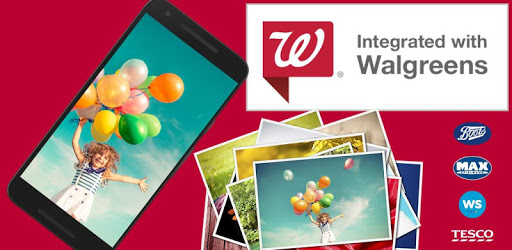
Printicular Print Photos Screenshots

Printicular Print Photos PC screenshot

About Printicular Print Photos For PC

Printicular Print Photos is an Android app developed and published by MEA Mobile Ltd at Google Play Store on Oct 4, 2012 for Android users. Printicular Print Photos is so popular that it has gained 1646036 installs so far and growing.

Easy and Convenient Print Photos with Printicular

Printicular Print Photos is transforming the way we order photo prints. The process is incredibly simple, making it a favorite among users who seek convenience and quality. With just a few clicks, you can select, upload, and print your cherished memories.

Smooth Ordering Experience

One of the best parts of using Printicular Print Photos is how easy it is to order prints. You can effortlessly select your photos and upload them to your local Walgreens. The user-friendly interface guides you through the process, ensuring a hassle-free experience from start to finish. The entire process is straightforward and designed with the user in mind.

Multiple Print Options

Printicular Print Photos offers various options for prints. Whether you need standard sizes or something more specific, the app provides dimensions and lets you choose the best fit for your photos. Just ensure that you pick the right dimensions to avoid any issues with cropping.

Convenient Pickup and Delivery

When it comes to picking up your photos, Printicular Print Photos makes it incredibly convenient. Upload your photos, select your local Walgreens, and your prints will be ready in about an hour. There's no more waiting around or making multiple trips to the store. Just head over, show your confirmation, and grab your prints.

Promo Codes and Discounts

If you love saving money, you'll be delighted to know that Printicular Print Photos often offers promo codes. While the option to use these codes while ordering might not always appear, you can ask the store representative to apply the code during pickup. It's a great way to save on your prints, making the whole process even more satisfying.

Global Convenience and Affordability

Printicular Print Photos isn’t just for local prints. It also serves as an excellent solution for sending pictures to friends and family out of state or even internationally, including places like Puerto Rico. This eliminates the need to make trips to the post office, saving both time and money.

Quality and Satisfaction

The quality of prints from Printicular Print Photos is another reason why users keep coming back. The photos turn out clear and vibrant, capturing every detail perfectly. While there may be occasional issues like heads being cut off, if you ensure proper cropping before printing, you’ll likely have a very satisfying experience with your prints.

Fast and Efficient

The speed of delivery varies, and while most users find their prints ready in an hour for pickup, delivery can take about 10 days. Despite this, the efficiency and ease of the app usage make it worthwhile. Plus, knowing that your memories are just a few clicks away from being printed is a comforting and enjoyable thought.

Perfect for All Occasions

Whether you want to document everyday moments or special occasions, Printicular Print Photos serves as the perfect tool. It allows you to capture, select, and print your favorite memories effortlessly. From family photos to special moments with loved ones, this app simplifies the printing process, allowing you to focus on cherishing those memories.

Conclusion

All in all, Printicular Print Photos provides a seamless and straightforward way to print photos. Its user-friendly interface, quick pickup options, and quality outputs make it an excellent choice for anyone looking to print their cherished memories. Whether for personal use or sharing with loved ones, this app offers a reliable and efficient solution for all your printing needs.

Can I run Printicular Print Photos on PC?

Yes, you can run Printicular Print Photos on PC, but first, you will need emulator software installed on your Windows or MAC, which you can download for free. In the below video, you will find Printicular Print Photos in action. Before you install the emulator, check out the minimum and recommended system requirements to run it seamlessly. They may change depending on which version of the emulator you choose. Therefore, we recommend you download the latest version of the emulator. Below you will find three free Android emulators that we have shortlisted based on their popularity:

How to Install Printicular Print Photos on Windows PC

BlueStacks

Minimum
  • OS: Microsoft Windows 7 and above.
  • Processor: Intel or AMD Processor.
  • RAM: Your PC must have at least 4GB of RAM. (Note that having 4GB or more disk space is not a substitute for RAM)
  • Storage: 5GB Free Disk Space.
  • You must be an Administrator on your PC.
Recommended:
  • OS: Microsoft Windows 10
  • Processor: Intel or AMD Multi-Core Processor with Single Thread benchmark score > 1000.
  • Graphics: Intel/Nvidia/ATI, Onboard or Discrete controller with benchmark score >= 750.
  • Please ensure Virtualization is enabled on your PC/Laptop.
  • RAM: 8GB or higher
  • Storage: SSD (or Fusion/Hybrid Drives)
  • Internet: Broadband connection to access games, accounts and related content.

Up to date graphics drivers from Microsoft or the chipset vendor.

  • To start with, download Bluestacks from its official website. The latest version of BluesStacks is v 5, and it is around 400 MB.
  • Once the download is done, click on the Bluestacks set up file to install it on your Windows PC. Follow the on-screen instructions and install it accordingly.
  • The next step is to launch the emulator using the desktop shortcut and sign in using your Google account.
  • Now, head over to Bluestacks home screen and click on the Google Play Store icon.
  • Hit the search bar in Google Play and search for Printicular Print Photos.
  • Install Printicular Print Photos from the Play Store by clicking the Install option, which completes downloading of Printicular Print Photos on PC.

NoxPlayer

Minimum
  • Operating System: Windows XP SP3, Windows Vista, Windows 7, Windows 8, Windows 10, and DirectX 9.0c
  • Processor: At least dual-core processor, both Intel, and AMD are OK
  • Video: Supports Open GL 2.0 or above
  • Memory: 1.5 GB RAM
Recommended
  • Operating System: Windows 7, Windows 8, Windows 10
  • Processor: Multiple core processors which support VT-x or AMB-V Virtualization Technology, better performance with this function enabled
  • Video: The higher performance, the better
  • Memory: 4 GB RAM

Storage: 1 GB available under installation path, 1.5GB available hard drive space

Internet: Broadband Internet connection

  • Download NoxPlayer from the official website. The latest version of NoxPlayer is v 3, and it is around 600 MB.
  • Now install the emulator using the downloaded setup file. Just go through the on-screen instructions and install NoxPlayer on your computer or laptop.
  • After the installation process, launch the Nox Android emulator and log in using your Google account when it asks you.
  • Click on the Google Play Store icon and head over to the search bar to search Printicular Print Photos. Once found, click on the Install button to install Printicular Print Photos for PC.
  • If you do not find Printicular Print Photos on Google Play Store or if you want to skip logging in to Google, you can sideload APK (download the .APK file from this page and open it with NoxPlayer).
  • Launch Printicular Print Photos from home-screen and start playing it on PC right away!

MEmu

Minimum
  • 2 cores x86/x86_64 Processor (Intel or AMD CPU)
  • WinXP SP3 / Win7 / Win8 / Win10 (Not recommended to run on Server/Enterprise)
  • Latest Windows DirectX 11 / Graphics driver with OpenGL 2.0
  • Hardware Virtualization Technology (Intel VT-x/AMD-V) shall be enabled in BIOS
  • 2GB of RAM (4GB for x64 system)
  • 5GB of hard disk free space
Recommended
  • OS: Microsoft Windows 10 with VT Enabled
  • CPU: Single Thread PassMark score > 1500 (Intel/AMD Multi-Core).
  • Graphics: Intel/Nvidia/ATI, Onboard or Discrete controller with PassMark score > 750.
  • Latest Windows DirectX 11 / Graphics driver with OpenGL 4.5 or higher
  • RAM: 8GB or higher
  • HDD: SSD, 10GB of hard disk free space
  • Internet: Broadband connection with low latency for FPS games
  • Download MEmu Play from the official website. The latest version of NoxPlayer is v 7.5.
  • When the download is completed, install the MEmu emulator on your PC. Follow the on-screen instructions and keep on clicking the Next button until the final step.
  • Now, using the desktop shortcut, look for the MEmu Play emulator and launch it. Once done, it will ask you to log in using your Google account, proceed with the same.
  • MEmu Play will ask you to log in using your Google account. When you log in, it will sync your Google account to MEmu Play. Launch the Google Play Store by clicking on the icon and search for Printicular Print Photos.
  • Click on the Install button once you find Printicular Print Photos from the search results. You can also sideload APK (download the .APK file from this page and open it with MEmu) if you want to skip above step.
  • After the installation of Printicular Print Photos, you're all set to use the app on PC!

Regardless of which Android emulator you install, the steps to install, configure, and running the Printicular Print Photos app on PC are the same.