Published by JRummy Apps
Updated June 2, 2026
ROM Installer, by JRummy Apps, is the best way to find and install custom ROMs.
| Version | 1.5.0(13605) |
| Size | 34.6 MB |
| What's New | Update now for a new version of ROM Installer.This release includes bug fixes for:- An issue where users upgrading to Basic, Premium, or Gold still received ads- An issue with users being unable to create new backup filesWe also threw in a few design improvements and other small but significant changes for app optimization. Enjoy! |
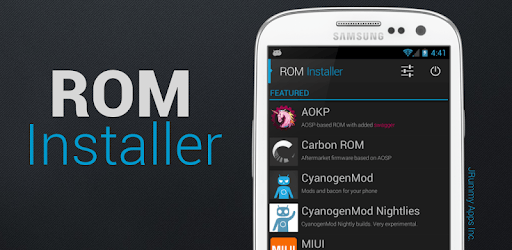
ROM Installer is an Android app developed and published by JRummy Apps at Google Play Store on Oct 11, 2013 for Android users. ROM Installer is so popular that it has gained 6936183 installs so far and growing.
ROM Installer is a powerful and versatile tool designed for Android users who enjoy customizing their smartphones. Whether you're a seasoned tech expert or new to the world of custom ROMs, ROM Installer helps you easily find, install, and manage various ROMs on your Android device. The app offers extensive support for numerous devices, making it a go-to solution for anyone looking to breathe new life into their phone.
Upgrading to a new version of Android or a custom ROM can be time-consuming and complicated, but ROM Installer simplifies the process. With a user-friendly interface and step-by-step guidance, you can upgrade your device efficiently. The app even supports devices like the M8 and HTC Thunderbolt, ensuring that you get the most out of your older devices.
One of the app's standout features is its ability to flash multiple zips automatically. Imagine having broken volume buttons on your i9100 and still being able to flash essential zips effortlessly. ROM Installer makes this possible through its auto flash schedule, which handles the heavy lifting for you. No more fumbling with complex recovery menus or worrying about manual flashing errors.
ROM Installer offers a wide range of ROMs, making it easier than ever to find the perfect one for your device. Thanks to detailed explanations and user-friendly guides, even beginners can get started without feeling overwhelmed. For seasoned users, the app provides a robust toolkit that includes recovery installs and backups, allowing for seamless transitions between different ROMs and setups.
Functionality aside, ROM Installer also boasts a beautiful and intuitive user interface. It's designed to be visually appealing while retaining simplicity, ensuring that users can navigate the app effortlessly. This makes it not only useful but also enjoyable to use.
One of the critical aspects of dealing with custom ROMs is the ability to back up and restore your system. ROM Installer excels in this area, offering straightforward options to save your current setup and restore it whenever needed. This ensures that you never lose your data, even when experimenting with different ROMs.
While the app is free to use, it also offers premium features that enhance your experience. The premium version provides additional functionalities and quicker support, making it a worthwhile investment for serious users. Though some users have had issues with their premium status, the developer is quick to address and resolve these concerns.
Customization is the core of ROM Installer. From unofficial ROMs to original ones, the app caters to all sorts of customization needs. Future updates promise even more options, including post-ROM install mods and bundles of flashable files, making the app increasingly appealing for everyone wanting to tweak their device further.
ROM Installer is a fantastic tool that revolutionizes the way you manage custom ROMs on your Android device. With its extensive device support, intuitive interface, and robust features, it makes an excellent companion for both novice and expert users alike. Whether you're looking to upgrade your phone or dive into the world of custom ROMs, ROM Installer has you covered.
Yes, you can run ROM Installer on PC, but first, you will need emulator software installed on your Windows or MAC, which you can download for free. In the below video, you will find ROM Installer in action. Before you install the emulator, check out the minimum and recommended system requirements to run it seamlessly. They may change depending on which version of the emulator you choose. Therefore, we recommend you download the latest version of the emulator. Below you will find three free Android emulators that we have shortlisted based on their popularity:
Up to date graphics drivers from Microsoft or the chipset vendor.
Storage: 1 GB available under installation path, 1.5GB available hard drive space
Internet: Broadband Internet connection
Regardless of which Android emulator you install, the steps to install, configure, and running the ROM Installer app on PC are the same.

![[ROOT] Custom ROM Manager icon](https://cdn.desktoptwo.com/img/com.corphish.customrommanager.free-logo.png)