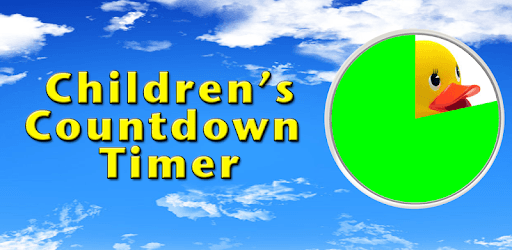
Childrens Countdown Timer - Visual Timer For Kids for PC

Childrens Countdown Timer - Visual Timer For Kids for PC

Published by Fehners Software Ltd.

Updated September 14, 2026

A colorful visual timer for preschoolers, Autism, Autistic and ADHD

What's New

Version3.6.1
Size99.8 MB
What's New+ We’ve introduced a new feature that lets you select which images are included in the random reveal. Now, you can customise the experience and choose your favourites to be part of the surprise!+ The timer now expands to fill different screen sizes so that the image revealed always displays as large as possible.+ Fixed an issue causing incorrect use and display of ads+ Fixed a crash on low memory devices at the end of the timer

Childrens Countdown Timer - Visual Timer For Kids Screenshots

Childrens Countdown Timer - Visual Timer For Kids PC screenshot

About Childrens Countdown Timer - Visual Timer For Kids For PC

Childrens Countdown Timer - Visual Timer For Kids is an Android app developed and published by Fehners Software Ltd. at Google Play Store on Oct 16, 2014 for Android users. Childrens Countdown Timer - Visual Timer For Kids is so popular that it has gained 643754 installs so far and growing.

Childrens Countdown Timer - Visual Timer For Kids: A Must-Have Tool for Parents and Educators

Are you tired of constantly reminding your child about time limits and waiting patiently for their attention? Look no further! The Childrens Countdown Timer - Visual Timer For Kids is here to revolutionize the way you manage time with your little ones. This app is designed to keep children engaged, focused, and motivated, making it an excellent tool for parents, teachers, and caregivers alike.

Customizable Backgrounds for Enhanced Understanding

One of the standout features of the Childrens Countdown Timer is its ability to create custom backgrounds. This is particularly useful for children who require specific visuals to comprehend what comes next. With the full version of the app, you can choose from a wide range of images that resonate with your child's interests and preferences. Whether it's their favorite cartoon character or a familiar object, the custom backgrounds ensure that your child stays connected and engaged throughout the waiting period.

Gradually Increase Stamina and Attention Span

Teaching a child to wait patiently can be a challenging task. However, the Childrens Countdown Timer makes it a breeze. By allowing you to increase the timer in 10-second increments or longer, this app helps you gradually build your child's stamina for attending and waiting. Imagine the joy on your little one's face when they reach for the item they've been eagerly waiting for as soon as the timer goes off. It's a small victory that goes a long way in fostering patience and self-control.

A Distraction Activity with Entertaining Animation and Sound

Waiting doesn't have to be dull and monotonous. With the Childrens Countdown Timer, it becomes an entertaining activity. The app treats your child to captivating animations and delightful sounds as the timer reaches its end. This distractor activity not only keeps them engaged but also adds an element of fun to their waiting experience. Say goodbye to tantrums and impatience, and hello to a more peaceful and enjoyable waiting period.

Enhancing Focus for Children with Special Needs

For parents and educators of children with autism or other special needs, the Childrens Countdown Timer is a game-changer. Its visual timer feature has made a significant difference in the lives of many families and classrooms. By providing a clear visual representation of time, this app helps children with autism stay on track and understand the concept of waiting. It has become an invaluable tool for teachers working with students on the autism spectrum, making learning and transitions smoother and more manageable.

Frequently Asked Questions

1. Can the Childrens Countdown Timer run over other apps?

No, currently the app does not have the ability to run over other apps. However, the developers are constantly working on improving the user experience and may consider adding this feature in the future.

2. Is the app available on Samsung Apps for Samsung smart TVs?

Unfortunately, the Childrens Countdown Timer is not available on Samsung Apps for Samsung smart TVs at the moment. However, you can still use the app on your smartphone or find creative ways to position your phone for your child to see the countdown.

3. Can I set custom timer durations longer than one hour?

Currently, the app allows timer durations up to one hour. However, the developers are open to user feedback and may consider adding the option to set longer timer durations in future updates.

4. Is the Childrens Countdown Timer suitable for children of all ages?

Absolutely! The Childrens Countdown Timer is designed to be kid-friendly and suitable for children of all ages. Whether you have a toddler who needs help with turn-taking or an older child who wants to time their reading sessions, this app caters to a wide range of needs and interests.

Don't let waiting become a source of frustration and impatience. Embrace the power of the Childrens Countdown Timer - Visual Timer For Kids and transform waiting into an engaging and positive experience for your child. Download the app today and witness the difference it can make in your daily routines and activities!

Can I run Childrens Countdown Timer - Visual Timer For Kids on PC?

Yes, you can run Childrens Countdown Timer - Visual Timer For Kids on PC, but first, you will need emulator software installed on your Windows or MAC, which you can download for free. In the below video, you will find Childrens Countdown Timer - Visual Timer For Kids in action. Before you install the emulator, check out the minimum and recommended system requirements to run it seamlessly. They may change depending on which version of the emulator you choose. Therefore, we recommend you download the latest version of the emulator. Below you will find three free Android emulators that we have shortlisted based on their popularity:

How to Install Childrens Countdown Timer - Visual Timer For Kids on Windows PC

BlueStacks

Minimum
  • OS: Microsoft Windows 7 and above.
  • Processor: Intel or AMD Processor.
  • RAM: Your PC must have at least 4GB of RAM. (Note that having 4GB or more disk space is not a substitute for RAM)
  • Storage: 5GB Free Disk Space.
  • You must be an Administrator on your PC.
Recommended:
  • OS: Microsoft Windows 10
  • Processor: Intel or AMD Multi-Core Processor with Single Thread benchmark score > 1000.
  • Graphics: Intel/Nvidia/ATI, Onboard or Discrete controller with benchmark score >= 750.
  • Please ensure Virtualization is enabled on your PC/Laptop.
  • RAM: 8GB or higher
  • Storage: SSD (or Fusion/Hybrid Drives)
  • Internet: Broadband connection to access games, accounts and related content.

Up to date graphics drivers from Microsoft or the chipset vendor.

  • To start with, download Bluestacks from its official website. The latest version of BluesStacks is v 5, and it is around 400 MB.
  • Once the download is done, click on the Bluestacks set up file to install it on your Windows PC. Follow the on-screen instructions and install it accordingly.
  • The next step is to launch the emulator using the desktop shortcut and sign in using your Google account.
  • Now, head over to Bluestacks home screen and click on the Google Play Store icon.
  • Hit the search bar in Google Play and search for Childrens Countdown Timer - Visual Timer For Kids.
  • Install Childrens Countdown Timer - Visual Timer For Kids from the Play Store by clicking the Install option, which completes downloading of Childrens Countdown Timer - Visual Timer For Kids on PC.

NoxPlayer

Minimum
  • Operating System: Windows XP SP3, Windows Vista, Windows 7, Windows 8, Windows 10, and DirectX 9.0c
  • Processor: At least dual-core processor, both Intel, and AMD are OK
  • Video: Supports Open GL 2.0 or above
  • Memory: 1.5 GB RAM
Recommended
  • Operating System: Windows 7, Windows 8, Windows 10
  • Processor: Multiple core processors which support VT-x or AMB-V Virtualization Technology, better performance with this function enabled
  • Video: The higher performance, the better
  • Memory: 4 GB RAM

Storage: 1 GB available under installation path, 1.5GB available hard drive space

Internet: Broadband Internet connection

  • Download NoxPlayer from the official website. The latest version of NoxPlayer is v 3, and it is around 600 MB.
  • Now install the emulator using the downloaded setup file. Just go through the on-screen instructions and install NoxPlayer on your computer or laptop.
  • After the installation process, launch the Nox Android emulator and log in using your Google account when it asks you.
  • Click on the Google Play Store icon and head over to the search bar to search Childrens Countdown Timer - Visual Timer For Kids. Once found, click on the Install button to install Childrens Countdown Timer - Visual Timer For Kids for PC.
  • If you do not find Childrens Countdown Timer - Visual Timer For Kids on Google Play Store or if you want to skip logging in to Google, you can sideload APK (download the .APK file from this page and open it with NoxPlayer).
  • Launch Childrens Countdown Timer - Visual Timer For Kids from home-screen and start playing it on PC right away!

MEmu

Minimum
  • 2 cores x86/x86_64 Processor (Intel or AMD CPU)
  • WinXP SP3 / Win7 / Win8 / Win10 (Not recommended to run on Server/Enterprise)
  • Latest Windows DirectX 11 / Graphics driver with OpenGL 2.0
  • Hardware Virtualization Technology (Intel VT-x/AMD-V) shall be enabled in BIOS
  • 2GB of RAM (4GB for x64 system)
  • 5GB of hard disk free space
Recommended
  • OS: Microsoft Windows 10 with VT Enabled
  • CPU: Single Thread PassMark score > 1500 (Intel/AMD Multi-Core).
  • Graphics: Intel/Nvidia/ATI, Onboard or Discrete controller with PassMark score > 750.
  • Latest Windows DirectX 11 / Graphics driver with OpenGL 4.5 or higher
  • RAM: 8GB or higher
  • HDD: SSD, 10GB of hard disk free space
  • Internet: Broadband connection with low latency for FPS games
  • Download MEmu Play from the official website. The latest version of NoxPlayer is v 7.5.
  • When the download is completed, install the MEmu emulator on your PC. Follow the on-screen instructions and keep on clicking the Next button until the final step.
  • Now, using the desktop shortcut, look for the MEmu Play emulator and launch it. Once done, it will ask you to log in using your Google account, proceed with the same.
  • MEmu Play will ask you to log in using your Google account. When you log in, it will sync your Google account to MEmu Play. Launch the Google Play Store by clicking on the icon and search for Childrens Countdown Timer - Visual Timer For Kids.
  • Click on the Install button once you find Childrens Countdown Timer - Visual Timer For Kids from the search results. You can also sideload APK (download the .APK file from this page and open it with MEmu) if you want to skip above step.
  • After the installation of Childrens Countdown Timer - Visual Timer For Kids, you're all set to use the app on PC!

Regardless of which Android emulator you install, the steps to install, configure, and running the Childrens Countdown Timer - Visual Timer For Kids app on PC are the same.

Download Childrens Countdown Timer - Visual Timer For Kids For PC