Published by Tzumi Electronics
Updated August 11, 2026
A curated collection of content available for Dream Vision™ VR headsets.
| Version | 1.0.22 |
| Size | 15.0 MB |
| What's New | Content updates |
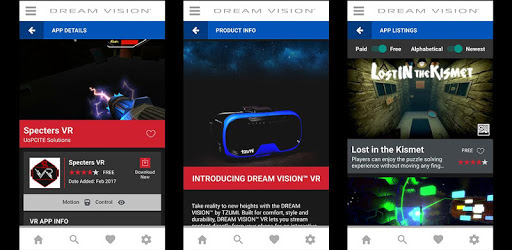
Dream360 VR is an Android app developed and published by Tzumi Electronics at Google Play Store on Apr 28, 2017 for Android users. Dream360 VR is so popular that it has gained 100000 installs so far and growing.
Are you tired of searching for VR games and wasting precious phone space on multiple downloads? Look no further than Dream360 VR - the app that brings all your favorite VR games right to your fingertips. With a simple press, you can immerse yourself in a world of virtual reality and experience the most thrilling adventures without any hassle. And the best part? It's only $5!
Dream360 VR offers an unparalleled gaming experience that will leave you amazed. Whether you're a seasoned VR enthusiast or just starting to explore the world of virtual reality, this app is perfect for everyone. It's not just about the games; it's about the convenience and affordability that Dream360 VR brings to the table.
One of the standout features of Dream360 VR is its ability to save you from downloading multiple games and taking up valuable storage space on your phone. With this app, you can access a wide range of VR games without the need for individual downloads. It's like having a virtual arcade at your disposal!
Parents, rejoice! Dream360 VR is not only fun for you, but it's also a hit with the kids. The shark clips are a favorite among children, providing endless entertainment and excitement. And the best part? You won't have to worry if your little one accidentally breaks the headset in their enthusiasm. At just $5, it's easy to replace and keep the fun going.
Now, let's address some common concerns and complaints to help you make the most of your Dream360 VR experience:
If you encounter a frozen app on the splash screen during your first run, don't panic. It's simply connecting to a server in New York to pull down more information. This process may take some time, especially if there are limitations on the server. Just be patient, and soon you'll be ready to dive into the virtual world.
If your controller won't pair with your phone, start by ensuring that you've charged it for the recommended 30 minutes. If it still doesn't work, try pairing a different controller. Dream360 VR supports wireless Xbox360, XBOne, PS3, PS4, and other generic controllers that use Bluetooth. However, we recommend avoiding Wii controllers as they use different sensors.
If you've exhausted all options and the app still doesn't work on your phone, it may be due to your device's specifications. Some phones require beefier specs to run VR smoothly. If that's the case, you may need to consider upgrading to a more capable device. Remember, the visual quality of Dream360 VR may not be on par with high-end VR headsets, but it still offers an immersive experience for budget-conscious dads looking to bond with their gaming-loving kids.
It's important to note that Dream360 VR doesn't come with built-in WiFi, Bluetooth, or batteries. It serves as a stand for your phone, allowing you to view content in virtual reality through the lenses. The QR code for this headset can be found in the manual inside the package, but don't worry if it's not to your liking. There are other QR codes available, such as the one for Homido v2, which offers a perfect field of view.
For those experiencing slow loading times, we hear you. We appreciate your support and feedback, and we're constantly working to improve the app's performance. Rest assured, the Tzumi team is dedicated to providing you with the best VR experience possible, and we're committed to addressing any issues that may arise.
In conclusion, Dream360 VR is the ultimate VR gaming app that brings convenience, affordability, and endless fun to your fingertips. With a wide range of games at your disposal and the ability to avoid multiple downloads, you can dive into the world of virtual reality with ease. So, what are you waiting for? Grab your Dream360 VR headset, immerse yourself in the virtual world, and let the adventures begin!
A: Absolutely! Dream360 VR allows you to access a variety of VR games without the need for multiple downloads.
A: Yes! Dream360 VR is not only fun for adults but also a hit with children. The shark clips are particularly popular among kids.
A: Don't worry! The app is connecting to a server to pull down more information. Just give it some time, and it will start working.
A: Ensure that your controller is fully charged and follow the instructions provided. If one controller doesn't work, try pairing a different one.
A: If you've tried everything and the app still doesn't work, it may be due to your phone's specifications. Consider upgrading to a more capable device for a smoother VR experience.
A: No, Dream360 VR is simply a stand for your phone. It doesn't have built-in WiFi, Bluetooth, or batteries.
A: Yes! The QR code for the headset can be found in the manual, but you can also try other QR codes for a better field of view.
A: We appreciate your feedback and are constantly working to enhance the app's performance. Stay tuned for updates and improvements!
Yes, you can run Dream360 VR on PC, but first, you will need emulator software installed on your Windows or MAC, which you can download for free. In the below video, you will find Dream360 VR in action. Before you install the emulator, check out the minimum and recommended system requirements to run it seamlessly. They may change depending on which version of the emulator you choose. Therefore, we recommend you download the latest version of the emulator. Below you will find three free Android emulators that we have shortlisted based on their popularity:
Up to date graphics drivers from Microsoft or the chipset vendor.
Storage: 1 GB available under installation path, 1.5GB available hard drive space
Internet: Broadband Internet connection
Regardless of which Android emulator you install, the steps to install, configure, and running the Dream360 VR app on PC are the same.