Dreamie Planner for PC

Dreamie Planner for PC

Published by BEBONOZM

Updated November 20, 2025

A very simple daily / weekly / monthly / yearly planner.

What's New

Version1.16.13
Size4.1 MB
What's New- Fixed events not shown in monthly view for some regions that timezone can change***Hi, everyone. It's been a long time since the last update. This year has been rough and my mental health hasn't been as good as I expected. Once I feel better, I'll try to fix all the problems and improve this app as much as possible. Thank you for all of your supports. <3

Dreamie Planner Screenshots

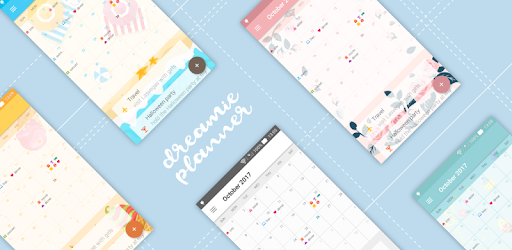
Dreamie Planner PC screenshot

About Dreamie Planner For PC

Dreamie Planner is an Android app developed and published by BEBONOZM at Google Play Store on Oct 27, 2017 for Android users. Dreamie Planner is so popular that it has gained 500000 installs so far and growing.

Dreamie Planner: Your Ultimate Organizing Companion

Imagine having a planner that not only helps you stay organized but also adds a splash of creativity and color to your day. Dreamie Planner is here to turn that imagination into reality. This exceptional planner app is designed with simplicity and user-friendliness in mind, making it a go-to choice for anyone looking to keep their life in order.

Effortless Use and Intuitive Design

Dreamie Planner brings a blend of simplicity and efficiency to your fingertips. Its user interface is straightforward, ensuring even those new to planning apps can navigate it with ease. Whether you’re organizing your school assignments, work meetings, or personal to-do lists, Dreamie Planner makes the task fast and enjoyable.

Customizable Themes and Icons

One standout feature of Dreamie Planner is the ability to customize your planner with delightful themes and icons. You can pick different themes like cute packages, business styles, or student-specific designs. Each theme provides a personalized touch, making your planner feel like it’s truly yours. Adding reminders, dates, and meetings doesn't just keep you organized; it also adds a bit of fun to your routine.

Staying Organized While Traveling

If you’re someone who frequently travels between different time zones, Dreamie Planner has got you covered. With the travel-friendly features, you can plan ahead for your trips without any hiccups. Ensuring that your schedules adapt correctly to different time zones helps in maintaining your planned activities smoothly.

Affordable Premium Features

You don’t need to break the bank to get the best out of Dreamie Planner. While it offers plenty of useful features for free, upgrading to premium unlocks more customizability with affordable theme purchases. The premium options include setting different reminders and getting new backgrounds that suit your style. This affordability ensures you’re only paying for what you want to enhance your planning experience.

All-in-One Planning Solution

Dreamie Planner isn’t just about flair; it has the substance to back it up. Functional yet fun, it allows you to pin your most important tasks, keep track of appointments, and even show just enough time for navigating future schedules. It’s an all-in-one solution that accommodates both minimalistic and detailed planning needs.

Perfect for Students and Professionals

For students, Dreamie Planner can track study schedules, organize assignments, and remind you of important deadlines. For professionals, it helps maintain a neat schedule, coordinating meetings, and tasks without feeling overwhelmed. The planner’s simple, intuitive design also ensures that it doesn’t cause unnecessary stress or burnout.

Offline Mode for Minimalists

If you’re a minimalist who prefers simple, clean designs, Dreamie Planner’s offline mode is highly attractive. You can continue using the planner even when disconnected from the internet, ensuring you’re always on top of your schedule no matter where you are.

Enhancing Productivity

Once you get the hang of all the features Dreamie Planner offers, it will significantly boost your productivity. Customizable colors and icons for tasks make planning enjoyable, and staying organized becomes second nature. Whether you’re preparing for exams, like NEETPG, or managing daily tasks, this planner will be your reliable companion.

Dreamie Planner: A Must-Have Tool

In a world that constantly demands multitasking and efficient time management, Dreamie Planner stands out as a must-have tool. Its combination of simplicity, customizability, and affordability makes it an outstanding choice for anyone looking to bring order and a bit of fun into their life.

Can I run Dreamie Planner on PC?

Yes, you can run Dreamie Planner on PC, but first, you will need emulator software installed on your Windows or MAC, which you can download for free. In the below video, you will find Dreamie Planner in action. Before you install the emulator, check out the minimum and recommended system requirements to run it seamlessly. They may change depending on which version of the emulator you choose. Therefore, we recommend you download the latest version of the emulator. Below you will find three free Android emulators that we have shortlisted based on their popularity:

How to Install Dreamie Planner on Windows PC

BlueStacks

Minimum
  • OS: Microsoft Windows 7 and above.
  • Processor: Intel or AMD Processor.
  • RAM: Your PC must have at least 4GB of RAM. (Note that having 4GB or more disk space is not a substitute for RAM)
  • Storage: 5GB Free Disk Space.
  • You must be an Administrator on your PC.
Recommended:
  • OS: Microsoft Windows 10
  • Processor: Intel or AMD Multi-Core Processor with Single Thread benchmark score > 1000.
  • Graphics: Intel/Nvidia/ATI, Onboard or Discrete controller with benchmark score >= 750.
  • Please ensure Virtualization is enabled on your PC/Laptop.
  • RAM: 8GB or higher
  • Storage: SSD (or Fusion/Hybrid Drives)
  • Internet: Broadband connection to access games, accounts and related content.

Up to date graphics drivers from Microsoft or the chipset vendor.

  • To start with, download Bluestacks from its official website. The latest version of BluesStacks is v 5, and it is around 400 MB.
  • Once the download is done, click on the Bluestacks set up file to install it on your Windows PC. Follow the on-screen instructions and install it accordingly.
  • The next step is to launch the emulator using the desktop shortcut and sign in using your Google account.
  • Now, head over to Bluestacks home screen and click on the Google Play Store icon.
  • Hit the search bar in Google Play and search for Dreamie Planner.
  • Install Dreamie Planner from the Play Store by clicking the Install option, which completes downloading of Dreamie Planner on PC.

NoxPlayer

Minimum
  • Operating System: Windows XP SP3, Windows Vista, Windows 7, Windows 8, Windows 10, and DirectX 9.0c
  • Processor: At least dual-core processor, both Intel, and AMD are OK
  • Video: Supports Open GL 2.0 or above
  • Memory: 1.5 GB RAM
Recommended
  • Operating System: Windows 7, Windows 8, Windows 10
  • Processor: Multiple core processors which support VT-x or AMB-V Virtualization Technology, better performance with this function enabled
  • Video: The higher performance, the better
  • Memory: 4 GB RAM

Storage: 1 GB available under installation path, 1.5GB available hard drive space

Internet: Broadband Internet connection

  • Download NoxPlayer from the official website. The latest version of NoxPlayer is v 3, and it is around 600 MB.
  • Now install the emulator using the downloaded setup file. Just go through the on-screen instructions and install NoxPlayer on your computer or laptop.
  • After the installation process, launch the Nox Android emulator and log in using your Google account when it asks you.
  • Click on the Google Play Store icon and head over to the search bar to search Dreamie Planner. Once found, click on the Install button to install Dreamie Planner for PC.
  • If you do not find Dreamie Planner on Google Play Store or if you want to skip logging in to Google, you can sideload APK (download the .APK file from this page and open it with NoxPlayer).
  • Launch Dreamie Planner from home-screen and start playing it on PC right away!

MEmu

Minimum
  • 2 cores x86/x86_64 Processor (Intel or AMD CPU)
  • WinXP SP3 / Win7 / Win8 / Win10 (Not recommended to run on Server/Enterprise)
  • Latest Windows DirectX 11 / Graphics driver with OpenGL 2.0
  • Hardware Virtualization Technology (Intel VT-x/AMD-V) shall be enabled in BIOS
  • 2GB of RAM (4GB for x64 system)
  • 5GB of hard disk free space
Recommended
  • OS: Microsoft Windows 10 with VT Enabled
  • CPU: Single Thread PassMark score > 1500 (Intel/AMD Multi-Core).
  • Graphics: Intel/Nvidia/ATI, Onboard or Discrete controller with PassMark score > 750.
  • Latest Windows DirectX 11 / Graphics driver with OpenGL 4.5 or higher
  • RAM: 8GB or higher
  • HDD: SSD, 10GB of hard disk free space
  • Internet: Broadband connection with low latency for FPS games
  • Download MEmu Play from the official website. The latest version of NoxPlayer is v 7.5.
  • When the download is completed, install the MEmu emulator on your PC. Follow the on-screen instructions and keep on clicking the Next button until the final step.
  • Now, using the desktop shortcut, look for the MEmu Play emulator and launch it. Once done, it will ask you to log in using your Google account, proceed with the same.
  • MEmu Play will ask you to log in using your Google account. When you log in, it will sync your Google account to MEmu Play. Launch the Google Play Store by clicking on the icon and search for Dreamie Planner.
  • Click on the Install button once you find Dreamie Planner from the search results. You can also sideload APK (download the .APK file from this page and open it with MEmu) if you want to skip above step.
  • After the installation of Dreamie Planner, you're all set to use the app on PC!

Regardless of which Android emulator you install, the steps to install, configure, and running the Dreamie Planner app on PC are the same.


Download Dreamie Planner For PC