
Published by 3c
3C All-in-One Toolbox is the must-have app for every Android user
| Version | 3.1.5d |
| Size | 21.0 MB |
| What's New | Improves mA support for Vivo X Fold 5 and POCO X7 ProAbility to show/hide overlay widget and indicatorsDo not requests obb access if 3C Companion is installedNew wakelocks tab shows wakelocks and process consumptionImproves split-APK installation avoiding system session installs |
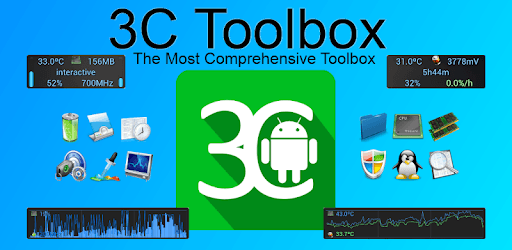
3C All-in-One Toolbox is an Android app developed and published by 3c at Google Play Store on Sep 27, 2012 for Android users. 3C All-in-One Toolbox is so popular that it has gained 1799033 installs so far and growing.
Are you tired of cluttering your phone with multiple apps for different tasks? Look no further than 3C All-in-One Toolbox, the ultimate tools app that brings together a comprehensive collection of utilities in one place. With its spectacular and configurable user experience, this app is a game-changer for both beginners and experts alike.
One of the standout features of 3C All-in-One Toolbox is its task manager, which has been hailed as priceless by users. It allows you to easily manage and end tasks, ensuring that your phone runs smoothly and efficiently. However, some users have reported occasional issues with tasks getting stuck, which can be a minor inconvenience.
But that's not all - 3C All-in-One Toolbox goes above and beyond other tools apps on the market. It offers a range of additional features that are especially useful for rooted phones. While we can't personally speak to these extra features, many users have praised them for their functionality and effectiveness.
One user even credits 3C All-in-One Toolbox with helping them diagnose a serious hack on their phone. This app provided them with the tools they needed to protect their personal information and regain control of their device. It's a testament to the power and reliability of 3C All-in-One Toolbox.
If you're new to the app and looking for more information on its capabilities, you're in luck. 3C All-in-One Toolbox offers a comprehensive online help section that guides you through each feature and ensures you get the most out of the app. It's a valuable resource for both beginners and advanced users.
One of the standout qualities of 3C All-in-One Toolbox is its beautifully designed interface. Even beginners will find it easy to navigate and follow. The app lays out all the tools of an expert in a beginner-friendly way, making it accessible to users of all skill levels.
When it comes to performance, 3C All-in-One Toolbox delivers precisely and quickly. It does exactly what it promises, and users have praised its efficiency. Plus, the app boasts minimal ads, making for a seamless and uninterrupted user experience. It's a refreshing change from other apps that bombard you with ads at every turn.
One user expresses their gratitude for the minimal ads, saying, "Thank you so much for that!" It's clear that 3C All-in-One Toolbox values user experience and strives to provide a hassle-free environment.
Yes, 3C All-in-One Toolbox is compatible with a wide range of devices, including the Huawei P8 Lite 2017. You can rest assured that this app has your back when it comes to compatibility.
Yes, there is a Pro version of 3C All-in-One Toolbox available for purchase. While the free version offers powerful features that are sufficient for most users, the Pro version unlocks even more advanced functionalities. Consider supporting the developer by purchasing the Pro key to help them continue improving the app.
3C All-in-One Toolbox does not track or collect your personal information. Any accusations suggesting otherwise are unfounded. The developer of this app is dedicated to providing a secure and trustworthy experience for users.
Absolutely! 3C All-in-One Toolbox offers a range of features that work great even without root access. You can still benefit from features like app activity recording, CPU resource monitoring, app locking, and more. Rooting your phone simply unlocks additional functionalities for those who choose to do so.
Overall, 3C All-in-One Toolbox is a must-have app for anyone looking to streamline their phone's performance and access a wide range of tools in one place. With its user-friendly interface, powerful features, and commitment to user experience, this app is a game-changer. Download 3C All-in-One Toolbox today and unlock the full potential of your device!
Yes, you can run 3C All-in-One Toolbox on PC, but first, you will need emulator software installed on your Windows or MAC, which you can download for free. In the below video, you will find 3C All-in-One Toolbox in action. Before you install the emulator, check out the minimum and recommended system requirements to run it seamlessly. They may change depending on which version of the emulator you choose. Therefore, we recommend you download the latest version of the emulator. Below you will find three free Android emulators that we have shortlisted based on their popularity:
Up to date graphics drivers from Microsoft or the chipset vendor.
Storage: 1 GB available under installation path, 1.5GB available hard drive space
Internet: Broadband Internet connection
Regardless of which Android emulator you install, the steps to install, configure, and running the 3C All-in-One Toolbox app on PC are the same.